

You open Spotify, type the username you have used for years, and the app answers with “Incorrect username or password” — even though you know the password is right. Or the login button spins, drops you back to the same screen, or a social login button closes without signing you in at all. Since Spotify changed how sign-in works, the most common reason for Spotify login not working on Android is no longer a forgotten password at all: it is using the wrong identifier to sign in. This guide works through the login failure in the order that matches what actually goes wrong — the identifier, the password, the social login, and only then the app itself.
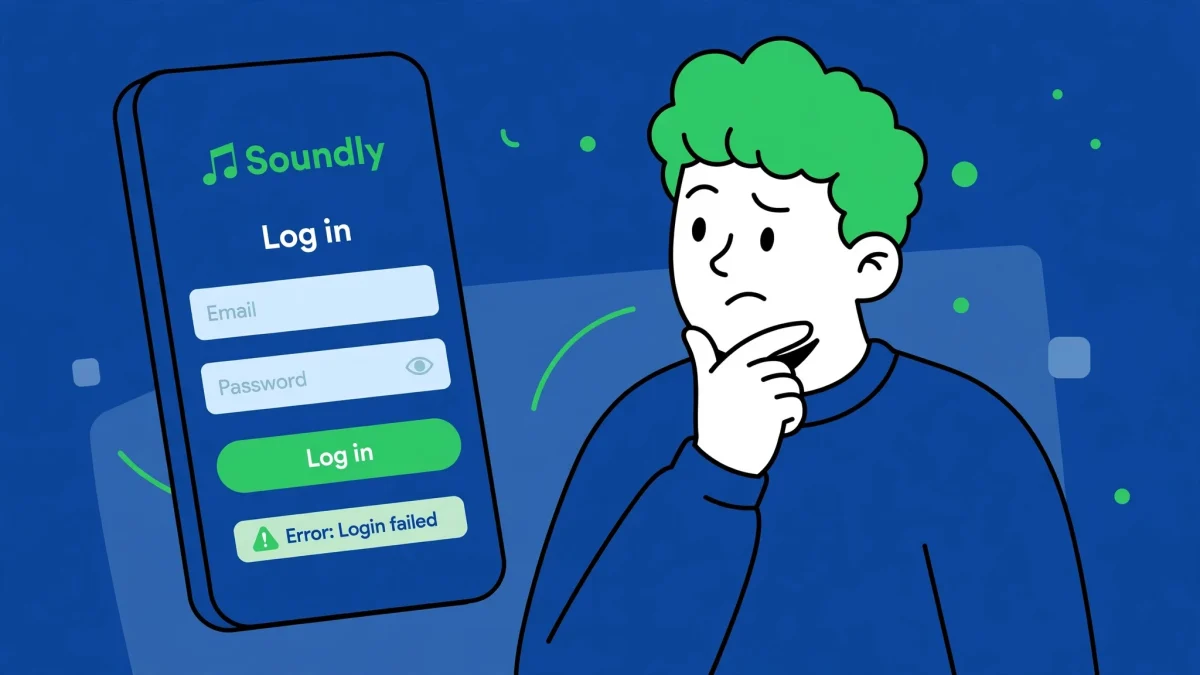
Start with one test that splits the problem in half: open the Spotify Web Player in your phone’s browser and try signing in there. If the web player signs you in, your account is fine and the Android app is the problem — jump to Fix 5. If the web player rejects you too, the problem is your credentials or account, and Fixes 1 to 3 are where the answer is. Covers Android 10 through 14.
Quick Answer
To fix Spotify login not working on Android, sign in with the email address on your account instead of your old username, then reset your password from Spotify’s password reset page if it is still rejected. If a Google, Facebook, or Apple button fails, set a Spotify password for that account’s email and sign in with email and password instead. Covers Android 10 through 14.
In This Guide
- 1. Sign In With Your Email, Not Your Username
- 2. Reset Your Password and Check the Reset Email
- 3. Fix a Failing Google, Facebook, or Apple Login
- 4. Rule Out Connection, Offline Mode, and a Spotify Outage
- 5. Clear Spotify’s Cache and Reinstall Cleanly
- 6. Check Date and Time, VPN, and Account Status
- Frequently Asked Questions
1. Sign In With Your Email, Not Your Username
Spotify stopped accepting usernames for sign-in after September 1, 2026. If your account was created years ago, the username you memorised is now the one thing that will never work on the login screen, no matter how many times you retype the password. The app’s “incorrect” message does not explain this, which is why so many people reset a perfectly good password and still cannot get in.
- On the Spotify login screen, tap Log in and choose the email option instead of entering a username.
- Type the email address that is actually on your Spotify account. If you signed up through Google, Facebook, or Apple, use that account’s email address.
- Type your password carefully — passwords are case-sensitive, and a phone keyboard that auto-capitalises the first letter is a classic silent failure. Tap the eye icon to check what you typed before submitting.
- If you have more than one email address, try each in turn. Signing in with the wrong email can open a different, empty account, which looks like your playlists vanished — it usually means you landed in the wrong account, not that anything was deleted.
2. Reset Your Password and Check the Reset Email
When the password itself is the problem — forgotten, changed on another device, or changed without your knowledge — a reset is the only reliable route. Guessing the old password repeatedly can lock you out temporarily, so stop after two failed attempts and reset instead.
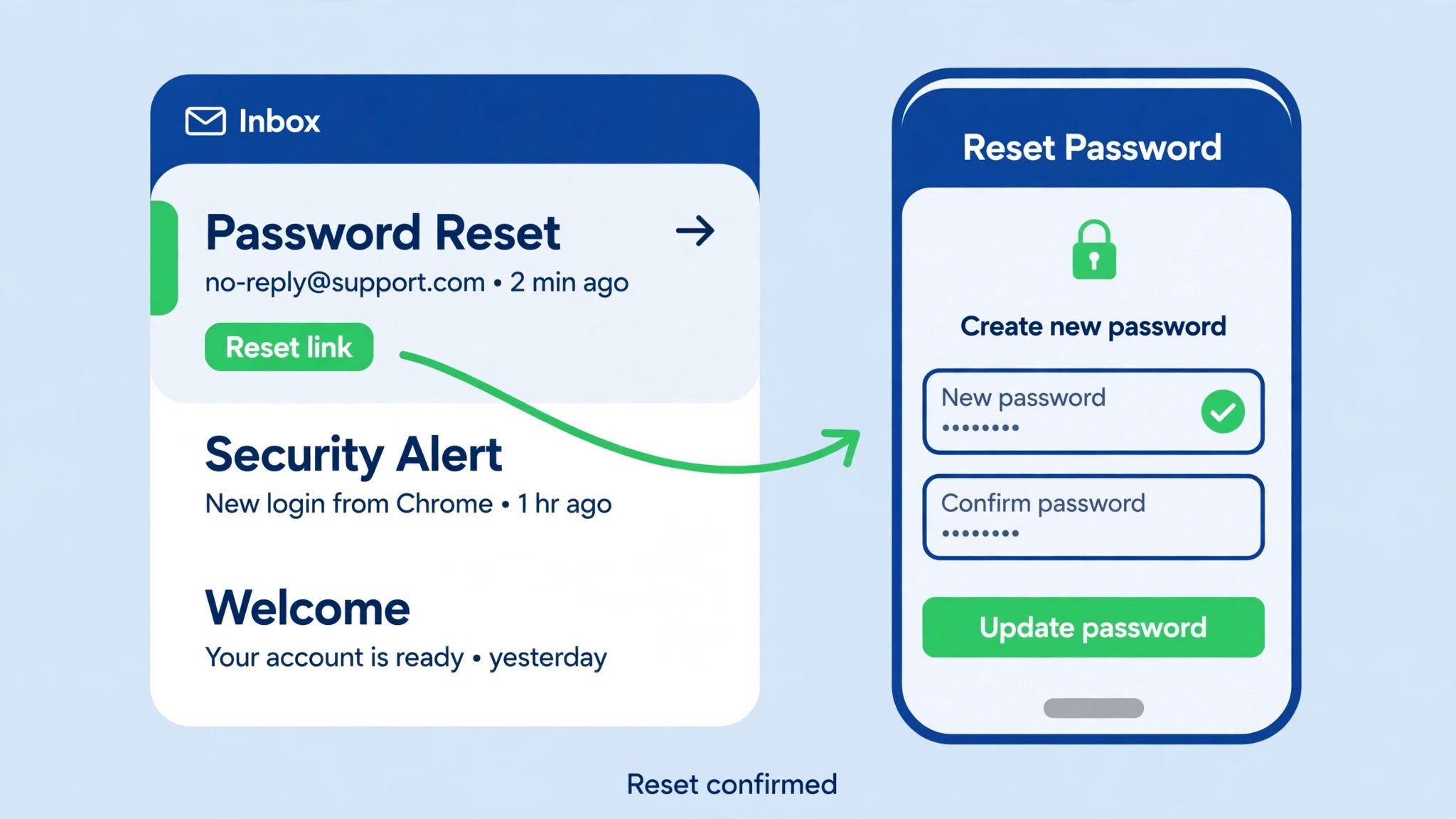
- Open Spotify’s password reset page in your phone’s browser (from the login screen, tap Forgot your password? or search for Spotify’s password reset page).
- Enter the email address on your Spotify account and request the reset link.
- Open your email app and check the inbox, then the spam, junk, and promotions folders — Spotify’s reset mail is filtered surprisingly often. If nothing arrives within a few minutes, request a fresh link rather than reusing an old one.
- If the link says it is invalid or expired, open it in a private or incognito browser window and request a new one there; stale browser sessions are a common cause of invalid-link errors.
- Set a password you have not used for Spotify before, then sign in to the app with your email and the new password.
If Spotify says no account uses that email address, you are trying the wrong address — go back to Fix 1 and work through your other email addresses before concluding the account is gone.
3. Fix a Failing Google, Facebook, or Apple Login
The “Continue with Google”, “Continue with Facebook”, and “Continue with Apple” buttons fail on their own surprisingly often: the social session has expired, the app’s link to that provider broke after an update, or the social account’s email differs from the email on your Spotify account and Spotify opens a brand-new empty account instead of yours.
- First, sign out of the social account in your phone’s browser, then sign back in there, so the social session is fresh before Spotify tries to use it.
- Retry the social button in the Spotify app. If it closes without signing you in, or opens an empty account with no playlists, stop using the button — it is not going to start working by repetition.
- Instead, create a Spotify password for that account: use the password reset page with the email address of the Google, Facebook, or Apple account you signed up with, and set a password.
- Now sign in to Spotify with that email address and the new password. You should land in your original account with your playlists intact.
- Once you are in, you can re-link the social login from Spotify’s account settings if you want the button back for next time.
4. Rule Out Connection, Offline Mode, and a Spotify Outage
Some login failures are not login failures at all. If the app says you are offline, or the sign-in button spins forever, Spotify never got to check your credentials — the request died on the way. Fixing the connection first saves a pointless password reset.
- Open another app or a web page to confirm the phone itself is online. If nothing loads, fix the connection first: toggle Airplane mode on for 15 seconds, then off, and retry on mobile data if Wi-Fi is the failing side.
- Check whether Spotify’s Offline Mode got switched on: if you can open the app while already signed in on another device, look under Settings for Offline Mode and turn it off — in Offline Mode the app cannot reach the sign-in servers at all.
- Check Spotify’s service status or outage reports. If other users are reporting sign-in problems at the same time, wait — no phone-side fix will help until Spotify’s side recovers.
- Turn off any VPN for the login attempt. VPN addresses are sometimes blocked or throttled at sign-in, and the failure looks exactly like a credential problem.
5. Clear Spotify’s Cache and Reinstall Cleanly
When the web player signs you in but the Android app refuses, the app’s local state is corrupted — a stale token, a broken session file, or an update that half-applied. Clearing storage and reinstalling gives the app a clean slate, and it is the fix that finally works for most app-only login failures.
- Open Settings > Apps > Spotify > Storage & cache and tap Clear cache first, then reopen Spotify and retry. Cache alone rarely fixes a login failure, but it costs nothing.
- If that fails, return to the same screen and tap Clear storage (labelled Clear data on some phones). This signs you out locally and removes downloaded songs — your playlists and library live in your account, not on the phone, so they return when you sign back in.
- Still stuck? Uninstall Spotify completely, restart the phone, and reinstall from the Google Play Store. A restart between uninstall and reinstall matters: it clears any wedged app process that would otherwise survive.
- After reinstalling, sign in with your email and password — not the username, and not a social button on the first attempt — so you test the cleanest login route first.
- Check the Play Store for a Spotify update before reinstalling if one is offered; very old app versions can be refused by Spotify’s servers outright.
6. Check Date and Time, VPN, and Account Status
The last group of causes is small but stubborn: a phone clock that is wrong breaks the security check on sign-in tokens, a VPN or work profile can route sign-in traffic through a blocked address, and a disabled or region-mismatched account will refuse every login no matter how correct the password is.
- Set the clock to automatic: Settings > System > Date & time (Samsung: General management > Date and time; Xiaomi: Additional settings > Date & time) and turn on Set time automatically and Set time zone automatically.
- Disconnect any VPN completely and retry the login with it off. If login works without the VPN, switch the VPN’s server location before turning it back on.
- Check for an account problem: open Spotify’s account page in a browser. If you cannot sign in there either and the password reset says the account does not exist or is disabled, the account itself needs Spotify support — look for the account recovery form on Spotify’s support site and have the original signup email ready.
- As a last resort, contact Spotify support from the account page with the email on the account, the error message shown, and the fact that the web player test from the start of this guide failed too — that single detail tells support the fault is account-side.
Watch: Spotify Login Error Step by Step
Prefer a walkthrough? This video covers fixing Spotify login errors step by step:
Video by App Ultra — full credit to the creator.
Related Guides
Frequently Asked Questions
Why does Spotify say my password is wrong when I know it is right?
Most often you are signing in with a username, which Spotify no longer accepts — use the email address on the account instead. The other common cause is auto-capitalisation on a phone keyboard changing the first letter of the password. Tap the eye icon to verify what you actually typed.
Why did Spotify open a brand-new empty account when I signed in?
You signed in with a different login method than the one you originally used — for example Google instead of email, or a different email address. Sign out and sign in with your original method; your playlists are still in the original account.
Will clearing Spotify’s storage delete my playlists?
No. Playlists, saved albums, and your library are stored in your Spotify account. Clearing storage only removes local files and downloaded songs from that phone. Sign back in with the same account and everything returns; downloads need re-downloading over Wi-Fi.
By Sameer Zehri | App Fix Guru Editor | Last updated: November 2026