

An Android phone that won’t turn on is a different kind of panic from any app error: there is no screen to read, no settings menu to open, and no way to tell at a glance whether the phone is dead, frozen, or just deeply discharged. Before you assume the worst — and before you pay for a repair — work out which of those three states you are in. A frozen phone can be force-restarted in seconds; a fully drained one may need half an hour on the charger before it shows any sign of life. These 7 fixes for an Android phone that won’t turn on are ordered by what actually causes the problem most often, and they cover Android 10 through 14 across Samsung, Pixel, and Xiaomi phones.

Quick Answer
If your Android phone won’t turn on, first force-restart it (hold Power + Volume Down for 10–30 seconds). If nothing happens, charge it for at least 30 minutes with a known-good charger and cable — a fully drained battery often shows no screen at all — then force-restart again while it is still plugged in.
In This Guide
- Fix 1: Force-Restart the Phone (It’s Probably Frozen, Not Dead)
- Fix 2: Charge It Properly — 30 Minutes, the Right Charger
- Fix 3: Rule Out the Screen, Not the Phone
- Fix 4: Clean the Charging Port and Strip Away Accessories
- Fix 5: Boot Into Recovery Mode and Wipe the Cache Partition
- Fix 6: Factory Reset From Recovery (Last Software Resort)
- Fix 7: When It Is Hardware — and What to Tell the Repair Shop
Fix 1: Force-Restart the Phone (It’s Probably Frozen, Not Dead)
The most common reason a phone “won’t turn on” is that it never actually turned off — it froze mid-crash, mid-update, or mid-boot, with the screen black and the system unresponsive. A normal power-button press does nothing because the system is not listening. A force restart cuts through that state without touching your data.
- Press and hold the Power button + Volume Down button together for 10–30 seconds. On Samsung, hold them for at least 7 seconds until the phone vibrates and the logo appears; on Pixel and most other brands, hold for about 30 seconds.
- Release the buttons the moment you feel a vibration or see a logo. If the phone boots, let it finish — it may take longer than usual after a forced restart.
- If nothing happens, try holding only the Power button for a full 30 seconds. Some Xiaomi and older models respond to the single-button hold rather than the combination.
- Remove the case first if it makes the buttons hard to press.

A force restart does not erase anything. If your phone has been freezing repeatedly before this, note that — a pattern of freezes points to a bad app or failing storage, and that matters for Fix 5.
Fix 2: Charge It Properly — 30 Minutes, the Right Charger
A battery drained to absolute zero does not behave like a low battery. The phone may show no charging icon, no LED, and no response to the power button — for up to 30 minutes — because the battery first has to reach a minimum voltage before the phone will attempt to boot. Most people give up after two minutes and conclude the phone is dead.
- Connect the phone to its original charger and cable, or a charger with matching wattage, plugged into a wall outlet — not a laptop USB port, which delivers far less power.
- Leave it completely alone for at least 30 minutes. Do not keep pressing the power button during this time.
- After 30 minutes, while it is still plugged in, force-restart (Power + Volume Down, as in Fix 1).
- If there is still no sign of life, swap the cable, then swap the charger, then try a different wall outlet. Test the charger on another device if you can — a dead charger is a much cheaper problem than a dead phone.
- If your phone supports wireless charging, try a wireless pad as well: it bypasses the USB port entirely, which immediately tells you whether the port is the problem.
Watch for small signs during charging: a faint vibration when the cable is plugged in, a brief LED blink, or slight warmth. Any of those means the phone is receiving power — keep charging.
Fix 3: Rule Out the Screen, Not the Phone
Sometimes the phone is on and the screen is not. A failed display or a loose display connector after a drop can look exactly like a dead phone — except the phone itself is running underneath.
- Plug the phone in and listen: a charging chime or vibration means the phone is alive.
- Call the phone from another device. If it rings or vibrates, the phone is on — the display is the fault, not the power system.
- Connect the phone to a computer with a USB cable. If the computer detects a device (even without showing files), the phone’s main board is powered and running.
- If the phone shows signs of life but the screen stays black, try a force restart once more, then skip to Fix 7 — a display repair is a shop job.
This check changes the whole diagnosis: a phone that rings needs a screen repair, while a phone that does nothing at all has a power or board problem.
Fix 4: Clean the Charging Port and Strip Away Accessories
Lint is the quiet saboteur of charging. Pocket lint packs into the USB-C port over months until the cable no longer seats fully — the phone charges intermittently, then one day not at all. A swollen battery or a damaged port can also stop a phone from powering on, and both need spotting before you keep forcing restarts.
- With the phone unplugged, shine a light into the charging port. If you see packed lint, gently loosen it with a wooden toothpick or a plastic pick — never a metal pin, which can short the pins inside.
- Blow out loose dust with a short burst of compressed air, held upright so no liquid escapes.
- Plug the cable back in and check that it seats flush, with no wobble. A cable that rocks side to side is not making proper contact.
- Remove the case, and if your phone has a removable back or tray, remove the SIM card and SD card, then try powering on. A shorted SD card or a swollen battery pressing on internals can both block boot.
- Inspect the phone itself: a screen lifting away from the frame, a back panel bulging, or a sweet chemical smell all point to a swollen battery. If you see any of these, stop — do not charge the phone and do not force restarts. Take it to a repair shop, and keep it away from heat.
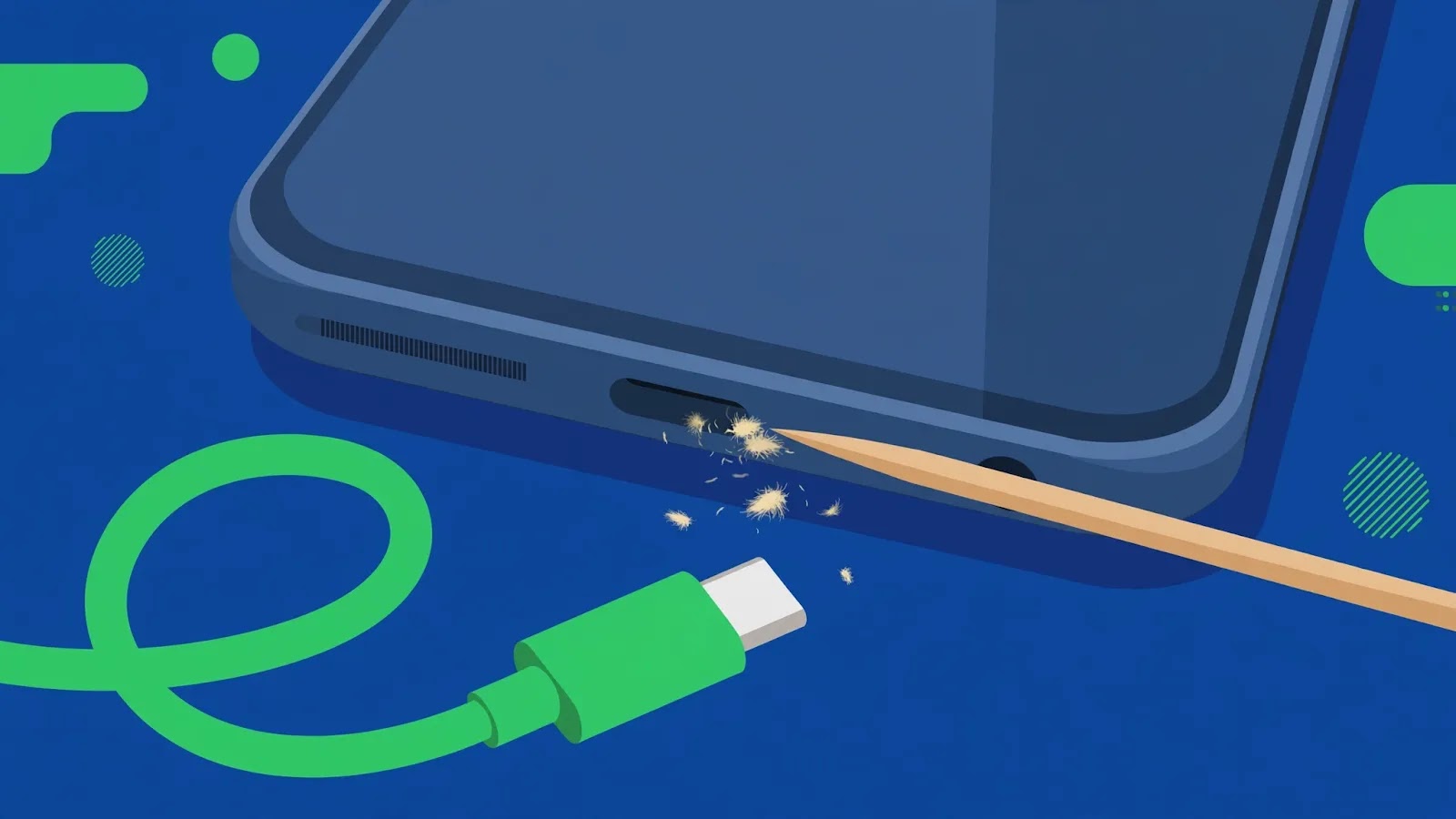
After cleaning, charge for another 15 minutes before judging the result.
Fix 5: Boot Into Recovery Mode and Wipe the Cache Partition
If the phone powers on but never finishes booting — stuck on the logo, or looping back to it — the system cache may be corrupt, often after a failed update. Recovery Mode is Android’s built-in repair menu, and wiping the cache partition clears corrupt temporary system files without deleting your photos, apps, or accounts.
- With the phone off and unplugged, press and hold Power + Volume Up (Samsung: Power + Volume Up, then release Power when the logo appears but keep holding Volume Up; Pixel: Power + Volume Down, then select Recovery with the volume keys).
- When the Android robot with “No command” appears, press and hold Power, then press Volume Up once to open the recovery menu.
- Use the volume keys to highlight Wipe cache partition and the power button to select it. Confirm if asked.
- Select Reboot system now. The first boot after a cache wipe is slower than normal — give it several minutes.
- If the phone boots, update the system software promptly and uninstall any app installed just before the problem began.
Do not confuse “Wipe cache partition” with “Wipe data/factory reset” — they sit next to each other in the same menu, and the second one erases everything.
Fix 6: Factory Reset From Recovery (Last Software Resort)
If the phone reaches Recovery Mode but will not boot even after a cache wipe, the system itself may be too damaged to repair in place. A factory reset from recovery is the final software step — and it erases all data on the phone, so only use it when you have a backup or have accepted the loss.
- Boot into Recovery Mode as in Fix 5.
- Select Wipe data/factory reset and confirm with Factory data reset.
- When it finishes, select Reboot system now.
- On first setup, sign in with the same Google account that was on the phone before — Factory Reset Protection will ask for it, and the phone stays locked without it.
- Set the phone up as new rather than restoring a full backup immediately: a corrupt app or setting in the backup could bring the failure straight back.
If the phone boots after the reset, the problem was software. If it still will not boot past the logo, the fault is hardware.
Fix 7: When It Is Hardware — and What to Tell the Repair Shop
At this point you have proven the fault is not a freeze, a drained battery, a charger, a port, or corrupt software. The remaining causes are hardware: a failed battery, a broken power button, a damaged charging port, or a board-level fault — and water damage or a hard drop makes board damage much more likely.
- Write down everything you tried, in order, and what the phone did at each step (vibrated, showed a logo, stayed dark). A shop that gets this history diagnoses faster.
- Mention any drop, water exposure, or swelling, and whether the problem started after an update — each points to a different component.
- Ask the shop to test the battery first: a battery swap is the cheapest repair of this kind and the most common fix for a phone that shows no life at all.
- Do not approve a board-level repair without a second quote — on older or budget phones it can cost more than the phone is worth.
- While the phone is away, check your Google account backup from another device (photos.google.com, contacts.google.com) — many people discover their backup was on all along.
A phone that will not turn on feels final, but most recover at Fix 1 or Fix 2 — the steps above exist to make sure you find that out before spending anything.
Related Guides
Watch: Android Phone Won’t Turn On Fixed Step by Step
This video walks through fixing an Android phone that won’t turn on:
Video by Tech Tests & Troubleshooting — full credit to the creator.
Frequently Asked Questions
How long should I charge a phone that won’t turn on?
At least 30 minutes on a wall charger before concluding anything. A fully drained battery needs time to reach the minimum voltage for booting, and the screen may stay blank the whole time. If there is still no response after 30 minutes plus a force restart, try a different cable and charger.
Will a force restart delete my photos?
No. A force restart (Power + Volume Down) simply cuts power to a frozen system and reboots it. It does not erase data. Only a factory reset — from Settings or from Recovery Mode — deletes your data.
My phone vibrates but the screen stays black — is it dead?
No, that vibration means the phone is powering on and the fault is most likely the display or its connector. Try a force restart once, then take it to a repair shop for a screen diagnosis rather than continuing with software fixes.
By Sameer Zehri | App Fix Guru Editor | Last updated: October 2026