

You open Instagram, tap the magnifying glass, and the Explore page just sits there — blank grey tiles, a spinning circle, or the same few posts that never refresh. Your feed and stories may work fine, which makes it more confusing. This guide fixes Instagram Explore page not loading on Android, starting with the causes that actually break Explore first: its heavy image grid, its cached recommendations, and the data-saving settings that throttle it.
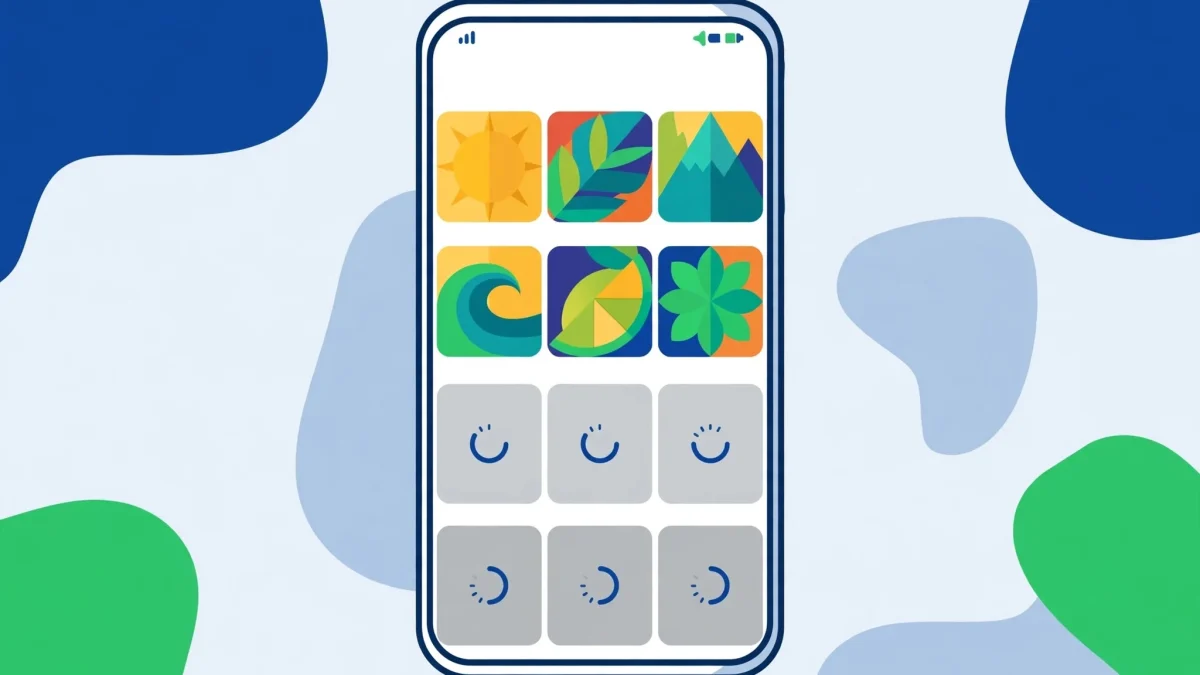
Explore is different from your home feed. It has to pull dozens of photos and Reels from accounts you do not follow, all at once, and rank them for you. That makes it the first thing to fail when the app’s cache goes stale, when a data-saver setting kicks in, or when your connection is just weak enough for one photo to load but not a whole grid. Work through the five fixes below in order — most people get Explore back by fix two or three.
Quick Answer
If the Instagram Explore page is not loading on Android, force-stop Instagram, clear only its cache (Settings > Apps > Instagram > Storage > Clear cache), turn off Instagram’s Data Saver and your phone’s Data Saver, then reopen the app on a different network. If the grid is still blank, update Instagram and sign out and back in to refresh your Explore recommendations. Covers Android 10 through 14.
In This Guide
1. Force-Stop Instagram and Clear Its Cache
Explore’s grid is built from cached thumbnails and recommendation data. When that cache corrupts — usually after an app update or a failed load on weak Wi-Fi — Explore shows blank tiles while the rest of the app keeps working. Clearing the cache throws away those stale tiles without touching your account, posts, or saved items.
- Open Settings > Apps > Instagram. On Samsung phones the path is Settings > Apps > Instagram; on Pixel it is Settings > Apps > See all apps > Instagram; on Xiaomi (HyperOS) it is Settings > Apps > Manage apps > Instagram.
- Tap Force stop, then confirm. This ends the stuck Explore session completely instead of just minimising the app.
- Tap Storage & cache (or Storage on Samsung) and tap Clear cache. Do not tap Clear data here — that signs you out and wipes local settings.
- Reopen Instagram, wait a few seconds on the home feed, then tap the magnifying glass. The grid should rebuild tile by tile.
If Explore loads but looks frozen on old posts, pull down on the page twice. A single pull sometimes only replays the cached grid; the second pull forces a fresh request.
2. Turn Off Data Saver in Instagram and on Your Phone
Data Saver is the most common silent cause of an Explore page that never finishes loading. It tells Instagram to load fewer, lower-quality images — and on a grid of dozens of tiles, that often means most tiles never arrive at all. There are two places to check: inside Instagram, and in your phone’s own settings.
- In Instagram, go to your profile, tap the three-line menu, then Settings and privacy > Data usage and media quality.
- Turn off Data Saver if it is on. Set media quality to the standard option rather than the data-saving one.
- Now go to your phone’s Settings > Apps > Instagram > Mobile data and make sure Allow background data is on, plus Unrestricted data usage if your phone shows it.
- Check your phone-level Data Saver too: Settings > Network & internet > Data Saver (Pixel) or Settings > Connections > Data usage > Data saver (Samsung). If it is on, either turn it off or add Instagram to its unrestricted list.
- Reopen Instagram and tap Explore. Tiles should now load in full quality instead of stalling halfway.
This fix also explains a pattern many people notice: Explore works on Wi-Fi at home but not on mobile data, or the other way round. The data-saver rule often applies to one connection type only.
3. Switch Networks and Reset Your Connection
Explore needs a steadier connection than a single photo post does. A Wi-Fi network with a captive portal (hotel, café, office), a weak signal, or a DNS hiccup can leave Explore spinning while your browser still opens pages. The fastest way to find out is to change networks, not to keep refreshing the same one.
- Turn Wi-Fi off and open Explore on mobile data. If it loads, the problem is your Wi-Fi network, not Instagram.
- If you are on public Wi-Fi, open your browser and check whether a sign-in page appears. Complete it, then retry Explore.
- Toggle Airplane mode on for 15 seconds, then off. This forces a fresh network registration and clears a stuck mobile-data session.
- If mobile data also fails, restart your router (unplug it for 30 seconds) and retry on Wi-Fi once it is back.
- As a last network step, reset network settings: Settings > System > Reset options > Reset Wi-Fi, mobile & Bluetooth. Note this forgets saved Wi-Fi passwords, so only use it if the earlier steps failed.
If Explore loads on mobile data but never on your home Wi-Fi, the router’s DNS or a content filter is the likely culprit — try your phone’s private DNS setting (Settings > Network & internet > Private DNS > Automatic) before anything more drastic.
4. Update Instagram and Refresh Your Account Session
Instagram changes its recommendation system regularly. An app version that is a few months old can stop talking to the current Explore service properly, and a wedged login session can leave Explore serving a stale, empty grid. Both are fixed in the same pass.
- Open the Google Play Store, search for Instagram, and tap Update if one is available. If no update shows, your version is current.
- Restart your phone after updating. This clears any process state left over from the old version.
- In Instagram, go to your profile > menu > Settings and privacy, scroll down, and tap Log out. Sign back in with the same account.
- Give Explore a full minute on first open after signing back in — it rebuilds your recommendations from scratch, so the first load is slower than usual.
- Also check for a wider outage before going further: search for Instagram outage reports. If many users report Explore down at the same time, wait — no local fix helps a server-side problem.
5. Reinstall Instagram and Retrain Explore
If Explore still will not load after the first four fixes, a clean reinstall removes corrupted app files that cache-clearing cannot reach. Your account, posts, followers, and saved items live on Instagram’s servers, so reinstalling does not delete them — you just sign back in.
- Long-press the Instagram icon and tap Uninstall. Restart your phone.
- Reinstall Instagram from the Google Play Store and sign in.
- Open Explore and scroll for a minute or two. The first grid may look generic — that is normal after a reinstall.
- Retrain it over the next day or two: tap Not interested on posts you do not want, and like or save posts you do want. Explore relearns from those signals quickly.
- If Explore loads for other accounts on the same phone but not yours, report it inside the app: shake the phone or go to Settings and privacy > Help > Report a problem, and describe the blank Explore grid. Account-specific recommendation faults need Instagram’s side to clear.
One thing to skip: repeatedly clearing data, reinstalling, and signing in and out in the same hour. That churn can trigger temporary account checks, and it does not fix a problem that is already ruled out by the steps above.
Watch: Instagram Explore Page Not Loading Step by Step
Prefer a walkthrough? This video covers Instagram Explore page not loading on Android step by step:
Video by FutureForge — full credit to the creator.
Related Guides
Frequently Asked Questions
Why does my Instagram feed work but Explore does not load?
Your home feed pulls posts from accounts you follow, which is a much smaller job. Explore has to fetch and rank dozens of posts from strangers at once, so it fails first when the cache is stale, Data Saver is throttling images, or the connection is weak.
Will clearing Instagram’s cache delete my posts or messages?
No. Clearing cache only removes temporary files like thumbnails. Your posts, messages, followers, and saved items stay on your account. Clearing data is different — that signs you out — so use the Clear cache button only for this fix.
Why is my Explore page showing random posts instead of my interests?
That usually follows a cache clear, reinstall, or an Instagram recommendation change: Explore falls back to broadly popular posts until it relearns your tastes. Use Not interested on unwanted posts and interact with the ones you like, and the grid sharpens again within a day or two.
By Sameer Zehri | App Fix Guru Editor | Last updated: November 2026