

You open Facebook, scroll for a minute, and suddenly you are staring at the login screen again — or you pick up your phone in the morning and the facebook app keeps logging out on android for no reason you can see. No password change, no new phone, nothing you did. That random logout is almost always Facebook’s security system doing its job too eagerly: a session from another device, a location jump from a VPN, or a phone that keeps killing Facebook in the background so its session cannot stay alive. The 5 fixes below follow that real order — security first, then connection, then the phone itself — and they cover Android 10 through 14.
Quick Answer
If the facebook app keeps logging out on android, first check where else your account is signed in — an unfamiliar device or a VPN changing your apparent location is the most common trigger. Sign out unknown sessions, turn the VPN off, and set Facebook to Unrestricted under battery settings so Android stops killing its session. Only then clear the cache or reinstall.
In This Guide
Fix 1: Check Active Sessions and Sign Out Devices You Don’t Recognise
Facebook watches where your account is signed in. If it sees a login from a device or city you never use — or too many sessions at once — it can end your phone’s session as a precaution. This is the first thing to rule out, because no cache clear will fix a security logout.
- On a computer or a browser on your phone, open Facebook, go to Settings & privacy → Settings → Accounts Centre → Password and security → Where you’re logged in.
- Look through the list. Your own phone, tablet and computer should be there. Anything you do not recognise — an old phone you sold, a friend’s device, a city you have never visited — tap it and choose Log out.
- If anything looks genuinely unfamiliar, change your password right there under Password and security → Change password. Changing it signs every device out, so you start from one clean session — keep your new password somewhere safe before you do this.
- Log back in on your Android phone only, use it normally for a day, and watch whether the logouts stop. If they do, a stray session was the cause, and you are done.
Fix 2: Turn Off Your VPN and Stop the Location Jumps
A VPN can make Facebook think you teleported. One minute your account is in Karachi, the next it appears to be in another country, and Facebook’s security system may treat that jump as suspicious and end your session. Free VPN apps that switch servers on their own are the worst offenders here.
- If you use a VPN, turn it off completely — not just pause it — then force-close Facebook and open it again.
- Use Facebook for a few hours without the VPN. If the logouts stop, the VPN was the trigger. You can still use a VPN for other things, but keep it off while you are actively using Facebook, or stick to one server location instead of letting the app hop between countries.
- Check the same for proxy settings: Settings → Network & internet → VPN should show nothing active, and on Samsung phones check Settings → Connections → More connection settings → VPN.
- If you need a VPN for work or another app, log out of Facebook first, then connect the VPN, then log back in from that one location — a single consistent location looks normal to Facebook, while mid-session jumps do not.
Fix 3: Stop Android Killing Facebook in the Background
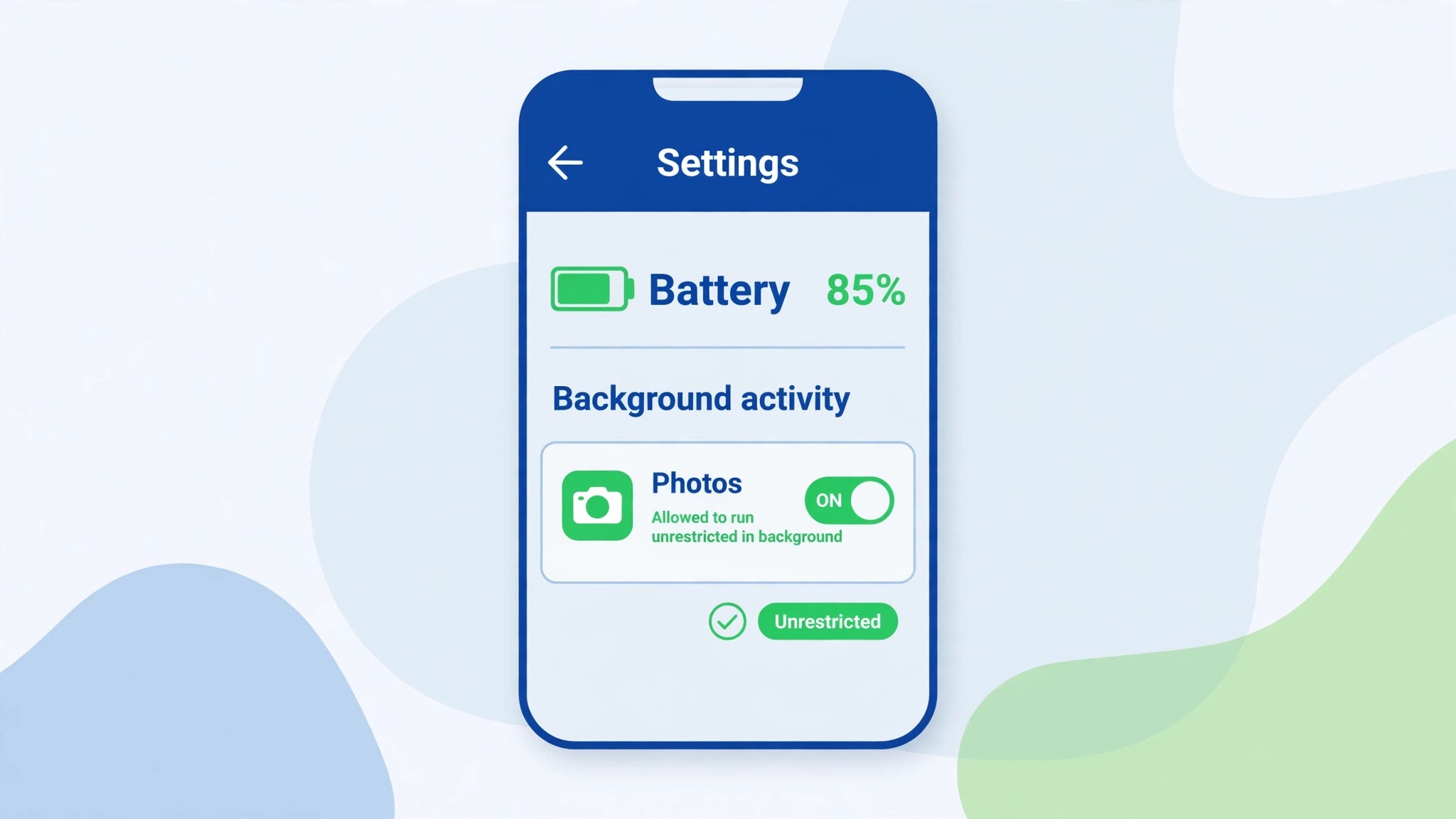
On many Android phones, aggressive battery saving ends Facebook’s background process when the screen is off, and when you reopen it, the session is gone and you are back at the login screen. This one is easy to mistake for a Facebook bug — the giveaway is that logouts happen after the phone has been idle or low on battery.
- Go to Settings → Apps → See all apps → Facebook → App battery usage and choose Unrestricted. On Samsung phones the path is Settings → Apps → Facebook → Battery → Unrestricted; on Xiaomi (HyperOS) it is Settings → Apps → Manage apps → Facebook → Battery saver → No restrictions.
- On the same App info page, check Mobile data & Wi-Fi (Samsung: Mobile data) and make sure Background data is switched on, so Facebook can keep its session alive even when you are not looking at it.
- If your phone has a device-care or battery manager that puts unused apps to sleep, remove Facebook from that list: Samsung’s Settings → Battery and device care → Battery → Background usage limits → Never sleeping apps is the usual hiding place.
- Restart the phone once, log in, and leave it idle for an hour. If you come back still signed in, battery optimisation was your culprit.
Fix 4: Clear Facebook’s Cache and Update the App
When the logout is caused by damaged temporary data rather than security, the app itself misbehaves: it may log you out mid-scroll or fail to hold a login at all. A cache clear is safe — it does not delete your posts, photos or messages, which live on Facebook’s servers.
- Go to Settings → Apps → See all apps → Facebook → Storage & cache and tap Clear cache. Do not tap Clear storage yet — that wipes the login completely and is only needed if the cache clear fails.
- Open the Play Store, search for Facebook, and install any available update. Logout bugs have shipped in individual Facebook versions before, and they are usually patched in the next release.
- Log in again and use the app for a day. If the logouts continue, go back to the same Storage screen and this time tap Clear storage, then log in fresh — this resets the app to a clean state without touching anything on your account.
Fix 5: Reinstall Facebook and Log In Fresh
If nothing above held, the app installation itself may be damaged — a failed update can leave files in a state where the app cannot keep a session at all. A clean reinstall is the most thorough reset short of touching your account.
- Long-press the Facebook icon and tap Uninstall, or go to Settings → Apps → Facebook → Uninstall.
- Restart the phone. This clears any leftover process holding the old session.
- Install Facebook fresh from the Play Store and log in once. Before anything else, make sure your phone’s date and time are automatic: Settings → System → Date & time → Set time automatically. A clock that is minutes off can break login sessions on some phones.
- If the fresh install still logs you out within a day, the problem is almost certainly on the account side — go back to Fix 1, check for a security alert in Facebook’s notifications, and use the Report a problem option under the app’s Help & support menu.
Most people find the answer in Fix 1 or Fix 3: either a forgotten session somewhere else, or a phone that keeps putting Facebook to sleep. Work through them in order and you will know which one it was, instead of guessing.
Related Guides
Watch: How to fix Facebook keeps logging out in video form.
Video by The Savvy Professor — full credit to the creator.
Watch: How to fix Facebook keeps logging out in video form.
Video by The Savvy Professor — full credit to the creator.
Frequently Asked Questions
Why does Facebook log me out even though I never changed my password?
Usually because of a security trigger: a login from another device, a VPN location jump, or a session Facebook decided looked unusual. Check “Where you’re logged in” first — that list explains most mystery logouts.
Will clearing Facebook’s cache delete my photos or messages?
No. Cache is temporary data on your phone. Your posts, photos and messages are stored on your Facebook account, and they reappear as soon as you log back in.
Does turning off battery optimisation for Facebook drain my battery?
Only slightly. Unrestricted lets Facebook run in the background normally instead of being force-stopped, which is how the app is designed to work. If battery life matters more, you can keep optimisation on and accept that you may need to log in more often.
By Sameer Zehri | App Fix Guru Editor | Last updated: October 2026