

Mid-episode, or the moment you open the app, Netflix stops with a plain, unhelpful line: “We have a technical problem” and nothing else — no error code, no hint about what broke. That vagueness is the whole difficulty with this message. It can mean Netflix’s servers are struggling, your home network cannot reach them, or the app’s own data has gone stale, and each cause needs a different fix. This guide for the Netflix “We have a technical problem” error on Android starts with the checks that tell you which of those three it is, so you do not waste an hour reinstalling an app that was never the problem.
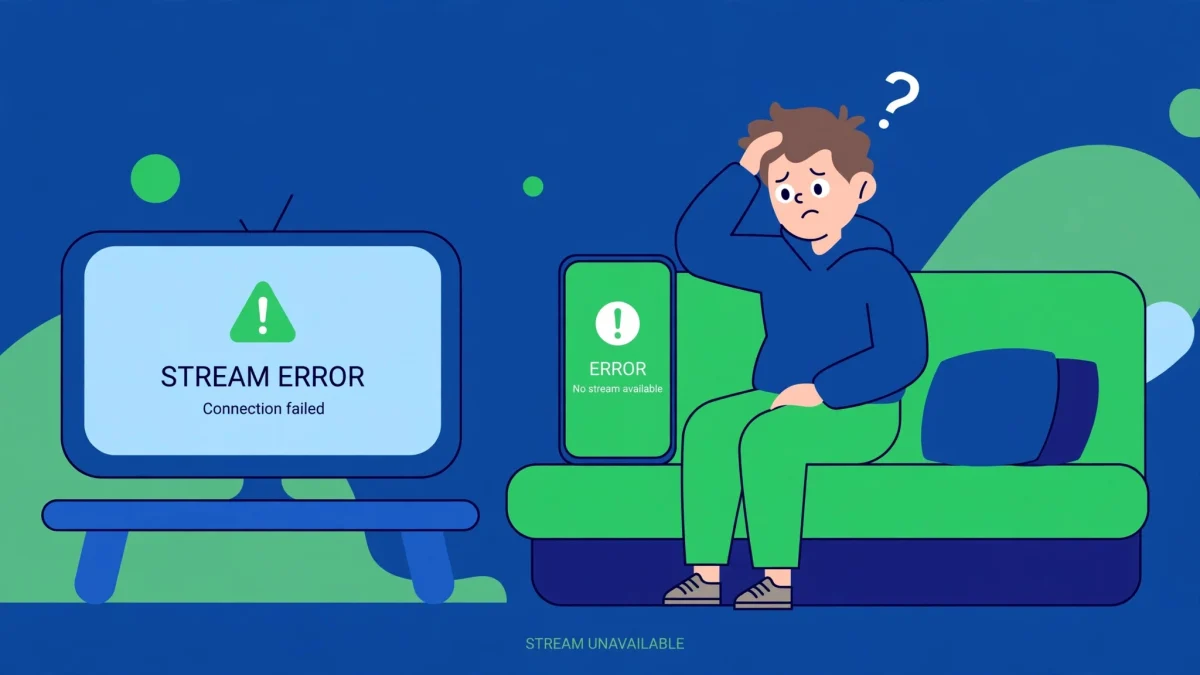
Do this before anything else: try Netflix on another device on the same Wi-Fi — a second phone, a laptop browser, or a TV. If it fails there too, the fault is Netflix or your network, and Fixes 1 and 3 matter most. If it works on the other device but not on your phone, the fault is in this phone’s app, and Fix 4 is your shortcut. This is a different fault from Netflix refusing to load at all or showing a black screen during playback — those have their own guides linked below. Covers Android 10 through 14.
Quick Answer
For Netflix’s “We have a technical problem” error on Android, first check whether Netflix is down and test another device on the same network. If only your phone fails, force-stop Netflix and clear its cache. If every device fails, restart your router, turn off any VPN, and try mobile data — that points at the network, not the app.
In This Guide
1. Check Whether Netflix Itself Is Down
Netflix’s “technical problem” message appears word-for-word when Netflix’s own servers are degraded, and no phone setting will fix a server-side fault. Checking this first is not a delay — it is the step that prevents every other step from being wasted effort.
- Open Netflix’s status page in your phone’s browser and look for a service banner. Anything other than a clean “Netflix is up” message means the problem is on Netflix’s side.
- Cross-check with outage reports from other users. A sudden spike of identical “technical problem” reports at the same time is a strong sign of a Netflix incident, not a fault in your phone.
- Test a second device on the same network, as described above. Netflix failing on two unrelated devices at once almost never means two phones broke simultaneously — it means the service or the network is at fault.
- If Netflix is down, wait 15 to 30 minutes and try again.
If the status page is clean and other devices work, move on — the fault is local, and the rest of this guide will find it.
2. Restart the Phone, the App, and the Router
When only your phone is affected, the usual culprit is a wedged app process or a stale network session — both of which a proper restart clears. Note the word proper: swiping Netflix away from recent apps does not fully stop it on many phones.
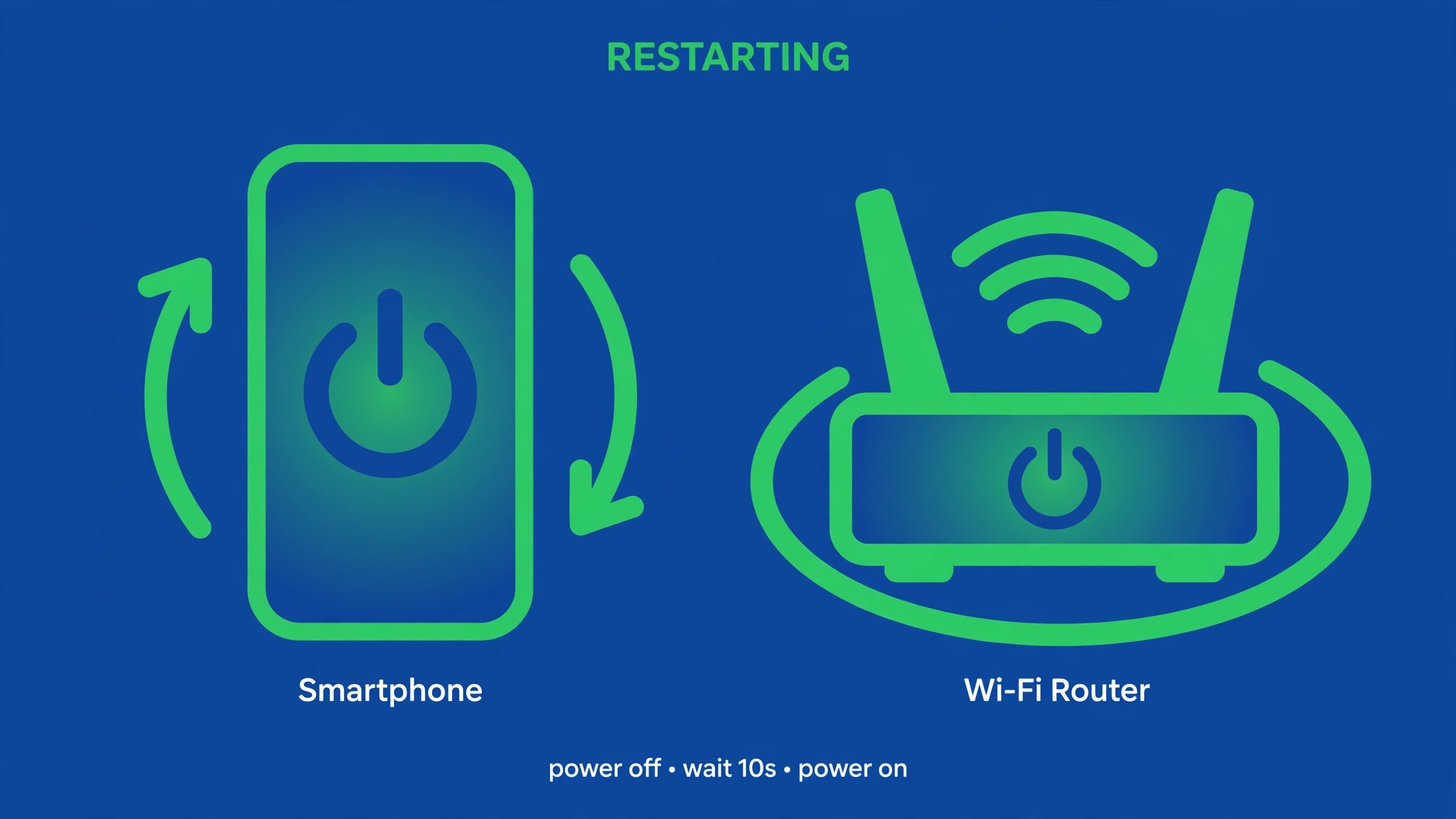
- Long-press the Netflix icon, tap App info, then Force stop, and confirm. This kills the wedged process instead of merely hiding it.
- Restart the phone: hold Power (on Samsung, Side + Volume Down) and tap Restart. Wait for a full boot before reopening Netflix.
- Reopen Netflix and give it a full thirty seconds on the first launch — the app rebuilds local state after a restart, and judging it after five seconds produces false failures.
- If the error persists and other devices on the same Wi-Fi also struggle, restart the router: unplug it for thirty seconds, plug it back in, and wait until it fully comes back before testing again.
3. Turn Off VPN and Switch Networks
A VPN or proxy is the single most common reason a previously working Netflix account suddenly throws a vague technical error. Netflix restricts some VPN traffic, and the app reports the block as a generic technical problem rather than naming the VPN. The same logic applies to restrictive networks: hotel, university, and office Wi-Fi often block streaming traffic outright.
- Disconnect any VPN app completely — pausing is not enough — and close the VPN app from recent apps, then retry Netflix.
- Check for a system-level proxy or always-on VPN profile under Settings > Network & internet > VPN (Samsung: Settings > Connections > More connection settings > VPN) and remove any profile you do not need.
- Switch networks for one test: turn off Wi-Fi and try Netflix on mobile data. If it works on mobile data but not on Wi-Fi, your home network is the problem — router, DNS, or ISP routing — not the app or your account.
- On the Wi-Fi side, one more test that catches stubborn cases: your router’s DNS. Some ISP-supplied DNS servers resolve Netflix’s servers slowly or not at all. Setting the phone’s Private DNS to Automatic under Settings > Network & internet > Private DNS will prove it in minutes.
If Netflix works on mobile data, do not reinstall anything yet. Fix the Wi-Fi side — router restart first, then DNS — because the app was innocent all along.
4. Clear Netflix’s Cache, Then Its Data
Netflix stores artwork, session data, and home-screen content on the phone. After a crash or an interrupted update, that cached data can corrupt, and the app then fails partway through loading with the generic technical-problem message instead of a specific error. Clearing the cache removes the corrupt files without touching your account.
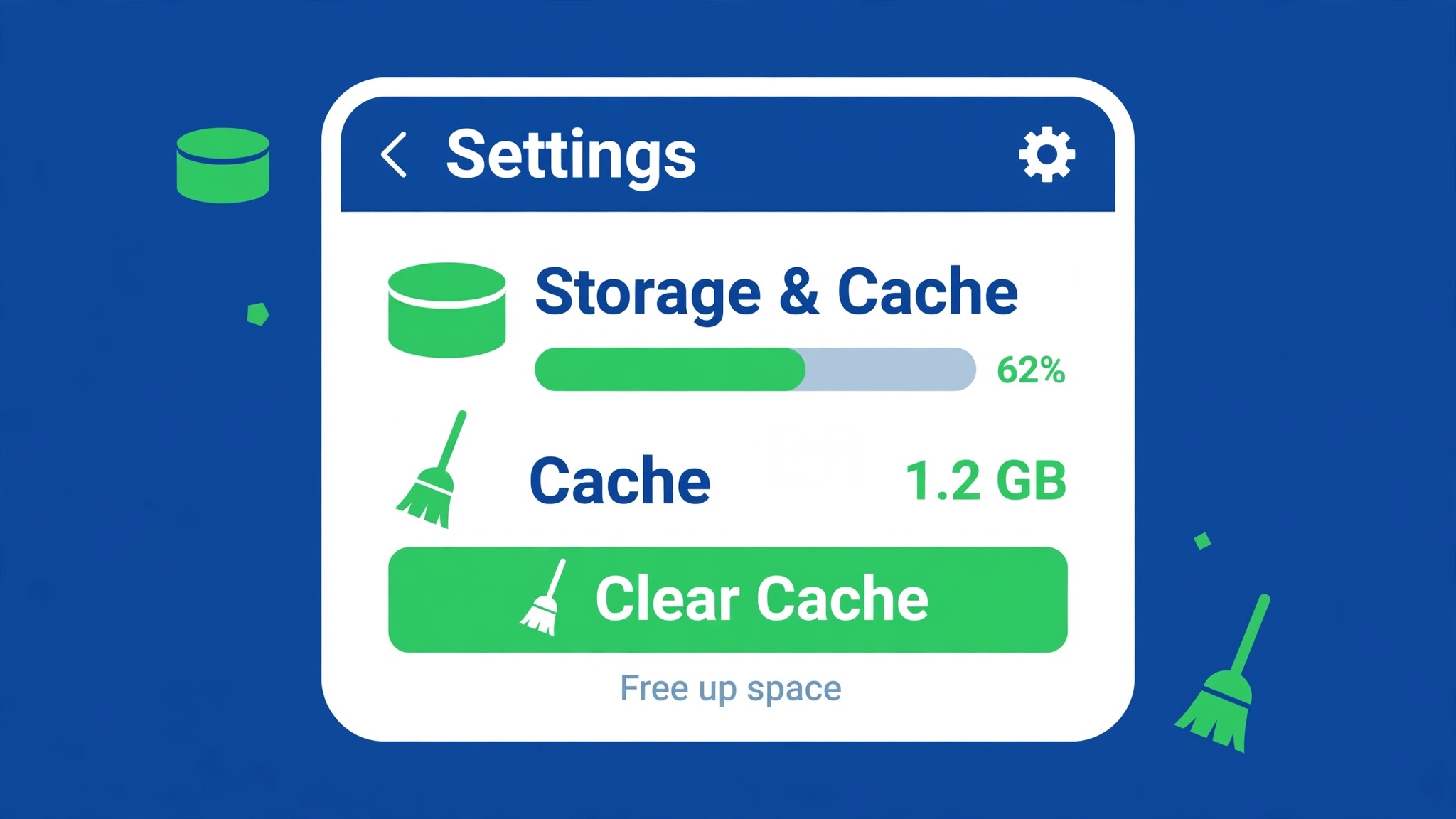
- Long-press the Netflix icon → App info → Storage & cache and tap Clear cache. Do not tap Clear storage yet.
- Force-stop Netflix from the same App info screen, reopen it, and test the title that failed.
- If the error is still there, return to Storage & cache and tap Clear storage (Clear data on some phones). This signs you out of Netflix on that phone and removes downloaded titles — keep your Netflix password ready before you tap it.
- Sign back in and test before changing anything else, so you know this step was the one that fixed it.
Clearing data more than once in the same session does not help further. If one clean pass did not fix it, the cause sits elsewhere in this guide — most likely the network (Fix 3) or the app installation itself (Fix 6).
5. Sign Out, Update the App, and Sign Back In
A session that quietly expired or corrupted will keep producing the same vague error even after the cache is cleared, because the bad session token is refreshed from the account each time. Signing out and back in forces a brand-new session, and updating the app removes bugs that an old version carries.
- Inside Netflix, open your profile menu and choose Sign out (if the app will not open far enough to reach it, use Fix 4’s Clear storage step instead — it signs you out the same way).
- Open the Google Play Store, search for Netflix, and tap Update if one is offered. Also install any pending Android system update under Settings > System > System update.
- Restart the phone after the update so no old Netflix process survives.
- Sign back in to Netflix with the correct account and test the same title. If you have more than one Netflix profile, test a different profile too — a corrupted single profile can throw errors that look account-wide.
- Check your Netflix account itself in a browser: an expired payment method or a membership on hold can also surface as a playback error. Resolve any account alert first, then retry the app.
6. Reinstall Netflix and Check Date, Time, and Storage
When everything above has failed, the remaining suspects are the app’s installation, the phone’s clock, and free storage. Work through this last section once, in order, and stop as soon as Netflix plays.
- Check the clock: Settings > System > Date & time (Samsung: General management > Date and time; Xiaomi: Additional settings > Date & time) and turn on Set time automatically and Set time zone automatically. A clock that is off breaks the security check on Netflix’s session tokens.
- Check free storage under Settings > Storage. Netflix needs breathing room for its cache; a phone with almost no free space can fail mid-load with a generic error. Free up space if you are near full.
- Uninstall Netflix, restart the phone, and reinstall from the Google Play Store. The restart between uninstall and reinstall matters — it clears any leftover process.
- Sign in fresh and test on both Wi-Fi and mobile data before declaring it fixed, so a network-only success does not masquerade as a full fix.
- If the error still appears on every device and every network, and Netflix’s status page is clean, contact Netflix support from the account page with the exact message, the time it started, and the fact that it fails on multiple devices — that combination tells support the fault is not in your phone.
Watch: Netflix Technical Problem Error Step by Step
Prefer a walkthrough? This video covers fixing Netflix connection problems on Android step by step:
Video by D’alba Teaches — full credit to the creator.
Related Guides
Frequently Asked Questions
What does Netflix’s “We have a technical problem” message actually mean?
It is Netflix’s generic message for “something failed between the app and our servers, and we are not telling you which part”. It covers server outages, network blocks (especially VPNs), corrupt app data, and expired sessions — which is why this guide starts by narrowing down which one it is before fixing anything.
Will clearing Netflix data delete my downloads?
Yes — clearing storage signs you out and removes downloaded titles from that phone. Your watchlist, profiles, and viewing history live in your Netflix account and return when you sign back in, but downloads must be downloaded again over Wi-Fi.
Why does Netflix work on mobile data but not on my Wi-Fi?
That pattern points squarely at your home network: the router, its DNS settings, or your ISP’s route to Netflix’s servers. Restart the router first, then test with Private DNS set to Automatic. The app and your account are proven good by the mobile-data success, so do not reinstall anything.
By Sameer Zehri | App Fix Guru Editor | Last updated: November 2026