

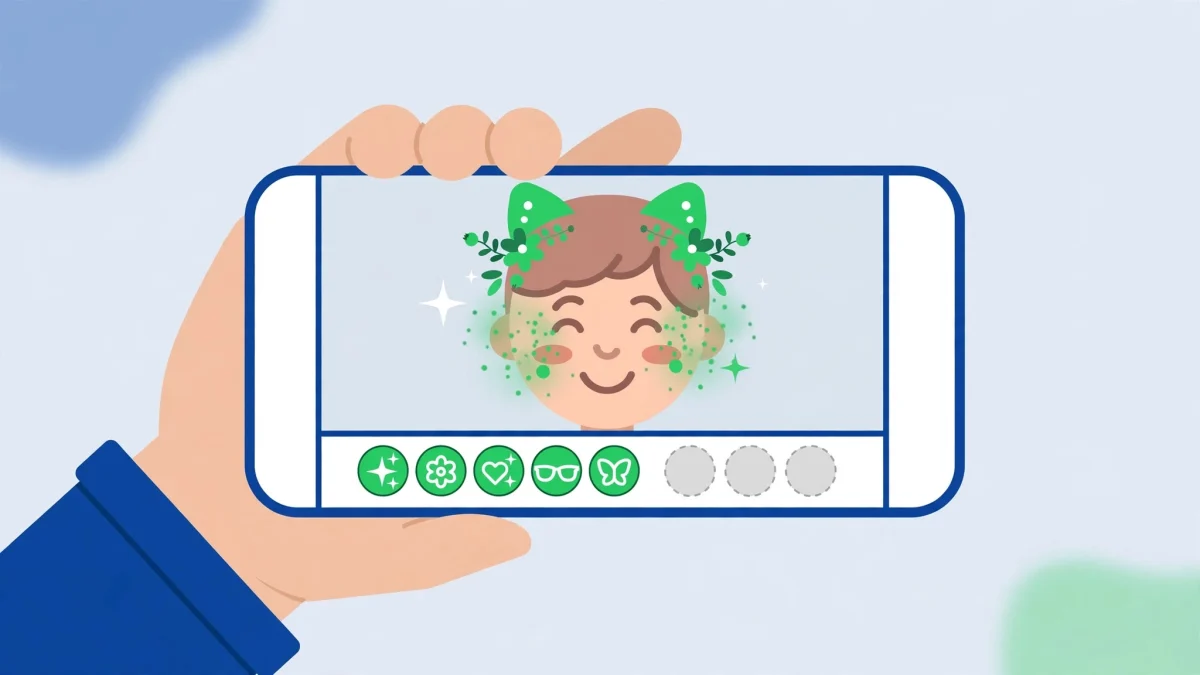
You open the camera, swipe through the carousel — and the lens you used yesterday is gone, or the whole row loads as grey circles that never turn into faces. That is the classic sign of snapchat filters not working on android: the camera itself still works, but the filters and lenses that sit on top of it refuse to load, appear, or stick to your face. The cause is rarely the camera. Snapchat’s filters depend on three things working together — location permission for place-based filters, a live connection to download lens data, and a clean cache — and when any one of them breaks, the carousel empties out. The 5 fixes below start with the filter-specific causes and work outward, and they cover Android 10 through 14.
Quick Answer
For snapchat filters not working on android, first check location permission and the in-app Filters switch — many filters, especially place-based ones, simply do not appear without them. Then confirm your connection can actually download lens data, and clear Snapchat’s cache from inside the app (Fix 3), which rebuilds the lens carousel without logging you out.
In This Guide
Fix 1: Turn Filters On and Give Snapchat Location Access
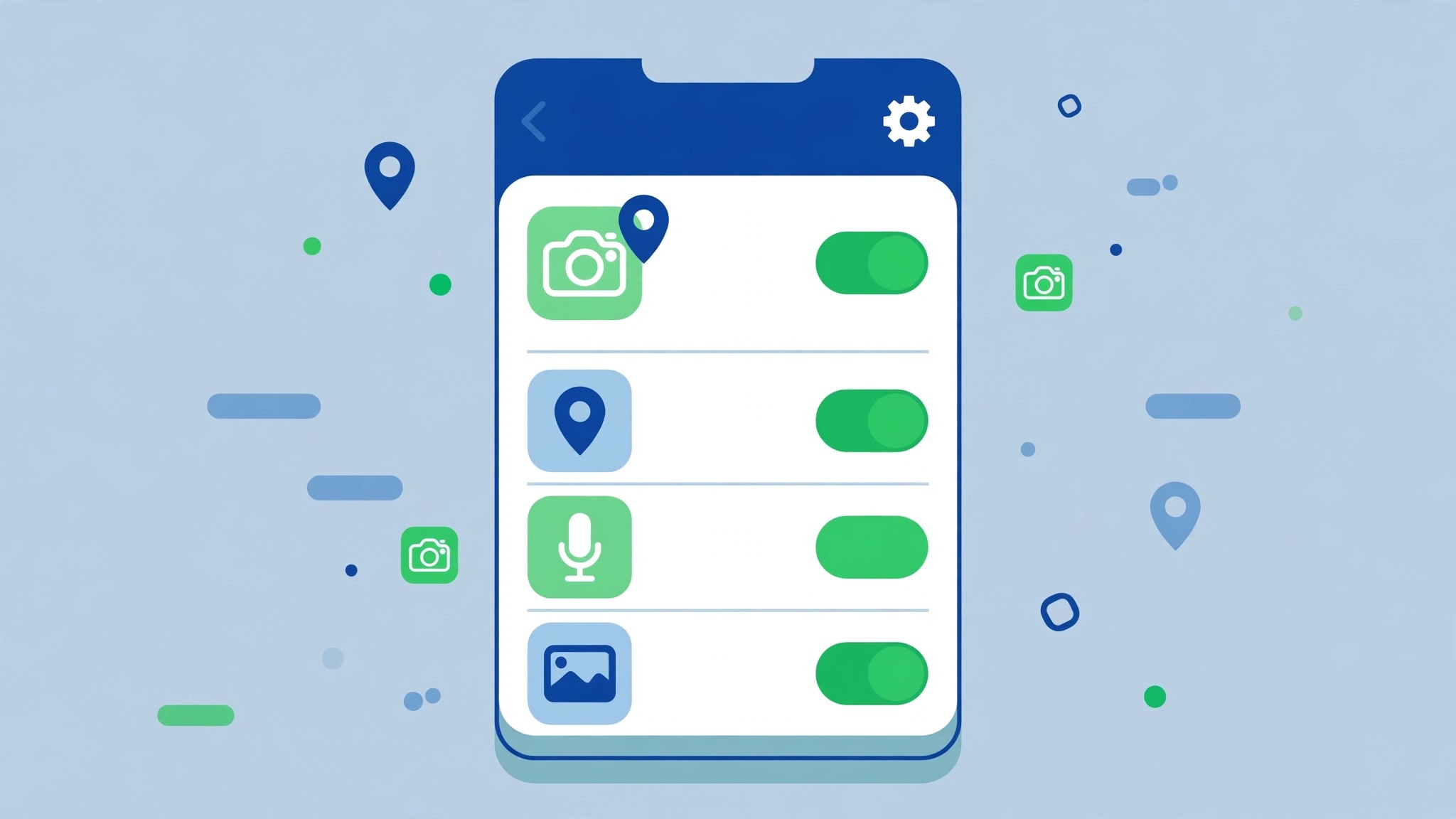
Before touching anything else, check the two switches that control filters directly. Snapchat lets you turn filters off inside the app, and Android lets you deny location — either one on its own can empty the carousel, and both are easy to trigger by accident when clearing permissions or setting up a new phone.
- Open Snapchat, tap your profile icon, then the gear icon for Settings. Look for Filters (on some versions under Manage Preferences or Filters & Lenses) and make sure the toggle is on. If it was off, turn it on, go back to the camera, and swipe the carousel again.
- Now check location: go to Settings → Apps → Snapchat → Permissions → Location and choose Allow only while using the app. Place-based filters — the city, event and venue overlays — need this to appear at all, and some face lenses also check location before loading.
- Also make sure location itself is switched on: pull down Quick Settings and confirm the Location tile is active, or go to Settings → Location and turn Use location on. A permission granted to an app with location switched off system-wide still gives it nothing.
- Return to the camera and wait a few seconds with the camera pointed at a face. Lenses need a moment to download and lock on the first time after a permission change, so give the carousel time before deciding it failed.
Fix 2: Make Sure Lenses Can Actually Download
Snapchat’s lenses are not all stored on your phone — many download fresh when you swipe to them, and the heavier augmented-reality ones need a steady connection to fetch their effects. A connection that loads web pages can still be too slow or too restricted for lens downloads, which is why filters fail while everything else seems fine.
- Test the connection honestly: open a video in another app or load a web page. If that stutters too, the connection is the problem — switch from Wi-Fi to mobile data (or the reverse) and try the carousel again.
- If you are on public or office Wi-Fi, try mobile data specifically. Some shared networks block or throttle the servers apps use for media downloads, and Snapchat lenses are often the first thing to break.
- Turn off any VPN while testing. A VPN server in another country can make place-based filters vanish — Snapchat serves location filters for where it thinks you are, and a VPN can put you somewhere with no matching filters at all.
- Check Data Saver as well: Settings → Network & internet → Data Saver should be off while testing, or Snapchat should be listed as unrestricted under Settings → Apps → Snapchat → Mobile data & Wi-Fi → Unrestricted data usage. A restricted Snapchat can open chats but fail to pull down lens files.
Fix 3: Clear Snapchat’s Cache From Inside the App
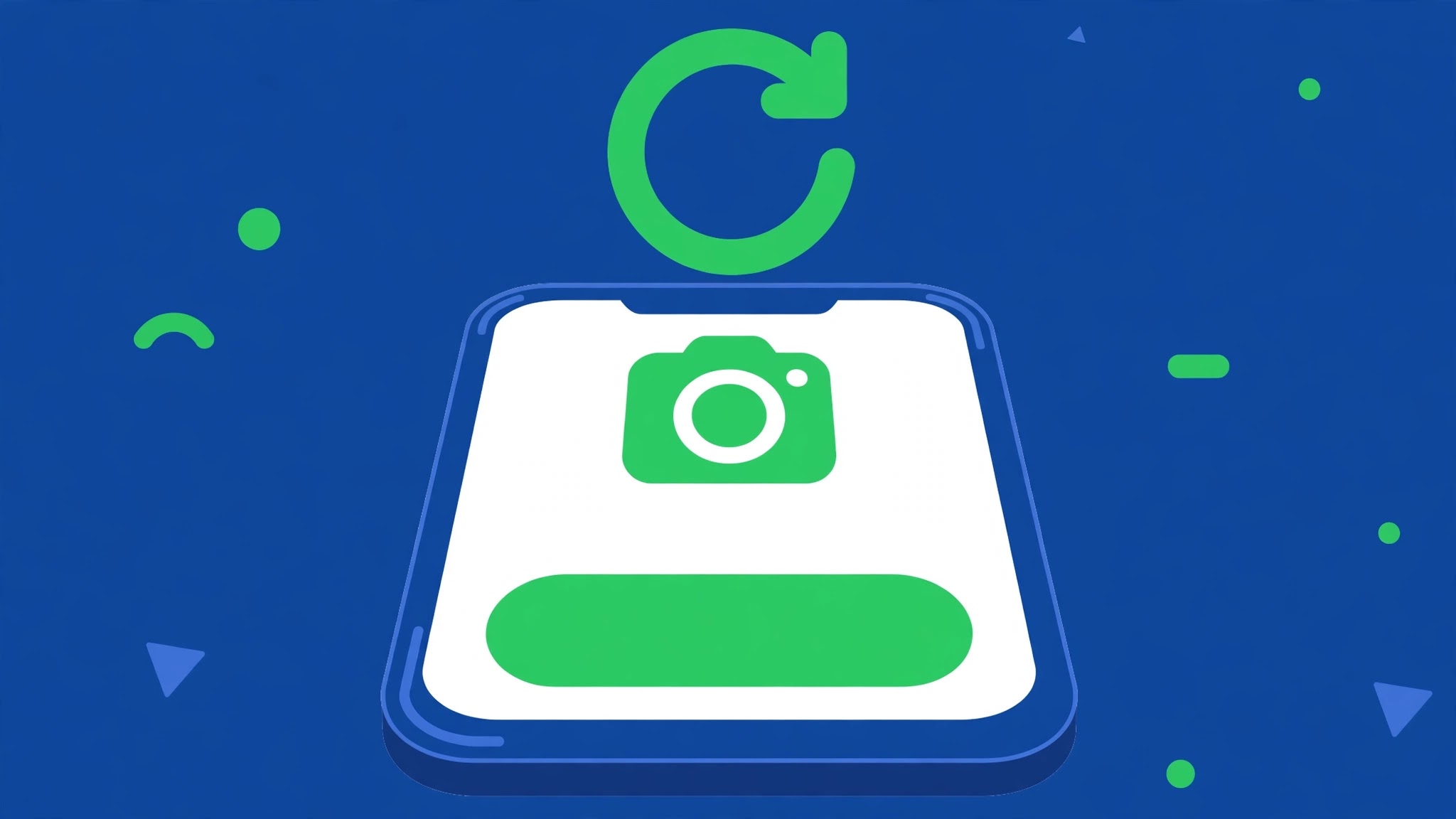
A corrupted lens cache is the most common reason filters worked yesterday and broke today. Snapchat stores downloaded lens data so the carousel opens fast; when that stored data gets damaged — after a failed download or an interrupted update — the app keeps serving the broken copy instead of fetching a fresh one. Clearing the cache forces a clean re-download, and unlike clearing storage, it does not log you out or delete your Memories.
- In Snapchat, tap your profile icon, then the gear icon for Settings.
- Scroll to Account Actions and tap Clear Cache, then Continue to confirm.
- Close Snapchat completely: open the recent-apps view and swipe it away, so it restarts fresh rather than resuming the old session.
- Reopen Snapchat, point the camera at your face, and swipe through the carousel slowly. The first pass may take a few seconds per lens as each one downloads again — that delay is normal and means the fresh download is working.
- If you prefer the system route, the equivalent is Settings → Apps → Snapchat → Storage & cache → Clear cache. Do not tap Clear storage here unless the in-app clear fails — that signs you out.
Fix 4: Update Snapchat and Restart the Phone
Filter problems often arrive with an app version that is behind. Snapchat changes its lens format regularly, and an older build can lose compatibility with newer lenses — the carousel shows placeholders or nothing at all while the rest of the app behaves normally. A restart alongside the update clears any camera session left hanging by the old version.
- Open the Play Store, search for Snapchat, and install any available update. If no update shows, you are already current — move to step 3.
- After updating, restart the phone: hold the power button and tap Restart. This releases the camera from any app still holding it and gives the new Snapchat build a clean start.
- Open Snapchat and test a lens that failed before, not just any lens. Testing the same one is the only way to know the update fixed your problem rather than a different lens merely working.
- Also check for a system update under Settings → System → System update. On older Android versions, camera features that lenses rely on arrive through system updates, and a phone several versions behind can lose newer lens effects.
Fix 5: Reinstall Snapchat and Check Device Support
If filters stay broken after the first four fixes, the install itself may be damaged, or the phone may be unable to run the heavier lenses. Reinstalling replaces every app file at once, and it is worth doing before concluding the phone is at fault — but check support limits first so you know what to expect.
- Before uninstalling, make sure your Memories are backed up: in Snapchat, check Settings → Memories → Backup Progress shows Complete. Chats and Memories live on your account, but a backup check takes seconds and removes the one real risk.
- Uninstall Snapchat (Settings → Apps → Snapchat → Uninstall), then reinstall it from the Play Store and log in.
- When Snapchat asks for permissions, grant Camera and Location while using the app. Denying either at this first prompt reproduces the original problem, so grant them now and tighten them later if you prefer.
- Test the carousel again. If basic lenses work but the newest, most detailed AR lenses still fail on an older or low-memory phone, that is a hardware limit: those lenses need processing power the phone does not have, and no setting changes it. Lighter lenses and place-based filters should still work.
- If nothing works even after a fresh install on a capable phone, check whether Snapchat itself is having an outage — search for Snapchat outage reports — and report the problem from inside the app via Settings → I Need Help → Contact Support, noting which fixes you already tried.
Work through the fixes in this order and the pattern usually points at the answer: filters returning after Fix 1 were a permission problem, after Fix 3 a corrupted cache, and after Fix 5 a damaged install. If only place-based filters are missing while face lenses work, location is still the prime suspect — recheck Fix 1 before anything else.
Related Guides
Watch:
▶
Video by TutorialTime — full credit to the creator.
Watch:
Video by TutorialTime — full credit to the creator.
Frequently Asked Questions
Why do my Snapchat filters disappear when I travel to a new city?
Place-based filters are tied to your location, so the set changes when you move — your home-city filters are replaced by the new city’s set. If the carousel is empty rather than just different, check location permission (Fix 1) and your connection (Fix 2), since the new set still has to download.
Will clearing Snapchat’s cache delete my Snaps or Memories?
No. Clearing cache removes temporary files only — downloaded lens data and thumbnails. Your Snaps, chats and backed-up Memories stay on your account. Clearing storage is the destructive option, and this guide avoids it for exactly that reason.
Why do filters work on my friend’s phone but not on mine?
Usually a permission, cache or version difference rather than an account problem — run Fixes 1, 3 and 4 in order. If your friend’s phone is newer, the newest AR lenses may also simply need hardware yours does not have, while standard lenses should still work on both.
By Sameer Zehri | App Fix Guru Editor | Last updated: October 2026