

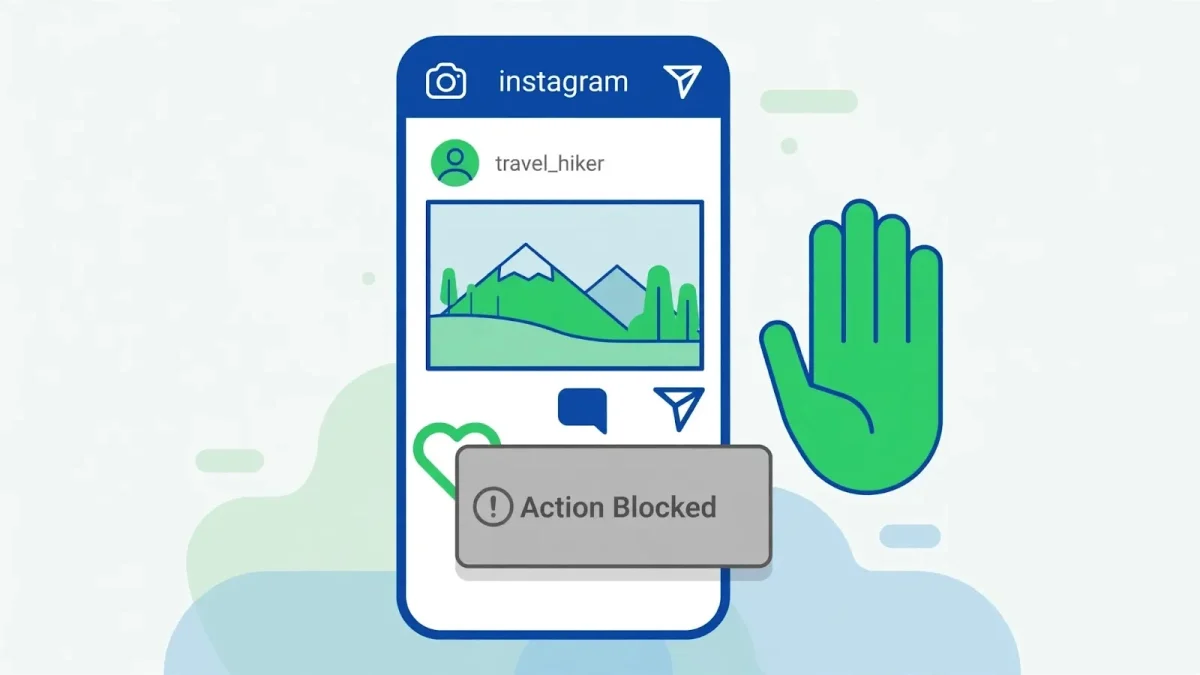
You tap Follow, or you send a comment you have already sent twice today, and instead of the heart or the reply you get a grey box: “Action Blocked — This action was blocked. Please try again later. We restrict certain content and actions to protect our community.” Everything else still works — you can scroll, watch reels, open your inbox — but the one thing you tried is frozen. That split is the clue: an Instagram action blocked error on Android is almost never a broken app. It is Instagram’s spam system putting a temporary hold on one kind of action because your recent activity looked automated. These 6 fixes for the Instagram action blocked error work in the order that actually lifts it, starting with the step most guides bury at the bottom, and they cover Android 10 through 14.
Quick Answer
An Instagram action blocked error means Instagram has temporarily paused one action — liking, commenting, following or messaging — because it looked too fast or automated. Stop that action completely, remove any third-party app connected to your account, and wait 24–48 hours. Retrying the blocked button over and over only makes the block last longer.
In This Guide
- Fix 1: Stop the Blocked Action and Wait It Out
- Fix 2: Disconnect Every Third-Party App and Automation Tool
- Fix 3: Switch Networks and Turn Off Your VPN
- Fix 4: Tap “Tell Us” and Check Your Account Status
- Fix 5: Clear the Cache, Update, and Sign In Fresh
- Fix 6: Strengthen the Account and Come Back Slowly
Fix 1: Stop the Blocked Action and Wait It Out
Every other fix on this page is useless while you keep hammering the blocked button. Instagram’s system reads each retry as more bot-like behaviour, and repeated retries are the single most common reason a one-day block stretches into a week. So the first fix is a deliberate pause, not a setting.
- Stop the exact action that was blocked — if follows were blocked, stop following; if comments were blocked, stop commenting. You can still scroll and watch reels, but do not test the blocked action “just to see if it works yet.”
- Close Instagram fully. Swipe it away from your recent apps so it is not running in the background sending requests.
- Wait at least 24 hours before trying the action once, gently. Most first-time blocks lift in 24–48 hours; a block earned by a growth tool or mass unfollowing can take several days.
- If the block is still there after 48 hours, do not escalate to new tricks — move to Fix 2 and Fix 3 while you keep waiting. The block is time-based, and the other fixes remove whatever is keeping the timer running.
Fix 2: Disconnect Every Third-Party App and Automation Tool
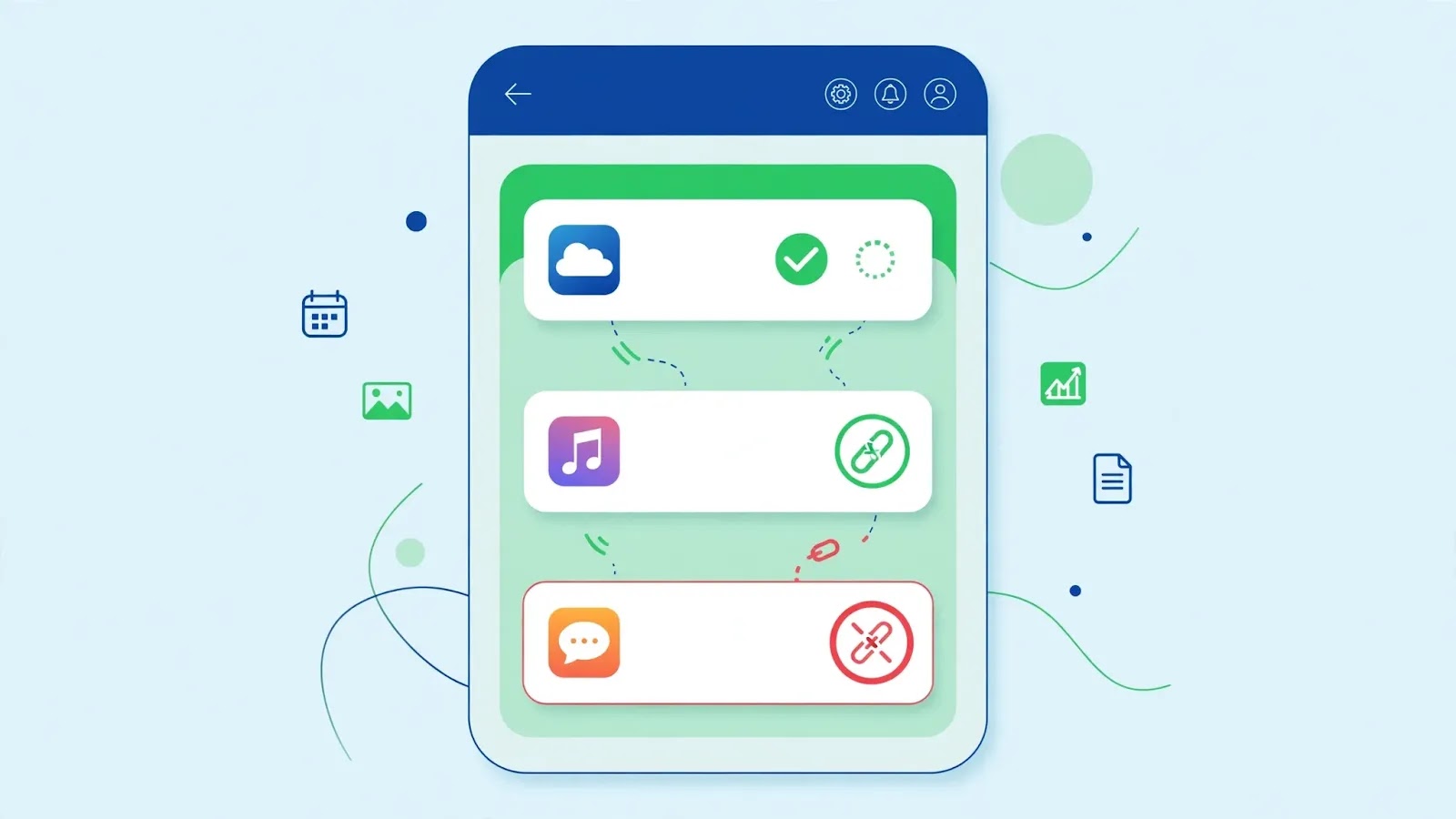
Instagram names this cause directly in its own help pages: giving your login to an app that likes, follows or comments for you, or using any service that acts on Instagram without permission, triggers restrictions. Follower trackers, unfollow apps, auto-likers, scheduling tools that post through unofficial routes — if any of them holds your password or an access token, it can keep acting while you wait, and the block will not lift.
- Open Instagram, tap your profile picture, then the three-line menu → Settings and privacy → Website permissions → Apps and websites.
- Under Active, remove every app you do not actively use, and every engagement, tracker or growth tool without exception. Tap Remove, then confirm.
- Also check Accounts Centre → Password and security → Where you’re logged in and sign out of devices or sessions you do not recognise.
- If you ever gave a tool your actual Instagram password, change your password now: profile → menu → Settings and privacy → Accounts Centre → Password and security → Change password. A changed password cuts off tools that log in directly.
- Do not reconnect any of these tools while the block is active, and think twice before reconnecting them at all — they are the most common repeat cause of action blocks.
Fix 3: Switch Networks and Turn Off Your VPN
Some action blocks are tied to your connection, not just your account. A shared Wi-Fi network, a café hotspot, or a VPN exit node that many people use can carry a bad reputation with Instagram, so your actions get flagged even when your own behaviour was normal. Changing networks gives Instagram a clean signal to judge you by.
- Turn off your VPN completely if one is running — not just for Instagram, but for the whole phone — then close and reopen Instagram.
- If you were on Wi-Fi, switch to mobile data for a day. If you were on mobile data, switch to your home Wi-Fi instead. Try the blocked action once after the switch, not repeatedly.
- On Samsung phones you can also try Settings → Connections → More connection settings → Private DNS → Off if a custom DNS is set, since filtered DNS can interfere with Instagram’s servers.
- Avoid public Wi-Fi and free VPNs while the block is active. If the block lifts on mobile data but returns on one particular Wi-Fi network, that network is part of the problem — keep using mobile data for Instagram until the block has been gone for a few days.
Fix 4: Tap “Tell Us” and Check Your Account Status
When the block is a mistake — you were liking friends’ photos at a normal pace, or you only sent a handful of messages — Instagram gives you a way to say so. Use it once, clearly, and then leave it alone.
- On the “Action Blocked” popup itself, tap Tell us if the button is shown. Write one short, honest sentence, for example: “I am a real user and I was liking posts from friends. I believe this block is a mistake. Please review it.”
- If the popup has no Tell us button, go to Settings and privacy → Help → Report a problem and send the same short message. Do not send the report five times — duplicate reports do not speed anything up.
- Check Settings and privacy → Account status (on some versions: Help → Account status). This screen shows whether Instagram has flagged your content or account for a rule violation, and what you can do about it.
- If Account status shows a violation you disagree with, use the review option it offers. If it shows nothing, that itself is useful information: your block is a temporary rate limit, not a strike, and waiting is the correct treatment.
Do not delete the app, create a second account to dodge the block, or log in from a friend’s phone to keep going — Instagram links those attempts to the same device and account, and they can extend the restriction.
Fix 5: Clear the Cache, Update, and Sign In Fresh
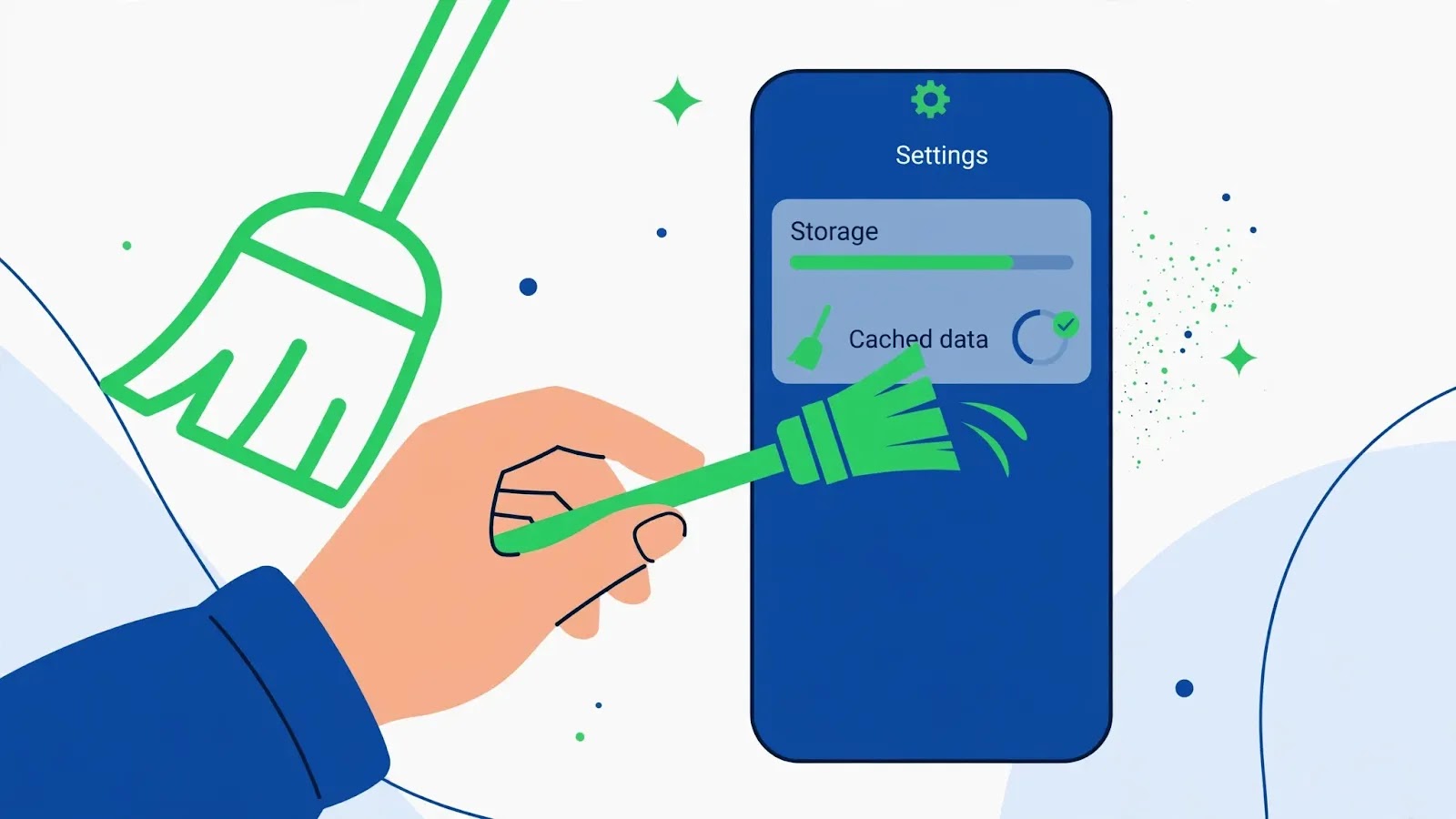
An outdated app version or corrupted local data will not cause an action block by itself, but it can keep a stale session alive and make a lifted block look like it is still there. A clean session is worth doing once the account-side steps are done.
- Go to Settings → Apps → Instagram → Storage & cache and tap Clear cache. Do not tap Clear storage yet — that signs you out and deletes saved drafts and local data.
- Open the Play Store, search Instagram, and install any available update. Older versions sometimes behave in ways Instagram’s servers read as unusual activity.
- Force-stop Instagram from its App info page, then reopen it and sign in again if it asks. On Pixel phones the path is Settings → Apps → See all apps → Instagram; on Xiaomi (HyperOS) it is Settings → Apps → Manage apps → Instagram; on Samsung (One UI) it is Settings → Apps → Instagram.
- Reinstall only if the app itself is misbehaving — crashing, freezing, or showing the block on every screen including your own profile. Reinstalling does not lift an account block, so treat it as app hygiene, not a cure.
Fix 6: Strengthen the Account and Come Back Slowly
Once the block lifts, how you return decides whether it comes straight back. Instagram trusts accounts that look like real people with a history, and it watches the first days after a block closely.
- Link your Instagram to your Facebook account if you have one: Settings and privacy → Accounts Centre → Add accounts. A linked, established Facebook profile is a trust signal Instagram itself recommends.
- Complete your profile — a profile photo, a bio, and a phone number or email confirmed under Accounts Centre → Personal details. Bare accounts with no photo trip the spam filters far more easily.
- For the first week after the block, keep actions human-paced: space out likes and follows, vary your comments instead of pasting the same text, and keep new follows modest. There is no published safe number, so “slower than before the block” is the rule.
- Post your own content normally — posting is usually not the blocked action, and genuine posting plus normal browsing rebuilds a healthy activity pattern faster than silence.
If a block survives two weeks despite all six fixes, with no third-party tools connected and no violation in Account status, the restriction is a longer account-level hold. Keep the account clean, keep activity light, and use the Report a problem route once more rather than creating a replacement account.
Related Guides
Watch: Fix Instagram Action Blocked Error
Video by App Ultra — full credit to the creator.
Frequently Asked Questions
How long does an Instagram action block last?
Most first-time blocks lift in 24–48 hours once the triggering behaviour stops. Blocks linked to automation tools or repeated mass actions can last several days, and in stubborn cases up to two weeks. Retrying the blocked action repeatedly can extend the wait, so patience is part of the fix.
Can I still use Instagram while action blocked?
Yes, in most cases. Only the blocked action is paused — usually liking, commenting, following or messaging. You can still log in, scroll your feed, watch reels and read messages. If you cannot log in at all, that is a different problem, such as a disabled account or a login error.
Will clearing Instagram data or reinstalling remove the block?
No. An action block lives on Instagram’s servers against your account, not in the app on your phone. Clearing cache or reinstalling can fix a stale session or a glitchy app, but it cannot lift an account restriction — only time, removing the cause, and a review request can do that.
By Sameer Zehri | App Fix Guru Editor | Last updated: October 2026