

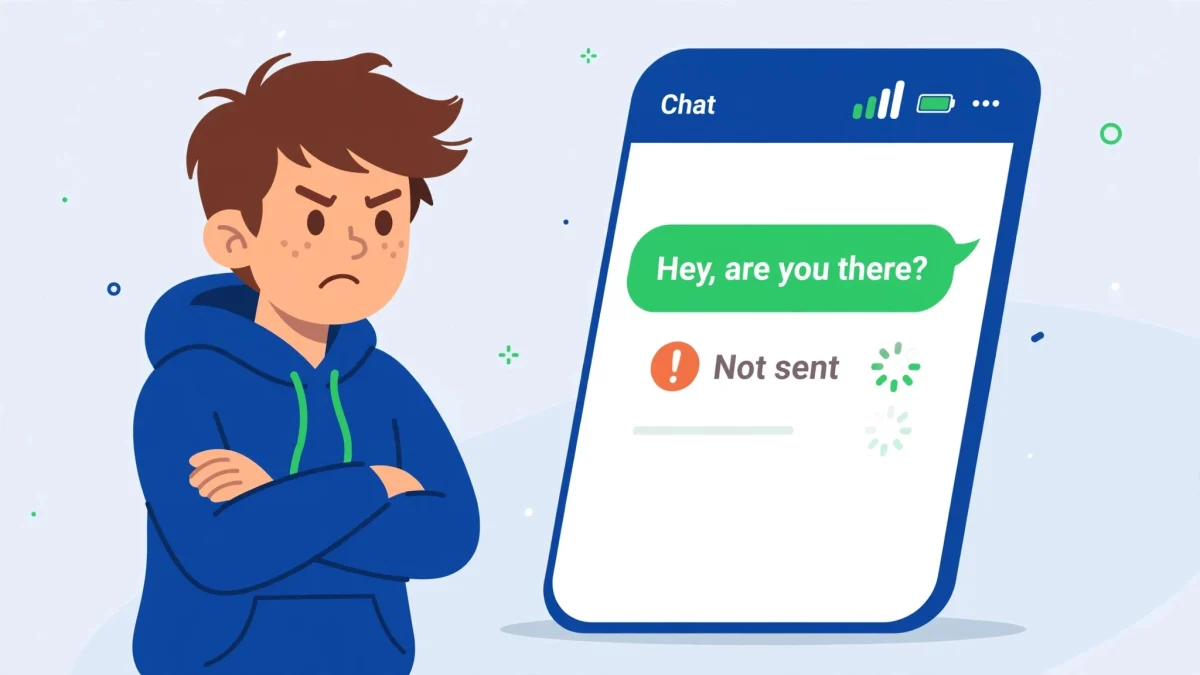
You tap send and the message just sits there under a grey “Waiting for network” label — while your browser loads fine and every other app seems online. That contradiction is the key to the messenger waiting for network error on android: Messenger is not reaching its own servers, even though the phone has some kind of connection. The fault usually sits in one of three places — the connection Messenger is trying to use, a phone setting that starves it of data, or the app’s own cached connection state. The 6 fixes below isolate each one in turn, and they cover Android 10 through 14.
Quick Answer
For the messenger waiting for network error on android, first find out which connection fails: switch between Wi-Fi and mobile data and see if Messenger works on one of them. Then check that Data Saver is not blocking Messenger and background data is allowed. If both connections fail, force-stop Messenger and clear its cache (Fix 5) — that resets the stuck connection state.
In This Guide
- Fix 1: Find Out Which Connection Fails — Wi-Fi or Mobile Data
- Fix 2: Reset the Connection With Airplane Mode and a Router Restart
- Fix 3: Give Messenger Unrestricted Data and Turn Off Data Saver for It
- Fix 4: Turn Off VPN and Proxy Apps
- Fix 5: Force Stop Messenger and Clear Its Cache
- Fix 6: Update or Reinstall Messenger
Fix 1: Find Out Which Connection Fails — Wi-Fi or Mobile Data
Do not guess at the whole phone when only one connection may be broken. Messenger failing on Wi-Fi but working on mobile data points at your router; the reverse points at your mobile plan or a per-app data setting. Two minutes of comparison saves a string of useless fixes.
- Open Messenger and note the exact state: does it say “Waiting for network” in a chat, or do messages simply never get their sent tick?
- Turn Wi-Fi off and mobile data on (Pixel: Settings → Network & internet; Samsung: Settings → Connections). Send a test message to yourself or a trusted contact.
- Now do the reverse: mobile data off, Wi-Fi on, and test again. Write down which one failed — the rest of this guide depends on it.
- Also open another app that needs the internet, like Chrome, on the failing connection. If Chrome fails too, the connection itself is down and Fix 2 is your next step. If Chrome works and only Messenger fails, skip to Fix 3 — a setting is singling Messenger out.
Fix 2: Reset the Connection With Airplane Mode and a Router Restart
When the whole connection is shaky, Messenger is often the first app to show it, because it holds a constant connection to Meta’s servers rather than loading a page once. A clean reconnection is the fastest way to tell whether the problem is temporary.
- Turn Airplane mode on, wait 10 seconds, then turn it off. This forces the phone to re-register on Wi-Fi or the mobile network from scratch.
- If Wi-Fi was the failing connection, restart the router: unplug its power for 30 seconds, plug it back in, and wait until the lights settle before testing Messenger. Do not press the router’s factory-reset button — a restart is enough.
- Move closer to the router, or step somewhere with stronger mobile signal, and retry. A weak signal that still loads a web page can be too unstable for Messenger’s always-on connection.
- If Messenger works after the reset but the error returns every evening, your Wi-Fi channel may be congested at peak hours — switching your phone to mobile data at those times, or asking your provider about the router, is the longer-term answer.
Fix 3: Give Messenger Unrestricted Data and Turn Off Data Saver for It
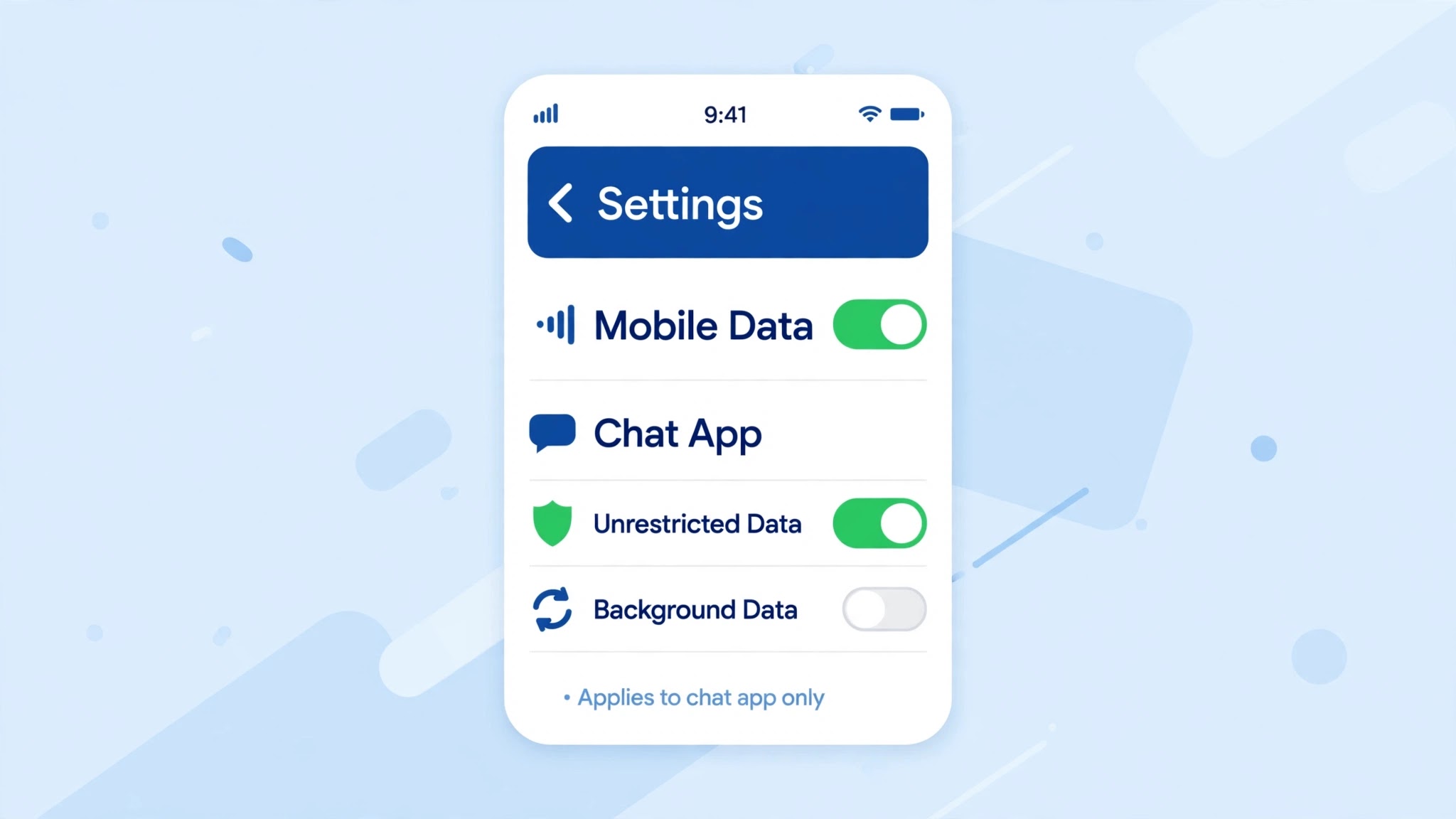
This is the classic Messenger-only failure: everything else loads, Messenger waits forever. Android’s Data Saver, battery optimisation and per-app network rules can all cut Messenger off while it is in the background — and sometimes even while it is open, if it was restricted while idle.
- Go to Settings → Apps → See all apps → Messenger → Mobile data & Wi-Fi and make sure Background data is on and Unrestricted data usage is on. The second switch is the one that lets Messenger use data even while Data Saver is active.
- On Samsung phones, also check Settings → Connections → Data usage → Allowed networks for apps → Messenger and choose Mobile data or Wi-Fi, not Wi-Fi only — a Wi-Fi-only setting produces exactly this error the moment you leave the house.
- Turn off aggressive battery restriction for Messenger: Settings → Apps → Messenger → App battery usage → Unrestricted (Samsung: Battery → Unrestricted; Xiaomi HyperOS: Battery saver → No restrictions).
- Force-close Messenger, reopen it, and send a test message. If messages now go through on mobile data, a data restriction was the whole story.
Fix 4: Turn Off VPN and Proxy Apps
VPNs reroute every connection through another server, and if that server is overloaded, blocked, or in a region Meta treats cautiously, Messenger can stall on “Waiting for network” while other apps limp along. The same goes for proxy apps and some “data saving” VPN-style apps.
- Disconnect any VPN completely and test Messenger again. If it works, the VPN server was the bottleneck — try a different server location, or keep the VPN off while messaging.
- Check for proxy settings left behind by old apps: Settings → Network & internet → VPN should show nothing connected, and in your Wi-Fi network’s advanced settings there should be no manual proxy set.
- If you use a firewall or ad-blocking app that filters traffic through a local VPN, pause it temporarily and test. These apps can block Messenger’s servers while leaving web browsing untouched, which looks exactly like a Messenger fault.
Fix 5: Force Stop Messenger and Clear Its Cache
Messenger can get wedged in a half-connected state after a network drop — it keeps retrying a dead session instead of starting a new one. Force-stopping it and clearing its cache breaks that loop without touching your chats, which are stored on your account.
- Go to Settings → Apps → See all apps → Messenger and tap Force stop, then OK.
- On the same screen, tap Storage & cache → Clear cache. Do not tap Clear storage unless the cache clear fails — that logs you out and removes local drafts.
- Reopen Messenger and let it reload your conversations. Send a test message. If the waiting status clears within a minute, the stuck session was the cause.
Fix 6: Update or Reinstall Messenger
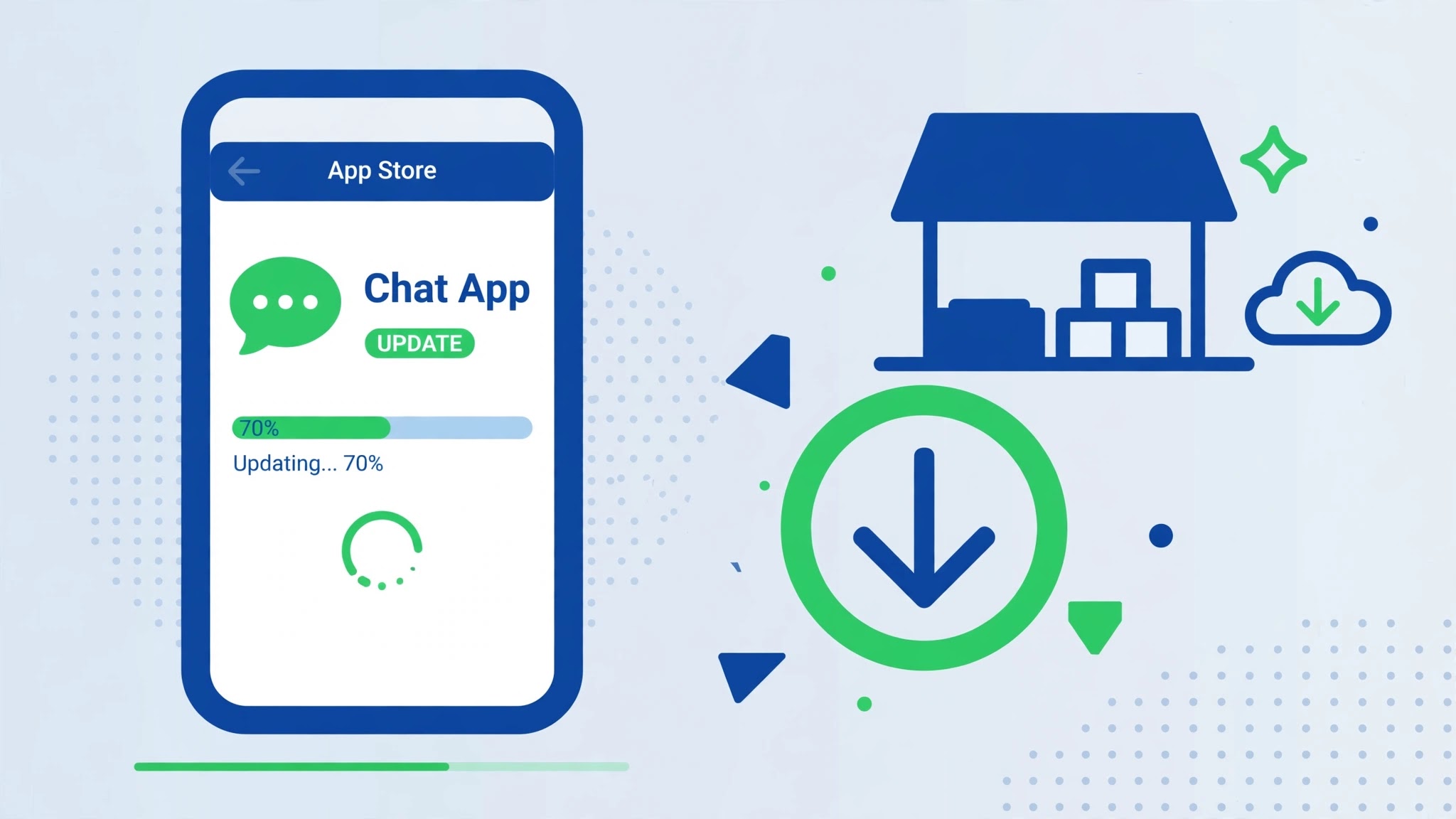
The last resort is the app itself: an outdated build can lose compatibility with Meta’s servers, and a damaged install can fail to connect no matter how good your network is.
- Open the Play Store, search for Messenger, and install any update. If the update itself will not download, switch to the connection that worked in Fix 1 — an update over a broken connection cannot fix a broken connection.
- If you are already on the latest version, uninstall Messenger and reinstall it from the Play Store. Have your login details ready, because reinstalling signs you out.
- After reinstalling, log in, grant the permissions Messenger asks for (contacts and notifications at least), and test before changing any data or battery setting — that way you know whether the reinstall alone fixed it.
- If a fresh install still waits for network on both Wi-Fi and mobile data while other apps work, report it inside Messenger via Profile → Help → Report a problem, noting which connections you tested — that detail is what support needs.
Work the fixes in order and the culprit usually reveals itself early: Fix 1 tells you whether the connection or the app is at fault, and Fix 3 is the single most common answer when only Messenger misbehaves.
Related Guides
Watch: How to fix the Messenger waiting-for-network error in video form.
Video by GuideRealm — full credit to the creator.
Watch: How to fix the Messenger waiting-for-network error in video form.
Video by GuideRealm — full credit to the creator.
Frequently Asked Questions
Does “Waiting for network” mean my messages are lost?
No. Unsent messages stay queued in the app and usually send on their own once the connection returns. If a message stays stuck for hours, delete that one message and resend it rather than reinstalling first.
Why does Messenger fail on mobile data but work on Wi-Fi?
Almost always a per-app data rule: Data Saver blocking Messenger, background data off, or a Samsung “Allowed networks” setting limited to Wi-Fi only. Fix 3 covers all three.
Is “Waiting for this message” the same as “Waiting for network”?
No — they look similar but mean different things. “Waiting for this message” appears in end-to-end encrypted chats when the other person’s phone needs to come online to help decrypt it; it is a delivery delay, not a problem with your connection.
By Sameer Zehri | App Fix Guru Editor | Last updated: October 2026