

You open TikTok and the app itself is right there — the For You feed, the comments, your profile, all present. But the moment you tap a video, it spins and never plays, or freezes on the first frame while the progress bar crawls. Scroll to the next one and the same thing happens.
That split is the clue most people miss. TikTok’s feed shell — the text, the thumbnails, the comments — loads from one set of servers, while the video itself streams from media servers that behave very differently. So “the app works” proves almost nothing about video delivery. A video that will not load is usually being throttled, rerouted or starved before it reaches the player — and the throttling is often something you (or your phone) turned on deliberately. The fixes below hunt those throttles first. Covers Android 10 through 14.
Quick Answer: Check the data savers first — both of them. Inside TikTok, open your profile → ☰ → Settings and privacy → Data Saver and turn it off; then check Android’s own Settings → Network & internet → Data Saver and either turn it off or give TikTok Unrestricted data access. Then disconnect any VPN (Fix 2). Between those, most “videos won’t load” cases clear up in a couple of minutes.
Fix 1: Turn Off TikTok’s Data Saver — and Android’s
TikTok’s Data Saver exists to protect your data plan, and it does so by deliberately holding back video preloading — the exact mechanism that makes videos start instantly. On a connection that is merely average, the saver can turn “starts slowly” into “never starts at all”. Android’s system-wide Data Saver does the same thing from the other side, and the two stack.
- In TikTok, open your profile → ☰ menu → Settings and privacy → Data Saver and turn it off.
- Go to Settings → Network & internet → Data Saver on the phone. Turn it off for this test — or leave it on globally but add TikTok to the Unrestricted data exception list.
- While you are in TikTok’s settings, check Settings and privacy → Content preferences → Video quality if it exists on your version, and allow higher quality on your current connection.
- Reopen TikTok and tap a video. If it plays, a saver was your whole problem.
Fix 2: Disconnect the VPN Completely
TikTok’s video servers are unusually sensitive to VPN traffic. Shared VPN exit addresses carry the reputation of everyone using them, and video streams from those addresses get throttled or refused while the feed shell — text and thumbnails — sails through untouched. That is precisely the symptom you have: app present, videos absent.
- Disconnect the VPN entirely, not just pause it, and force-close TikTok.
- Reopen TikTok and try the same video.
- If videos return, the VPN was the cause. If you must use a VPN, try a different server location — but expect video to remain the first thing that breaks on it.
- Also disable any traffic-filtering ad-blocker for this test; like a VPN, it can break media servers while leaving the rest of the app alone.
Fix 3: Switch Networks and Prove Which One Fails
Before blaming the app, run the comparison that actually diagnoses. A network that loads web pages acceptably can still be too weak, too congested or too throttled for TikTok’s video streams — and the failure will look exactly like an app problem until you test the other road.
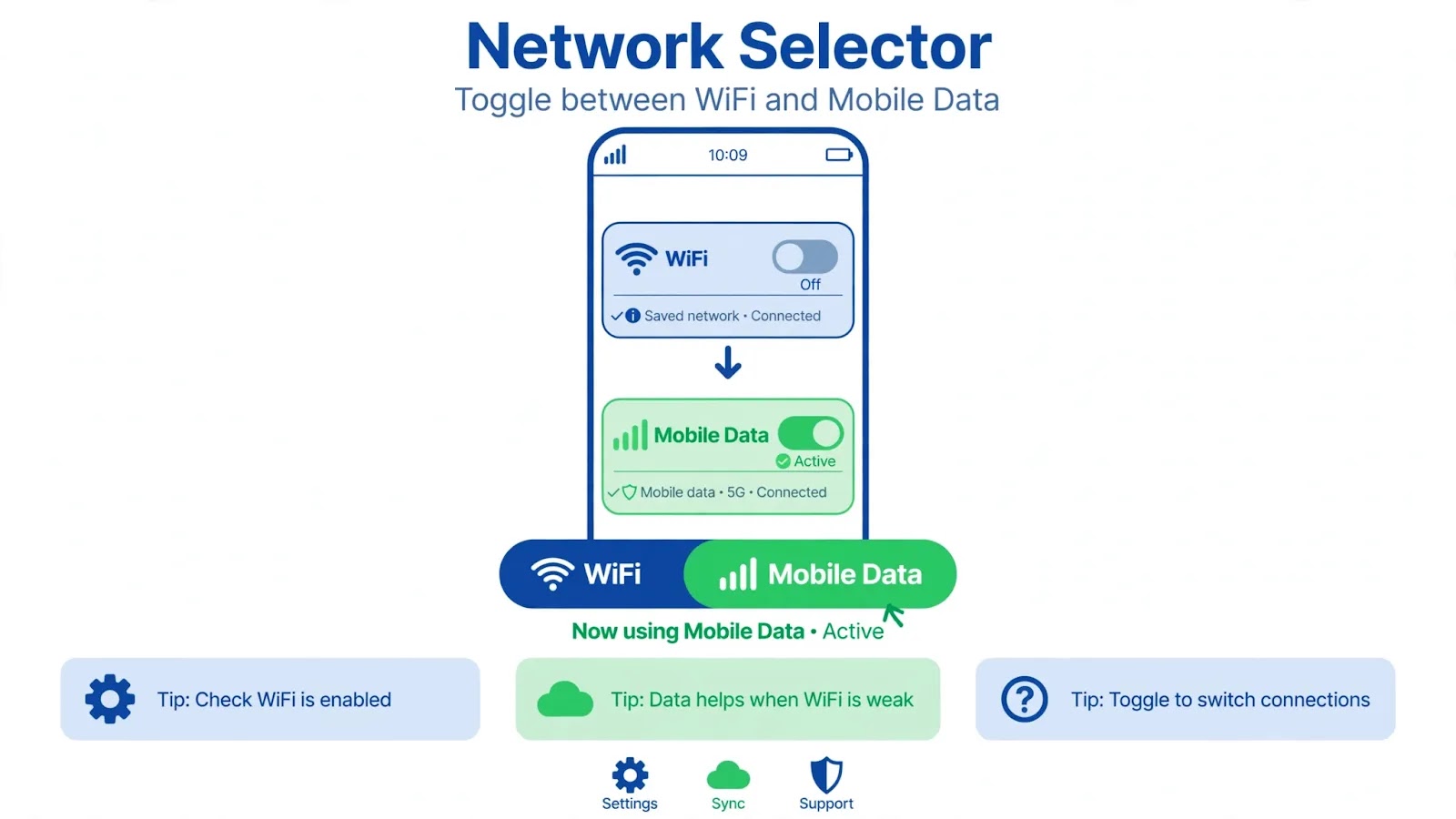
- Toggle Airplane mode on for ten seconds, then off, to force the phone to renegotiate its connection.
- Tap a video on Wi-Fi, then turn Wi-Fi off and tap the same video on mobile data. If it plays on one and spins on the other, the fault is that network, not the app.
- On Wi-Fi, move closer to the router or restart it if every device is sluggish. On mobile data, check you have not hit a plan limit that throttles you — throttled data loads text fine and videos never.
Fix 4: Clear TikTok’s Cache — Both Ways
TikTok caches video segments aggressively so the next swipe plays instantly. The downside: a corrupt segment sits in that cache and replays the same failure every time you tap, long after whatever caused it has gone away. TikTok offers two cache clears, and they are not the same — use both.
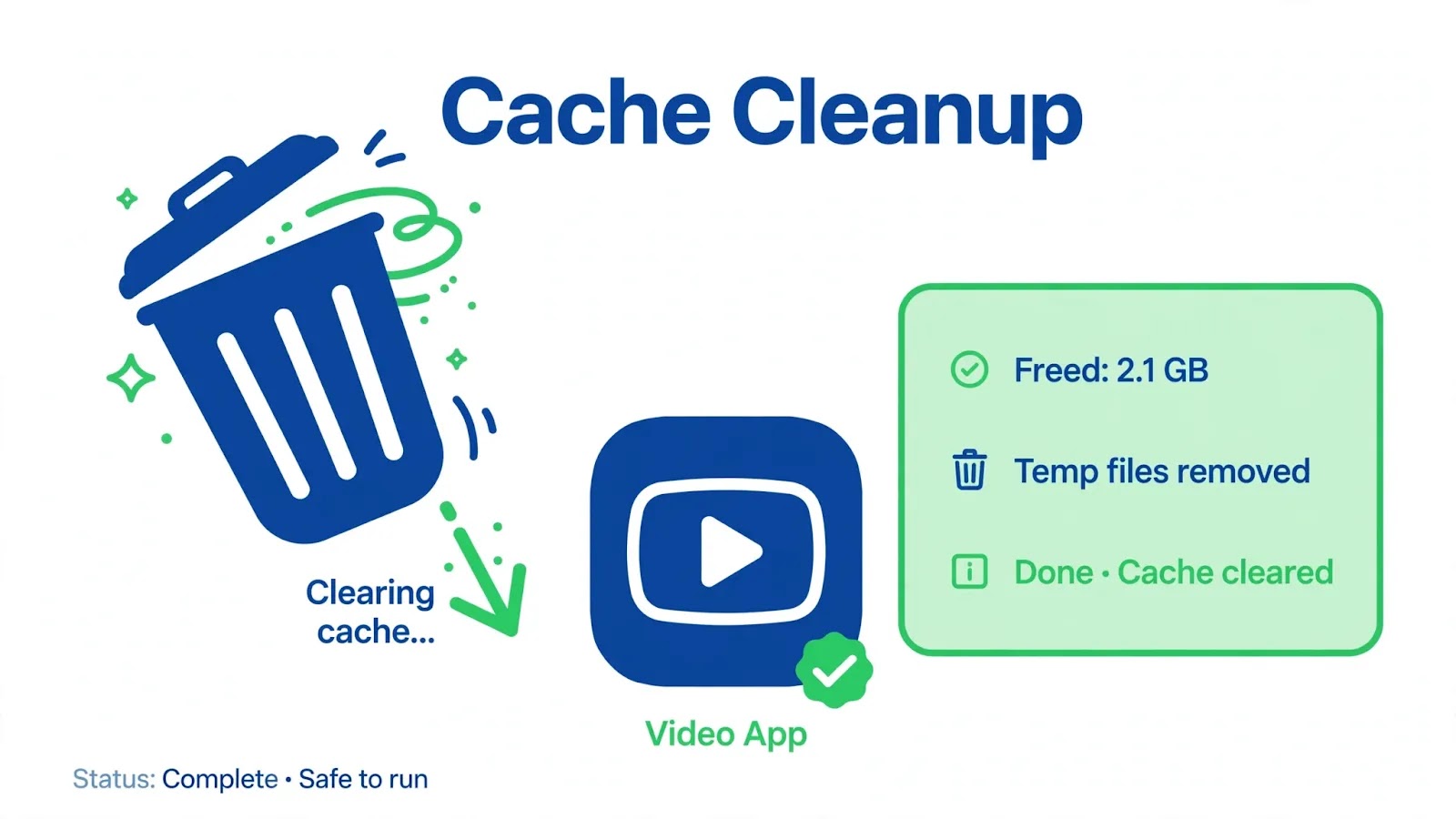
- Inside the app: profile → ☰ → Settings and privacy → Free up space → Clear cache. This is the gentle one — it keeps you logged in and your drafts intact.
- At the system level: Settings → Apps → TikTok → Storage & cache → Clear cache. This clears what the in-app button cannot reach.
- Reopen TikTok. The first videos may load a touch slower — that is the app fetching fresh segments instead of serving broken ones, and it is a good sign.
- Stay with Clear cache, not Clear data, at this stage: data-clearing signs you out and deletes your in-app drafts.
Fix 5: Free Up Storage So Videos Have Room to Land
Video playback needs working room. TikTok buffers segments to local storage as you watch, and when the phone is down to its last few hundred megabytes, that buffering chokes — videos stall, freeze on the first frame, or refuse to start, while the lightweight feed keeps working. This fault hides well because nothing on screen says “storage full”.
- Open Settings → Storage and look at the free figure honestly. Under about 1 GB free, treat storage as a prime suspect.
- Free space where it actually accumulates: the Files by Google app’s Clean tab, the Downloads folder, and old videos in your gallery.
- Reopen TikTok and tap a video. If playback returns, the phone was simply too full to buffer.
Fix 6: Update, Reinstall, and Check TikTok’s Servers
The last local steps, in an order that wastes the least of your time. First, rule out TikTok itself: check a status tracker or try TikTok on another device — if videos fail everywhere at once, it is a TikTok-side outage and the fix is patience, not settings. If it is only your phone, finish with the app itself.
- Open the Play Store → TikTok → Update if one is waiting, then fully close and reopen the app.
- If you are in the TikTok beta programme, leave it — playback bugs are a staple of beta builds.
- Still stuck? Log out, uninstall TikTok, restart the phone, reinstall, sign back in. Your account, videos and likes live in the cloud and return; only in-app drafts are at risk, so post or save anything that matters first.
When the Feed Loads but Nothing Plays: The Media-Server Split
Keep this split in your pocket for next time, because it diagnoses almost every TikTok playback fault in seconds. Feed shell works but videos do not? The fault is in video delivery — savers, VPN, network, cache, storage — everything in Fixes 1 to 5. Nothing loads at all, not even the feed? That is a different fault: connection, account or outage, and Fix 6’s server check is where you start. And one more pattern worth knowing: if videos play on mobile data but never on your home Wi-Fi, look at the router, not the phone — restart it, and check whether a parental-control or content filter on the network is blocking TikTok’s media domains while letting the feed through.
Watch: TikTok Videos Fixed Step by Step
Prefer a walkthrough? This video covers TikTok videos not loading step by step:
Video by How To Tutorials — full credit to the creator.
Related Guides:
TikTok Loading Questions, Answered
Why do some videos play while others just spin?
Usually the cache or the video itself. A corrupt cached segment poisons retries of that one video while others play fine (Fix 4), and a video that is still processing on TikTok’s side, or restricted in your region, will never load no matter what you do to the phone. If most videos play and one does not, the phone has already been proven innocent.
Why do videos load on mobile data but never on Wi-Fi?
Because the two networks take different roads to TikTok’s media servers. Home Wi-Fi can be throttled, filtered or congested in ways mobile data is not — a router-level content filter, a VPN on the router, or evening congestion on a shared connection. Fix 3’s network switch is the test that proves it; the cure is usually a router restart or removing the filter, not a phone setting.
Will clearing TikTok’s cache delete my drafts?
No. Clearing the cache removes temporary files only — buffered segments and fragments. Your login survives and your in-app drafts survive a cache clear too. It is Clear data, the neighbouring button, that resets the app completely and takes drafts with it — which is why this guide keeps the two firmly separate.
By Sameer Zehri | App Fix Guru Editor | Last updated: October 2026