

You have 2 GB free, the app you want is only 80 MB, and the Play Store still refuses with “Insufficient storage available” — or the download starts, creeps to 90%, then dies with the same message. That contradiction is the whole story of the play store insufficient storage error: it is rarely about the number on your storage screen. An install needs room for the download, room to unpack it, and room for the finished app, and Android keeps a safety margin on top. On top of that, a corrupted Play Store cache can make the store report a full phone that is not full at all. These 6 fixes for the play store insufficient storage error work in the order that matches the real causes, starting with what is actually eating your space, and they cover Android 10 through 14.
Quick Answer
The play store insufficient storage error usually means Android does not have enough free headroom for the download plus the unpacked install — not that your phone is literally full. Free up space until at least 1–2 GB is genuinely free, then clear the Play Store, Google Play Services and Download Manager caches. If the error appears while plenty of space shows, the cache clear in Fix 3 is the step that fixes it.
In This Guide
- Fix 1: Check What Is Really Free — and What the Install Needs
- Fix 2: Free Real Space, Not Just a Few Megabytes
- Fix 3: Clear the Play Store, Play Services and Download Manager Caches
- Fix 4: Move Apps and Media to the SD Card
- Fix 5: Uninstall Play Store Updates and Refresh Your Google Account
- Fix 6: Update Android and Check the SD Card’s Health
Fix 1: Check What Is Really Free — and What the Install Needs
Before deleting anything, find out whether the error is honest. Android’s storage screen and the Play Store do not always agree, because the store counts the space the install will need, not just the size of the app.
- Open Settings → Storage and look at the free number at the top. On Samsung phones it is under Settings → Battery and device care → Storage; on Xiaomi (HyperOS) it is Settings → About phone → Storage.
- Compare that number with the app you are installing. A 200 MB app can need 500 MB or more during install, and Android itself wants breathing room — a phone showing under 1 GB free will block installs even for small apps.
- Tap through the categories. If “Other” or “System” is swallowing tens of gigabytes, that is cached data and old update files, not your photos — Fix 2 and Fix 3 deal with it.
- Rule of thumb: aim for at least 2 GB free before retrying. If you already have that much free and the error still appears, skip straight to Fix 3 — your problem is a stale cache, not space.
Fix 2: Free Real Space, Not Just a Few Megabytes
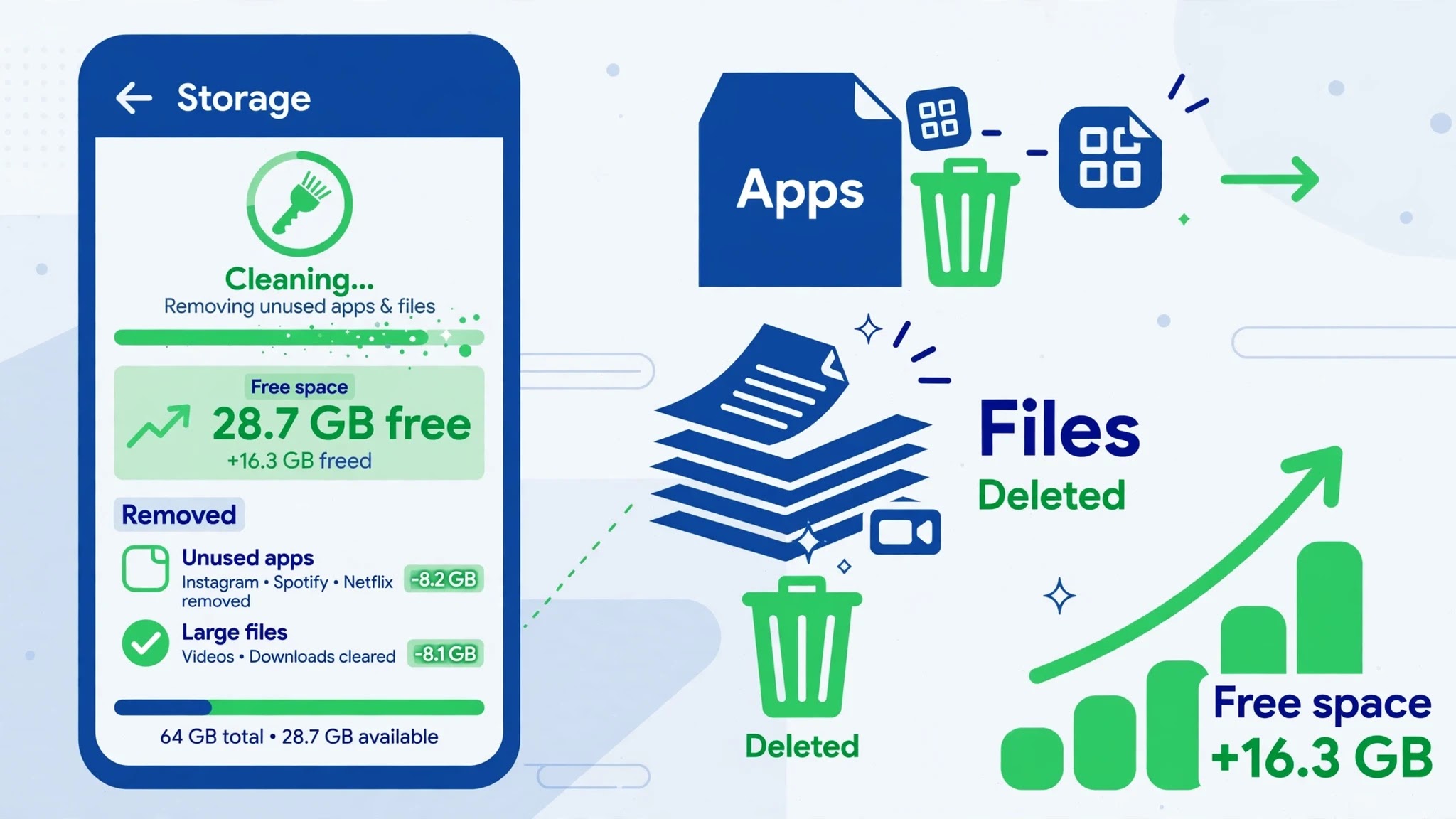
Deleting three photos will not fix this error. The wins that actually move the needle are large, forgotten things: games you finished months ago, downloaded videos, and duplicate files.
- In Settings → Storage, tap Apps and sort by size. Uninstall the big apps you no longer open — long-press the icon on the home screen and tap Uninstall, or use the App info page.
- Open Files by Google (preinstalled on most phones, free in the Play Store if not) and tap Clean. It finds junk files, duplicate photos, old screenshots and large files in one place — delete from here rather than hunting folder by folder.
- Clear out the Downloads folder. Old APKs, PDFs and videos pile up there silently; open Files, go to Downloads, sort by size, and delete what you do not need.
- Move photos and videos to the cloud or a computer before deleting local copies. Google Photos can back them up and then remove the device copies with its “Free up space” option — but only after backup is complete, so check the backup status first.
- Recheck Settings → Storage after the cleanup. You want the free number comfortably above 2 GB before you retry the install.
Fix 3: Clear the Play Store, Play Services and Download Manager Caches
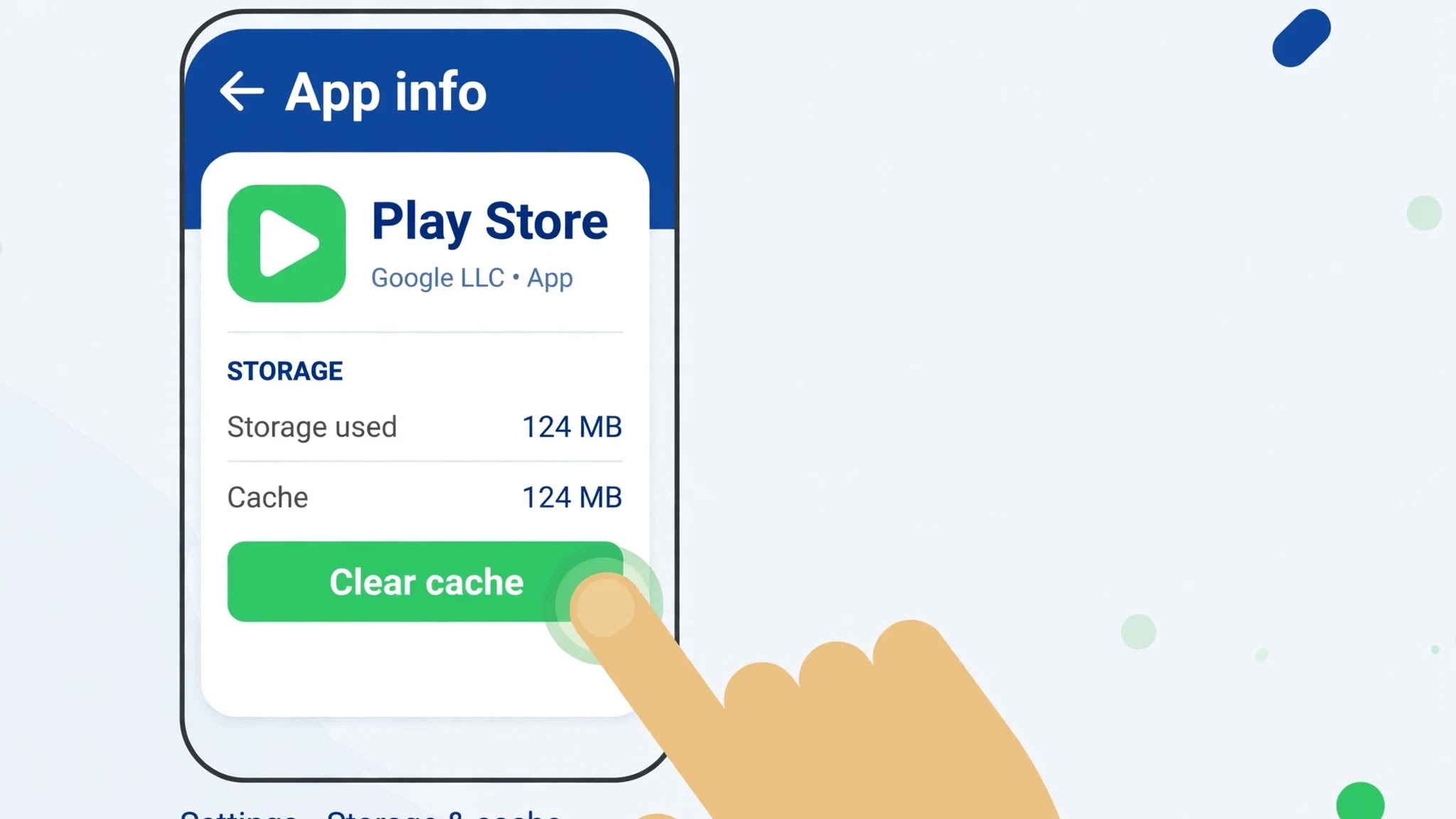
This is the fix for the maddening version of the error: plenty of free space, install still refused. The Play Store keeps its own record of available space, and when that record goes stale it keeps refusing installs. Clearing the caches of the three apps involved in every download forces a fresh calculation.
- Go to Settings → Apps → See all apps → Google Play Store → Storage & cache and tap Clear cache. Then tap Clear storage (on some phones: Manage space → Clear all data). This does not delete your installed apps or purchases — it only resets the store’s local data, and you may need to accept the terms again.
- Repeat for Google Play services: Settings → Apps → See all apps → Google Play services → Storage & cache → Clear cache, then Clear storage. Play Services powers downloads, so a stale record here blocks installs just as surely.
- Repeat once more for Download Manager. On some phones it is hidden — tap the three-dot menu in the app list and choose Show system to find it.
- Restart the phone. This matters: the caches rebuild cleanly on a fresh boot, while a running store can hold on to the old numbers.
- Open the Play Store and retry the install. If the error is gone, you have found your cause — and if it returns weeks later, repeat this fix before deleting anything.
Fix 4: Move Apps and Media to the SD Card
If your phone has a microSD slot and internal storage is tight, moving what can be moved buys real headroom. Not every app can move, and moved apps still keep part of themselves internally, so treat this as relief, not a cure.
- Go to Settings → Apps, pick a large app, and tap Storage. If you see a Change button next to the storage location, tap it and choose SD card. Games and media apps are the best candidates; system apps and banking apps usually cannot move.
- Move your camera’s storage location too: open the Camera app → Settings → Storage location → SD card, so new photos stop filling internal storage.
- In Files by Google or your file manager, move existing videos and large downloads to the SD card in bulk rather than one file at a time.
- If your phone offers to format the card as internal storage (adoptable storage), think before accepting: the card becomes tied to that phone and a slow card will slow the whole phone. For most people, portable storage plus manual moves is the safer choice.
- After moving, check internal free space again and retry the install. If the SD card itself is nearly full, the Play Store may still complain — free space on the card as well.
Fix 5: Uninstall Play Store Updates and Refresh Your Google Account
When the store itself is the problem — a bad update to the Play Store app, or an account token that has gone stale — no amount of freed space helps. Resetting the store app and re-signing in clears both.
- Go to Settings → Apps → See all apps → Google Play Store, tap the three-dot menu in the top-right, and choose Uninstall updates. This rolls the store back to its factory version; it will update itself again within hours, and that fresh update often clears the error.
- If the error survives that, refresh the account: go to Settings → Passwords & accounts (on Samsung: Settings → Accounts and backup → Manage accounts), tap your Google account, and choose Remove account. Restart the phone, then add the account back from the same screen.
- Open the Play Store, accept the terms if asked, and retry the install. Have your password ready — and if you use two-factor authentication, keep your second device nearby.
Fix 6: Update Android and Check the SD Card’s Health
The last two culprits are the system itself and a dying SD card. Both are rarer, but both produce exactly this error, and both are worth ruling out before considering anything drastic.
- Check for a system update: Settings → System → System update (Samsung: Settings → Software update → Download and install; Xiaomi: Settings → About phone → MIUI/HyperOS version). Storage-accounting bugs get fixed in system updates, and an outdated phone can misreport free space.
- If you use an SD card, unmount it (Settings → Storage → tap the card → Eject), remove it, and retry the install with internal storage only. If the install suddenly works, the card was the problem — back up its contents, format it in the phone, and restore, or replace it if errors return.
- As a final check, boot into recovery and wipe the cache partition if your phone offers it (power off, then hold Power + Volume Up). This clears system-level cached data without touching your files. A factory reset is the last resort and almost never needed for this error — and if you reach it, back up everything first, because a reset erases the phone completely.
Most phones are fixed by Fix 2 or Fix 3; if you reach Fix 6, the cause is almost certainly the system or the SD card, not the app you were trying to install.
Related Guides
Watch:
Frequently Asked Questions
Why does the Play Store say insufficient storage when I have free space?
Because an install needs more than the app’s size: room for the download, room to unpack it, and a safety margin Android keeps free. A phone showing 500 MB free can refuse a 100 MB app.
Will clearing Play Store data delete my apps or purchases?
No. Clearing cache or storage for the Play Store, Google Play Services or Download Manager only removes their local temporary data. Your installed apps, purchased apps and account stay untouched; you may just need to accept the Play Store terms again.
How much free space should I keep on my Android phone?
Aim for at least 2 GB free, and ideally 10–15% of your total storage. Below that, installs fail, updates stall, and the phone itself slows down because Android has no room for temporary files.
By Sameer Zehri | App Fix Guru Editor | Last updated: October 2026