

The download bar filled up, the percentage hit 100%, and then everything stopped: your app sits in the Play Store showing “Installing…” and never moves on. It is not the same problem as an app stuck on “Download pending” — the file already arrived, and Android is now stuck unpacking and installing it. That stage fails for its own reasons: too little free space to unpack into, a jammed Play Store cache, or a stalled install queue that needs clearing before anything else can proceed. These 6 fixes for apps stuck on “Installing” in the Play Store target that stage specifically, and they cover Android 10 through 14.
Quick Answer
If an app is stuck on “Installing” in the Play Store, first cancel that install and start it again (Play Store → profile icon → Manage apps & device → Manage → cancel the stuck app). If it sticks again, free up at least 1–2 GB of storage — installing needs room to unpack — then clear the Play Store cache under Settings → Apps.
In This Guide
- Fix 1: Cancel the Stuck Install and Retry It Cleanly
- Fix 2: Free Up Room for the Unpack Step
- Fix 3: Clear the Play Store and Play Services Cache
- Fix 4: Fix the Connection the Install Still Needs
- Fix 5: Roll Back and Refresh the Play Store Itself
- Fix 6: Reset App Preferences and Free the Download Manager
Fix 1: Cancel the Stuck Install and Retry It Cleanly
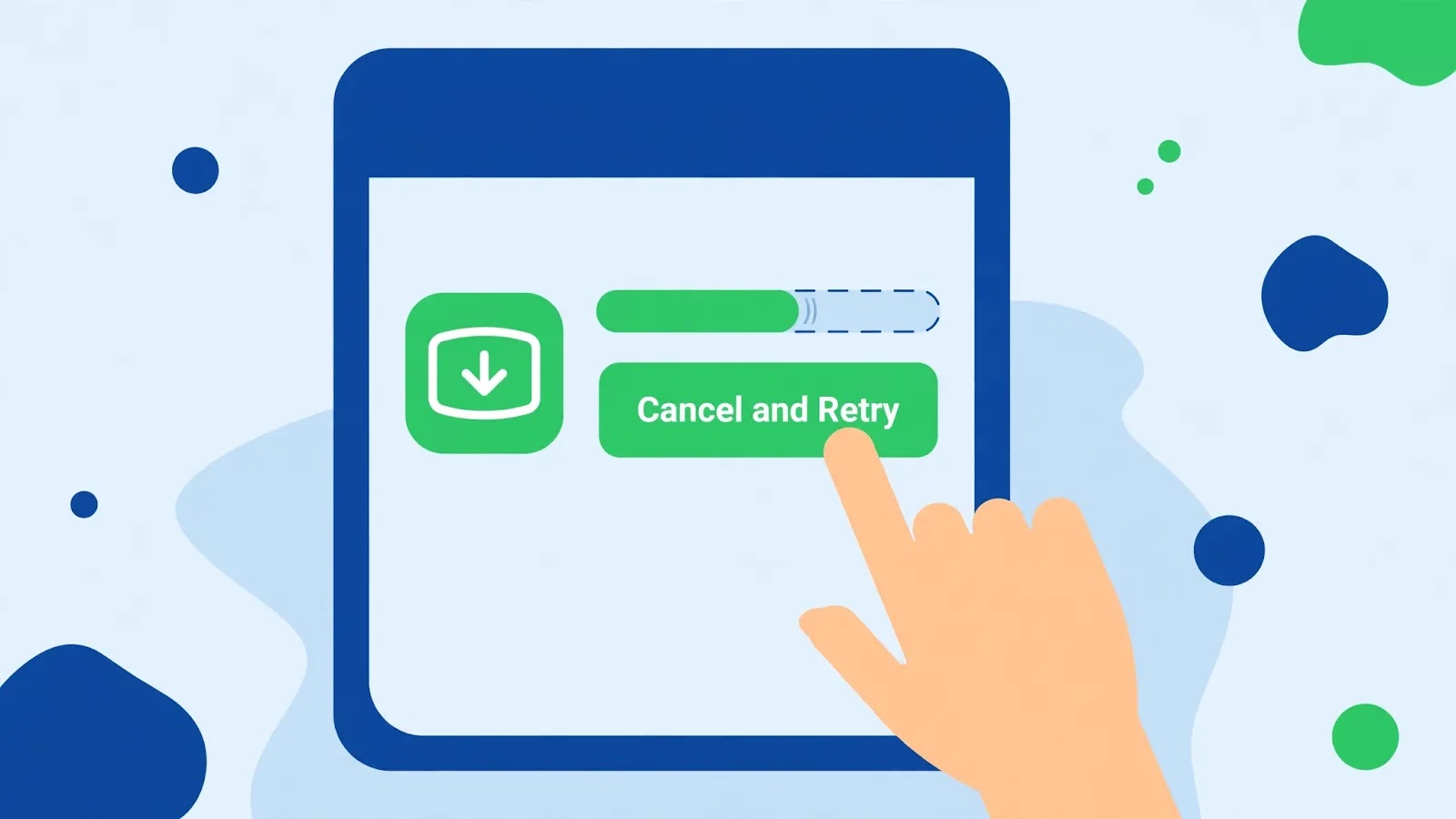
An install that has stalled rarely recovers on its own — the entry in the queue is wedged, and every minute you wait is a minute the queue stays blocked for other updates too. Cancelling it and starting fresh clears the wedge, and it costs nothing: the download is quick to repeat.
- Open the Play Store, tap your profile icon, and go to Manage apps & device → Manage.
- Find the stuck app. If it shows an X or a cancel option, tap it to stop the install. If there is no cancel control, tap the app’s store page and use the Cancel button there.
- Wait a few seconds, then check the Manage list for any other stalled updates and cancel those too — a jammed queue can hold up the app you actually want.
- Restart the phone, open the Play Store, and install the app again on its own, with nothing else updating at the same time.
If the same app stalls in the same place twice, do not just keep retrying — the cause is on your phone, not in the queue, and the next fixes address it.
Fix 2: Free Up Room for the Unpack Step
Downloading is only half the job. After the download, Android unpacks the app, verifies it, and writes the finished app to storage — and that unpacking step needs spare room beyond the app’s own size. A phone showing a few hundred megabytes free will often download fine and then freeze exactly on “Installing…”.
- Check your space under Settings → Storage. For a large app or game, aim for 1–2 GB free before you install.
- Clear the quick wins: the Downloads folder, duplicate videos, and the caches of heavy apps (Settings → Apps → [app] → Storage & cache → Clear cache). Files by Google can surface the biggest items if you are unsure what to delete.
- Uninstall one or two apps you no longer use rather than trimming dozens of small files — one big removal beats many small ones for this purpose.
- Try the install again. If it now moves past “Installing…” within a minute or two, storage was the blocker.
Note the distinction from a download problem: if your phone shows plenty of free space and the bar still freezes, the queue or the Play Store cache is the likelier culprit — keep going below.
Fix 3: Clear the Play Store and Play Services Cache
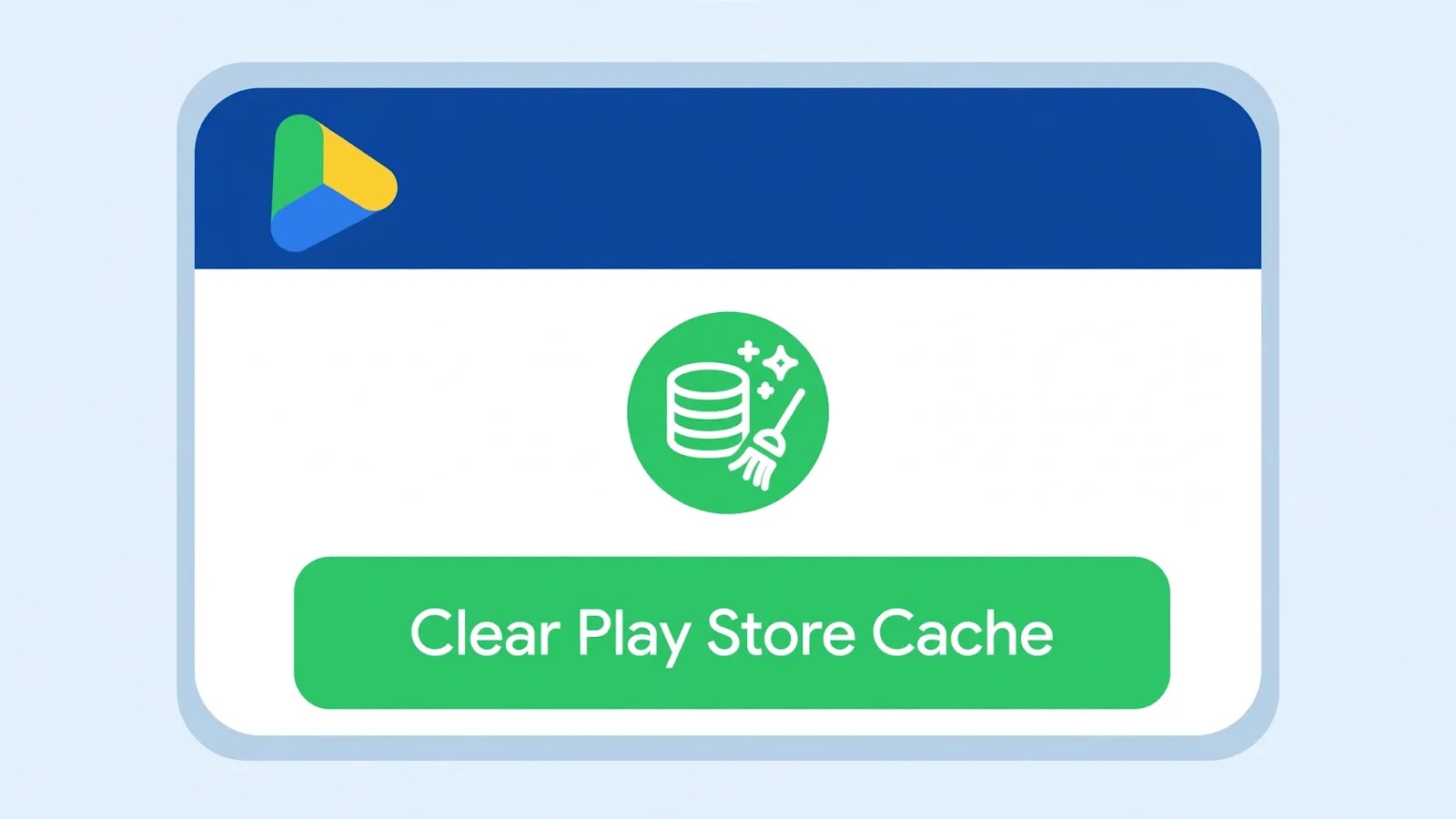
A corrupted Play Store cache is the classic reason installs stall at the last step: the store app itself is holding broken state about an install that already finished downloading. Clearing it forces a clean slate without touching your installed apps or your Google account.
- Go to Settings → Apps → See all apps → Google Play Store → Storage & cache, then tap Clear cache. If the install still stalls, repeat and tap Clear storage as well.
- Do the same for Google Play services: clear its cache first, and its storage only if the problem continues. (Clearing Play services storage signs you out of nothing, but some app settings may need a moment to re-sync.)
- Force-stop the Play Store from its App info screen, restart the phone, and open the Play Store again before retrying the install.
- Sign back in if prompted, then install the app on its own.
On Samsung phones (One UI) the same screens live under Settings → Apps → Google Play Store → Storage; on Xiaomi (HyperOS) under Settings → Apps → Manage apps → Google Play Store → Clear data.
Fix 4: Fix the Connection the Install Still Needs
It feels wrong — the download finished, so why would the network matter? Because the installing stage still talks to Google’s servers to verify the app and fetch any extra files, and a flaky connection or a VPN in the middle can stall that handshake indefinitely while the screen still says “Installing…”.
- Switch networks: if you are on Wi-Fi, try mobile data, or the other way round, and retry the install. A connection that downloads fine can still drop the short verification calls.
- Turn off any VPN or ad-blocking VPN app for the duration of the install, then turn it back on afterwards.
- In the Play Store, tap your profile icon → Settings → Network preferences → App download preference and set it to Over any network, so the install is not waiting on a Wi-Fi-only rule.
- Restart your router once if Wi-Fi itself is unstable, and keep the phone awake during the install — some aggressive battery settings pause background work when the screen sleeps.
Fix 5: Roll Back and Refresh the Play Store Itself
When the store app’s own update is the broken piece, clearing cache will not reach it. Rolling the Play Store back to its factory version and letting it update itself cleanly is the standard repair for a store that misbehaves across many apps.
- Go to Settings → Apps → Google Play Store, tap the three-dot menu, and choose Uninstall updates. Confirm — this only removes Play Store updates, not the store itself and not your apps.
- Open the Play Store. It will look older for a moment and then update itself in the background to the current version.
- To check manually, tap your profile icon → Settings → About → Update Play Store and let it confirm the version.
- Restart the phone, then try the stuck app’s install again.
If the Play Store will not update itself after the rollback, check for a system update under Settings → System → System update — store and system updates sometimes travel together.
Fix 6: Reset App Preferences and Free the Download Manager
Two quiet system pieces can block installs without any error message: a disabled Download Manager, and a tangle of app preferences left over from earlier disabled apps and permission changes. Both are fixed without deleting anything.
- Go to Settings → Apps → See all apps and look for Download Manager. If it is disabled, tap Enable. While you are there, clear its cache too.
- Go back to the Apps list, tap the three-dot menu, and choose Reset app preferences. Confirm. This re-enables disabled system apps and restores default permissions and background-data rules — it does not delete any app data.
- Check battery optimisation for the Play Store: Settings → Apps → Google Play Store → App battery usage → set it to Unrestricted on phones with aggressive power management, so the install is not paused mid-unpack.
- Restart the phone and install the app again. If it still freezes at “Installing…” for every app, not just one, the last resort is a factory reset after a full backup — but reach that step only after the five fixes above, since it wipes the phone.
One last check that saves repeat trouble: after a successful install, open the app once before moving on. An install that “finished” but left the app crashing on launch is a different problem, and catching it now keeps it from looking like another stuck install later.
Related Guides
Watch: Apps Stuck on Installing Fixed Step by Step
This video walks through fixing apps stuck while installing or downloading from the Play Store:
Video by How To Create — full credit to the creator.
Frequently Asked Questions
How long should “Installing…” take before I call it stuck?
Small apps usually finish within a minute or two on a decent connection; large games can take several minutes while they unpack. If the bar has not moved at all for 10–15 minutes, or it stalls on every app, treat it as stuck and start with Fix 1.
Will cancelling a stuck install delete the app’s downloaded data?
No. Cancelling removes the partial install entry, not your other apps or files. The next install simply downloads and unpacks the app again from scratch.
Why does only one app get stuck on “Installing…” while others install fine?
That usually means the problem is with that app’s package — a large extra download, a corrupted listing, or a version your phone struggles to unpack. Try the same app after Fixes 2 and 3; if it alone keeps failing, check whether its developer lists a known issue or a newer version.
By Sameer Zehri | App Fix Guru Editor | Last updated: October 2026