

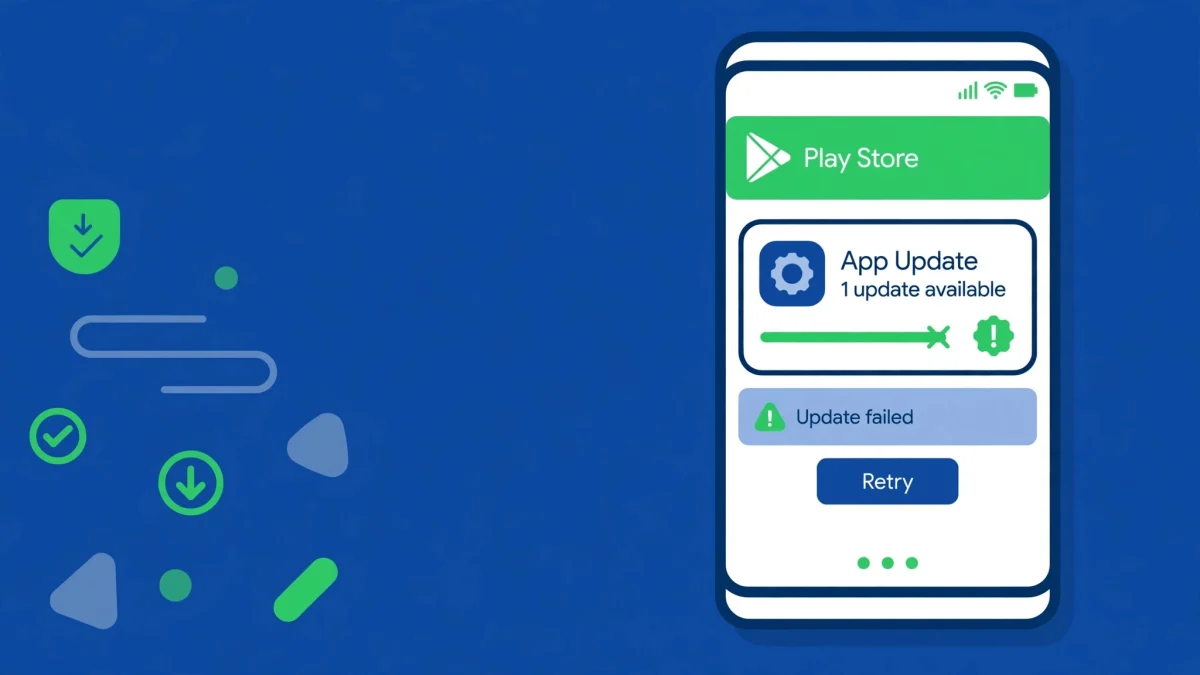
You tap Update, the progress bar crawls halfway, and then the Play Store gives up with a short, unhelpful line: “Update failed due to error 941” — or, on a fresh install, “Download failed due to error 941”. Nothing else is wrong with the phone. Other apps open fine, the internet works, and the same app may even update perfectly on another device. That pattern is the clue: Play Store error 941 when updating apps is almost always an interrupted download, not a broken app. Something stopped the update halfway — a stalled download queue, a corrupted cache in the Play Store or its helpers, or a Google account that stopped syncing — and the Play Store cannot pick up where it left off. This guide fixes it in the order that matches that cause, starting with the download queue itself.
Before you change any setting, run one quick test: open the Play Store, cancel the failed update, and try updating a different, small app. If the small app updates cleanly, the fault is tied to that one download — jump to Fix 1 and then Fix 6. If every update fails with error 941, the Play Store’s own machinery is the problem, and Fixes 2 to 4 are where the answer lives.
Quick Answer
To fix Play Store error 941 when updating apps, cancel the stuck update, then clear the cache and data of Google Play Store, Google Play Services, and Download Manager in that order. If the error returns, uninstall Play Store updates and remove and re-add your Google account. Covers Android 10 through 14.
In This Guide
- 1. Cancel the Stuck Update and Restart the Download Cleanly
- 2. Clear the Cache and Data of the Play Store Trio
- 3. Roll Back the Play Store to Its Factory Version
- 4. Remove and Re-Add Your Google Account
- 5. Free Storage Space and Fix the Date and Time
- 6. Update Android and Reinstall Only the Failing App
- Frequently Asked Questions
1. Cancel the Stuck Update and Restart the Download Cleanly
Error 941 is, at its root, an interruption error. The Play Store started writing an update, the process stalled or was cut off, and the half-finished package cannot be completed. Clearing caches will not help until that stuck download is cancelled — otherwise the Play Store keeps trying to finish the same broken file.
- Open the Google Play Store, tap your profile icon, then Manage apps & device, and look under Manage for the app stuck on “Pending” or “Downloading”.
- Tap the app, then tap Cancel (or the X beside it) to stop the update completely. Do not just leave it pending and move on.
- Force-stop the Play Store itself: long-press the Play Store icon, tap App info, then Force stop and confirm. This ends the wedged download process instead of merely hiding it.
- Restart the phone, reopen the Play Store, and try the update again on its own — one app at a time, not as part of an “Update all” batch. If it goes through, the interruption was a one-off and you are done.
2. Clear the Cache and Data of the Play Store Trio
Three apps do the Play Store’s download work, and error 941 is commonly blamed on corrupted data in one of them: the Google Play Store itself, Google Play Services, and Download Manager. Clearing only the Play Store’s cache misses the other two, which is why this fix so often “doesn’t work” for people who tried it once. Work through all three, in this order.
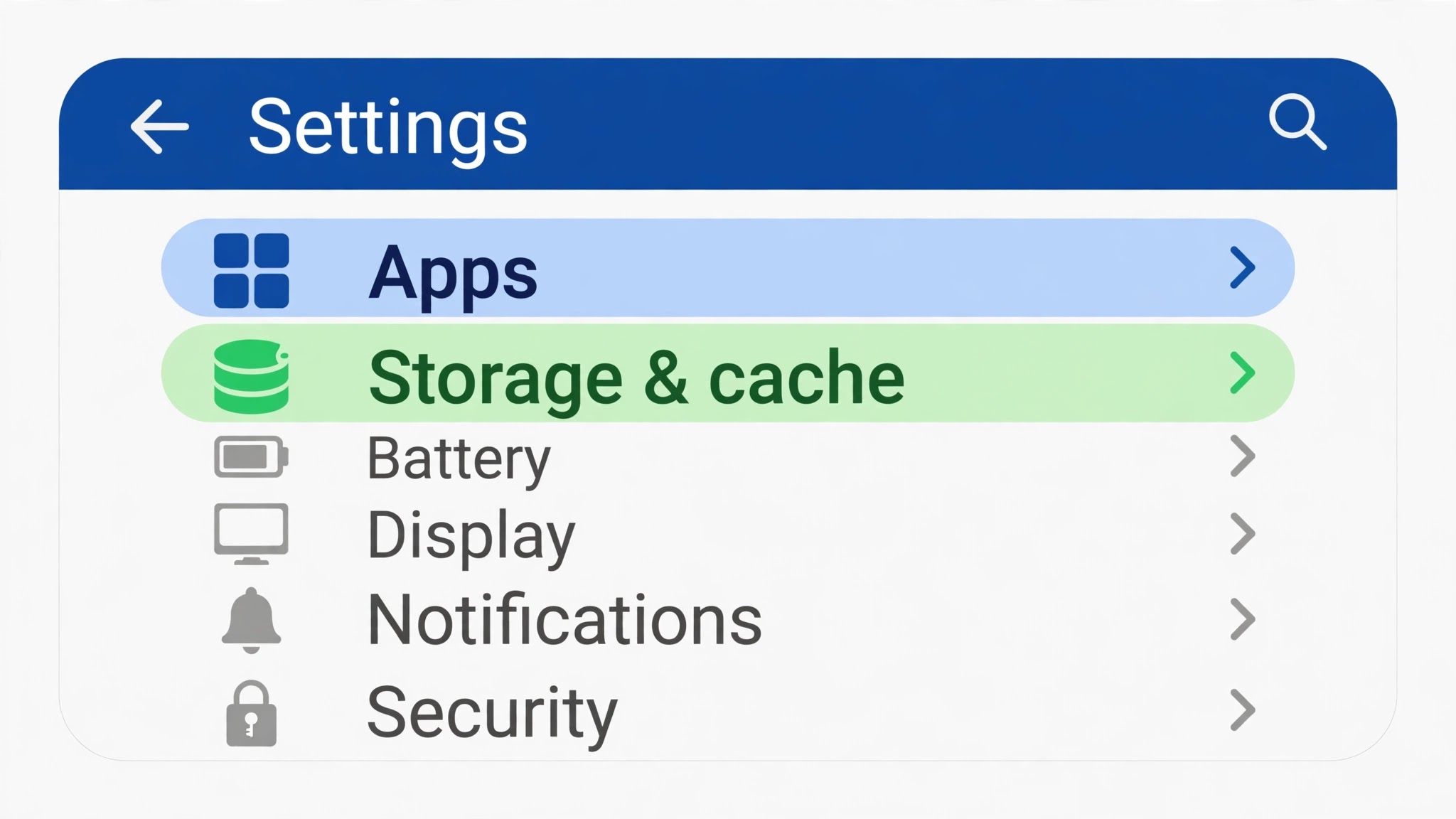
- Open Settings > Apps > See all apps, find Google Play Store, tap Storage & cache, then tap Clear cache first. Reopen the Play Store and retry the update.
- If it still fails, go back to the same screen and tap Clear storage (labelled Clear data on some phones). This signs you out of the Play Store locally and resets its settings — it does not uninstall any app.
- Repeat both taps for Google Play Services: Settings > Apps > See all apps > Google Play Services > Storage & cache > Clear cache, then Clear storage.
- Finally do the same for Download Manager. On some phones it is listed as “Downloads”. If you cannot find it, tap the three-dot menu in the apps list and choose Show system — Download Manager is a system app and hides from the default list.
- Restart the phone after clearing all three, then retry the update. Test with the app that failed before moving on to the next fix.
3. Roll Back the Play Store to Its Factory Version
Sometimes the Play Store app itself is the corrupted piece: a recent Play Store update applied badly, and every download since has tripped over it. You cannot uninstall the Play Store — it is a system app — but you can strip its updates back to the version that shipped with the phone, and let it update itself cleanly again.
- Open Settings > Apps > See all apps > Google Play Store and tap App info.
- Tap the three-dot menu in the top-right corner and choose Uninstall updates. Confirm when asked. The Play Store icon stays, but the app reverts to its factory version.
- Restart the phone. On first launch, the Play Store will look older and may take a few seconds longer to open.
- Let the Play Store update itself: leave it open for a minute or two, or use it normally for a few minutes, and it will refresh in the background.
- Once it has refreshed, retry the app update that failed with error 941. If the rollback fixed it, the corrupted Play Store update was the cause.
4. Remove and Re-Add Your Google Account
When the caches are clean and the Play Store is rolled back but error 941 keeps returning, the remaining suspect is your Google account.

- Before you start, make sure you know the Google account’s password. Removing the account signs you out of Gmail, Drive, and other Google apps on this phone, and you will need the password to sign back in.
- Open Settings > Passwords & accounts (Samsung: Settings > Accounts and backup > Manage accounts; Xiaomi: Settings > Accounts & sync), tap the Google account, then tap Remove account and confirm.
- Restart the phone. This clears any leftover account state that a simple sign-out would leave behind.
- Go back to Settings > Passwords & accounts > Add account > Google and sign in again with the same account. Wait for the initial sync to finish — give it a couple of minutes on Wi-Fi before you test the Play Store.
- Open the Play Store and retry the failed update. If error 941 is gone, the stale account token was the problem.
5. Free Storage Space and Fix the Date and Time
Two quiet conditions can turn a normal update into error 941. The first is storage: an update needs room to download and unpack, and a phone with almost no free space will fail even if the Play Store is healthy. The second is time: if the phone’s clock is wrong, Google’s servers will reject the download request.
- Check free space under Settings > Storage. If you have less than 1 GB free, delete a few large videos, clear the Downloads folder, or uninstall an app you no longer use, then retry.
- Check the clock under Settings > System > Date & time (Samsung: General management > Date and time; Xiaomi: Additional settings > Date & time) and turn on Set time automatically and Set time zone automatically.
- If the automatic time is itself wrong — it happens on some carrier networks — turn automatic off, set the time manually to the correct time, and retry the update.
6. Update Android and Reinstall Only the Failing App
If error 941 survives everything above, the last suspects are the phone’s system software and the single app’s installation. Work through this section once, in order, and stop as soon as the update succeeds.
- Install any pending system update: Settings > System > System update (Samsung: Software update > Download and install) and apply it, then restart.
- Check for a Google Play Services update in the Play Store itself — search for “Google Play Services” and tap Update if one is offered.
- If only one app still refuses to update, uninstall just that app, restart the phone, and install it fresh from the Play Store. A fresh install sidesteps whatever was corrupted in the old installation’s update path.
- If error 941 appears for every app even after all six fixes, the fault is deeper than app settings — a damaged system partition or a failing storage chip. Back up your data and contact the phone maker’s support rather than repeating these steps, which have already ruled out the common causes.
Prefer a walkthrough? This video covers fixing Play Store error 941 when updating apps on Android step by step:
Video by VizTech — full credit to the creator.
Related Guides
- Play Store Error 505? 6 Fixes (2026)
- Play Store Error 921? 6 Fixes (2026)
- Play Store “Download Pending” Stuck? 6 Fixes (2026)
Frequently Asked Questions
What does Play Store error 941 actually mean?
It means an app download or update was interrupted during the installation step. The usual triggers are a stalled download queue, corrupted Play Store cache, or a broken account sync — not a problem with the app itself.
Will clearing Play Store data delete my installed apps?
No. Clearing cache or storage for the Play Store, Google Play Services, or Download Manager removes only their local settings and temporary data. Your installed apps, photos, and personal files are not touched.
Why does error 941 keep coming back after I clear the cache?
Usually because only one of the three helper apps was cleared, the stuck download was never cancelled, or the Google account was never removed and re-added. Work through Fixes 1 to 4 in order, testing with the same app after each step.
By Sameer Zehri | App Fix Guru Editor | Last updated: November 2026