

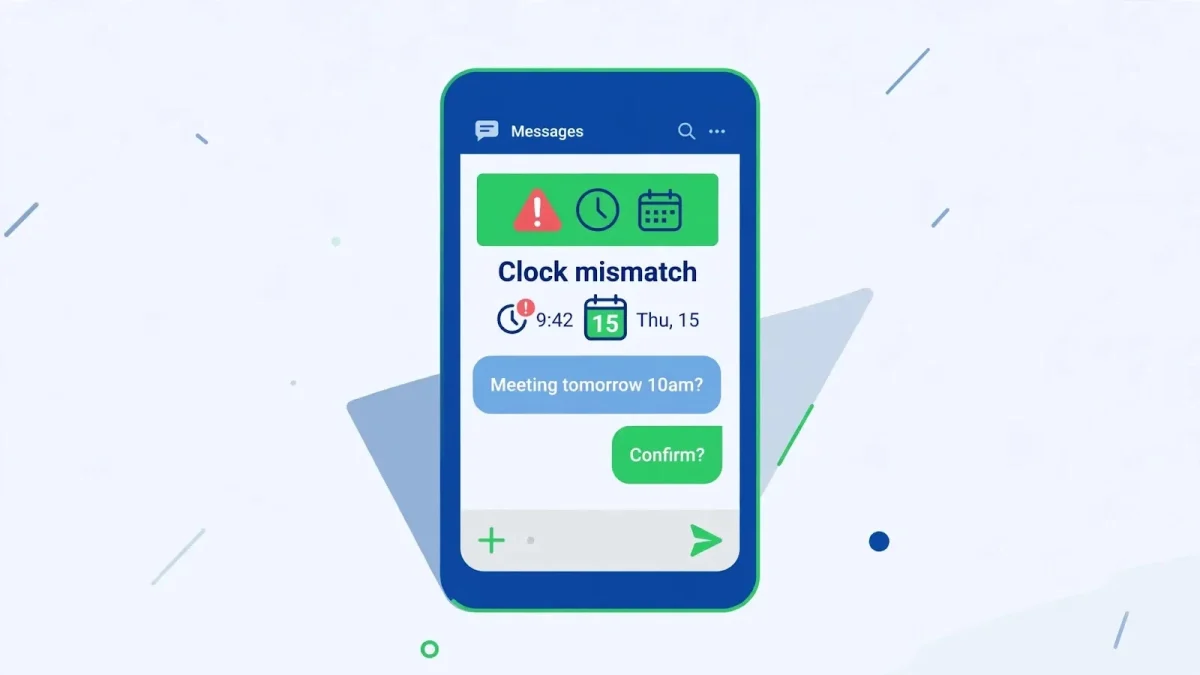
You open WhatsApp and instead of your chats you get a full-screen warning: “Your phone date is inaccurate! Adjust your clock and try again.” Nothing else is wrong with the phone — calls work, other apps open — but WhatsApp refuses to go any further. WhatsApp checks your phone’s clock against its servers before it lets you in, because message timestamps, encryption and backup syncing all depend on the time being right. If your clock is even a few minutes off, or your time zone disagrees with where you actually are, WhatsApp stops you at the door. These 5 fixes for the WhatsApp date is inaccurate error start with the clock itself — the cause behind nearly every case — and they cover Android 10 through 14.
Quick Answer
WhatsApp shows the date inaccurate error when your phone’s clock or time zone does not match real time. Go to Settings → System → Date & time, turn on Automatic date & time and Automatic time zone, force-close WhatsApp, and reopen it. That clears the warning in most cases.
In This Guide
Fix 1: Turn On Automatic Date, Time and Time Zone
The automatic setting is the fix because it removes the human error entirely: your phone takes the time from your mobile network, which is the same source WhatsApp’s servers trust. A surprising number of cases trace back to this setting being off after a factory reset, a new SIM, or a trip abroad.
- Open Settings → System → Date & time. On Samsung phones (One UI) the path is Settings → General management → Date and time; on Xiaomi (HyperOS) it is Settings → Additional settings → Date & time; on Pixel it is the System path above.
- Turn on Set time automatically (worded “Automatic date & time” or “Use network-provided time” on some phones) and Automatic time zone (“Use network-provided time zone”).
- If both were already on but the time is still wrong, toggle them off, wait ten seconds, and toggle them back on. This forces a fresh sync with the network instead of trusting a stale value.
- Check the clock on your home screen against a reliable source — another phone, or a clock you trust. If the two still disagree by more than a minute, your network may not be providing time at all, and Fix 2 is your next step.
- Open WhatsApp. If the warning is gone, you are done — no other fix is needed, and leaving automatic time on prevents the error from returning.
One habit worth keeping: leave both automatic toggles on permanently. Manually set clocks drift over weeks, and WhatsApp notices the drift long before you do.
Fix 2: Set the Date, Time and Time Zone Manually — Correctly
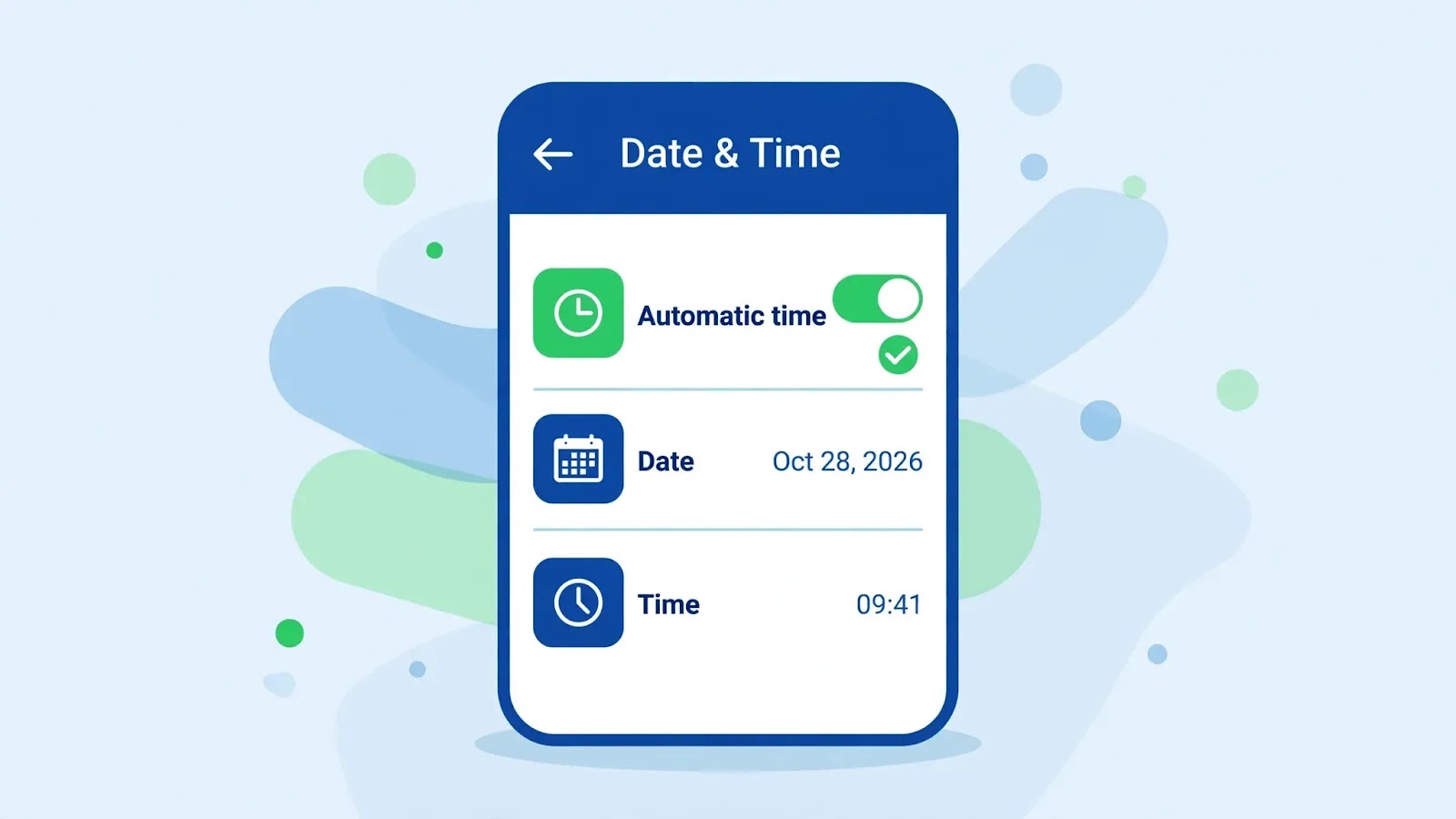
Automatic time only works when your phone can reach the network’s time signal. On Wi-Fi only, on a weak signal, or in a region where the carrier does not broadcast time, the automatic value can be wrong or missing — and then a careful manual setting is the honest fix. The trap here is getting the time right but the time zone wrong, which leaves you hours off even with the right digits.
- Go back to Settings → System → Date & time and turn both automatic toggles off so you can edit the values.
- Tap Set date and choose today’s real date, then Set time and enter the current time, checking AM/PM carefully if your phone uses a 12-hour clock.
- Tap Select time zone and pick the region you are actually in — not the region your SIM came from, and not the one you visited last month. Travellers get caught by this constantly: the time looks right, but the zone still says the old city.
- If your phone offers “Use location to set time zone,” turning on Location Services can help it pick correctly, but confirm the zone it picks matches where you are.
- Force-close WhatsApp (see Fix 3) and reopen it. WhatsApp reads the system clock each time it starts, so a manual correction only registers after a fresh launch.
If the clock drifts wrong again within days, the phone’s own timekeeping or a third-party “clock booster” app may be interfering — remove any app that claims to manage your system time, and switch back to automatic time once you have a reliable network connection.
Fix 3: Force-Close WhatsApp and Restart the Phone
WhatsApp reads your phone’s clock when it launches. If you fixed the clock while WhatsApp was sitting in the background, the app may still be holding the old, wrong reading — so the warning stays even though the clock is now right. A proper close and a restart clear that stale reading.
- Open your recent apps and swipe WhatsApp away, then go to Settings → Apps → WhatsApp → Force stop and confirm. Swiping away alone does not always stop the app; Force stop does.
- Reopen WhatsApp and check whether the warning is gone. If it is, the clock fix had already worked — the app just had not noticed yet.
- If the warning remains, restart the phone: hold the power button, tap Restart, and wait for it to boot fully. A restart also refreshes the network time sync, which is why it helps even when the clock looked right.
- After the restart, open WhatsApp before opening other apps, so you see its verdict on a clean system state.
Do not reinstall at this stage. Reinstalling is the last resort in Fix 5, and jumping to it early risks your chat history for a problem a restart would have solved.
Fix 4: Update WhatsApp and Your Phone Software
An old WhatsApp build can misread a correct clock, especially after a phone system update changed how time is reported. WhatsApp also tightens its clock checks over time, so a version from a year ago may fail a check the current version passes.
- Open the Play Store, search WhatsApp, and tap Update if one is offered. If it only shows Open, you are already on the latest version.
- While you are there, check your phone’s system update: Settings → System → System update (Samsung: Settings → Software update → Download and install; Xiaomi: Settings → About phone → System update). Install any pending update, since time-sync behaviour sometimes changes with the system.
- After updating, force-close WhatsApp once more and reopen it, so the new version reads the clock fresh.
- If you sideloaded WhatsApp from outside the Play Store, switch to the Play Store version. Unofficial builds can carry old or altered clock checks, and WhatsApp does not support them.
This fix matters most when the date error appeared right after an update — either WhatsApp’s or the phone’s — because that timing points at a version mismatch rather than a wrong clock.
Fix 5: Clear the Cache, Then Reinstall Only After a Backup

When the clock is right, the app is current, and the warning still will not go away, the remaining suspect is WhatsApp’s own stored data. Clearing the cache is safe; reinstalling is effective but dangerous without a backup, so the order here is strict.
- Go to Settings → Apps → WhatsApp → Storage & cache and tap Clear cache. This deletes temporary files only — your chats and media stay untouched. Reopen WhatsApp and check.
- If the error survives the cache clear, make a backup before anything else: in WhatsApp, tap the three-dot menu → Settings → Chats → Chat backup → Back up, and wait for it to finish to Google Drive. Confirm the backup time shown is current.
- Only then uninstall WhatsApp: long-press its icon → Uninstall, or Settings → Apps → WhatsApp → Uninstall.
- Restart the phone, reinstall WhatsApp from the Play Store, and sign in with the same number. When it offers to restore, tap Restore and wait for the backup to complete before opening chats.
- If the date warning appears during setup itself, stop and recheck Fix 1 and Fix 2 — a warning at setup means the clock is still wrong, and no reinstall will outrun a wrong clock.
Never tap “Clear storage” as a shortcut for this fix. Clear storage wipes WhatsApp’s local data the same way an uninstall does, but without the backup prompt — it is the one button in this guide that can cost you chats.
Related Guides
Watch: Fix WhatsApp Date Is Inaccurate Error
Video by Fix369 — full credit to the creator.
Frequently Asked Questions
Why does WhatsApp care about my phone’s date at all?
WhatsApp uses your phone’s clock for message timestamps, for the encryption handshake with its servers, and for backup syncing. If your clock disagrees with the server’s time, WhatsApp cannot trust the session, so it blocks you with the date warning rather than letting messages go out with wrong timestamps.
My clock looks right, but WhatsApp still says the date is inaccurate. Why?
Usually one of three things: the time zone is wrong even though the time looks right, WhatsApp is holding a stale reading from before you fixed the clock, or your phone’s automatic time is syncing to a bad network value. Work through Fix 2’s time zone check and Fix 3’s force-close and restart before assuming anything deeper is wrong.
Will clearing WhatsApp’s cache delete my chats?
No. Clear cache removes temporary files only, and your chats and media stay in place. Clear storage is different — it wipes WhatsApp’s local data. Only use Clear storage or uninstall after a current Google Drive backup, as described in Fix 5.
By Sameer Zehri | App Fix Guru Editor | Last updated: October 2026