

You set an alarm for the morning, you are sure it is switched on, but the little clock symbol that used to sit at the top of your screen is nowhere to be seen. That missing icon matters more than it looks: it is the only glanceable proof that an alarm is armed, and without it you go to bed wondering whether you will wake up on time. The good news is that in most cases the alarm itself is fine — the icon is either hidden by a setting, moved by a system update, or stuck because the Clock app needs a reset. The fixes below start with the simplest explanation and work toward the deeper ones.
Quick Answer
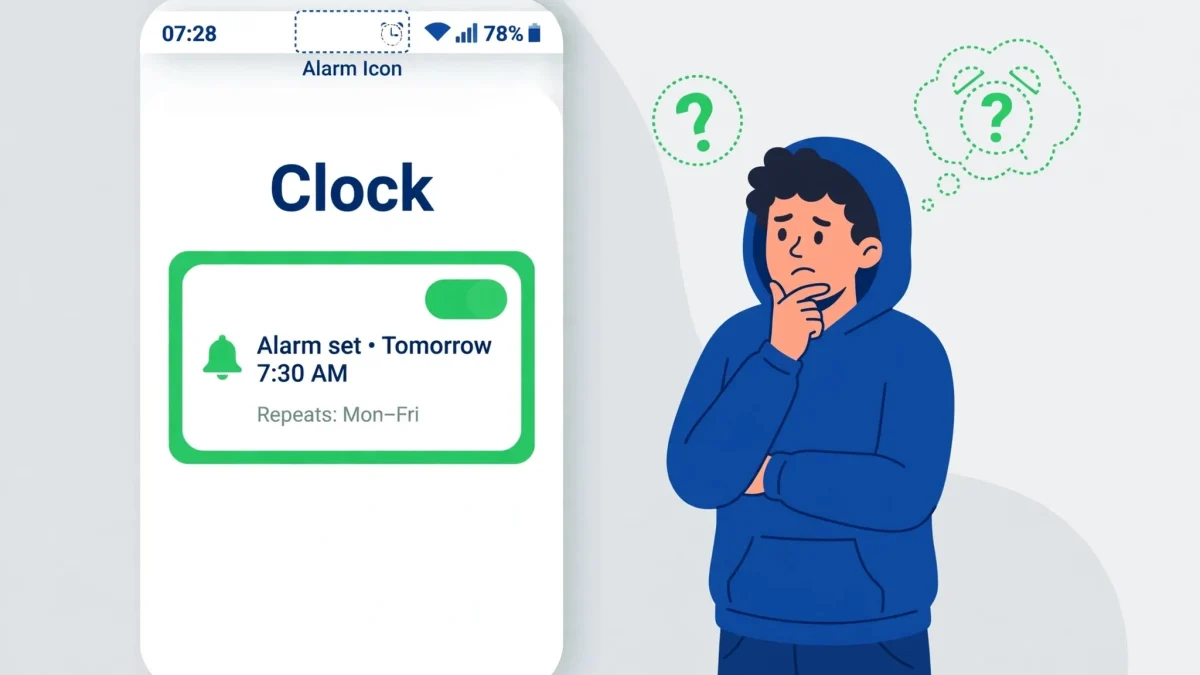
First open the Clock app > Alarm tab and confirm your alarm is actually toggled on, set for the right days, and not a Bedtime schedule instead of an alarm. Then pull down the notification shade — on Samsung phones running One UI 7 the alarm icon no longer shows in the status bar itself, only in the shade. If it is missing everywhere, check Settings > Notifications for the Clock app’s notification permission, then force-stop the Clock app, clear its cache, and restart the phone.
In This Guide
- 1. Confirm the alarm is really armed — days, time, and toggle
- 2. Check the notification shade — One UI 7 moved the icon
- 3. Turn Clock notifications and status bar icons back on
- 4. Force-stop the Clock app and clear its cache
- 5. Reset app preferences and check other alarm apps
- Frequently Asked Questions
One distinction saves a lot of wasted effort: the alarm icon in the status bar and the Clock app’s icon on your home screen are two different things. This guide is about the small clock symbol at the top of the screen that confirms an alarm is set. If the Clock app itself has vanished from your home screen, that is a different problem — search the app drawer first, since a removed shortcut is not a deleted app.
1. Confirm the alarm is really armed — days, time, and toggle
Before touching any setting, rule out the embarrassingly common cause: an alarm that is not actually armed. A toggle switched off during a groggy morning, an alarm set for weekdays only when today is Saturday, or an AM/PM mix-up all produce exactly the same symptom — no icon, because there is genuinely no upcoming alarm for Android to announce.
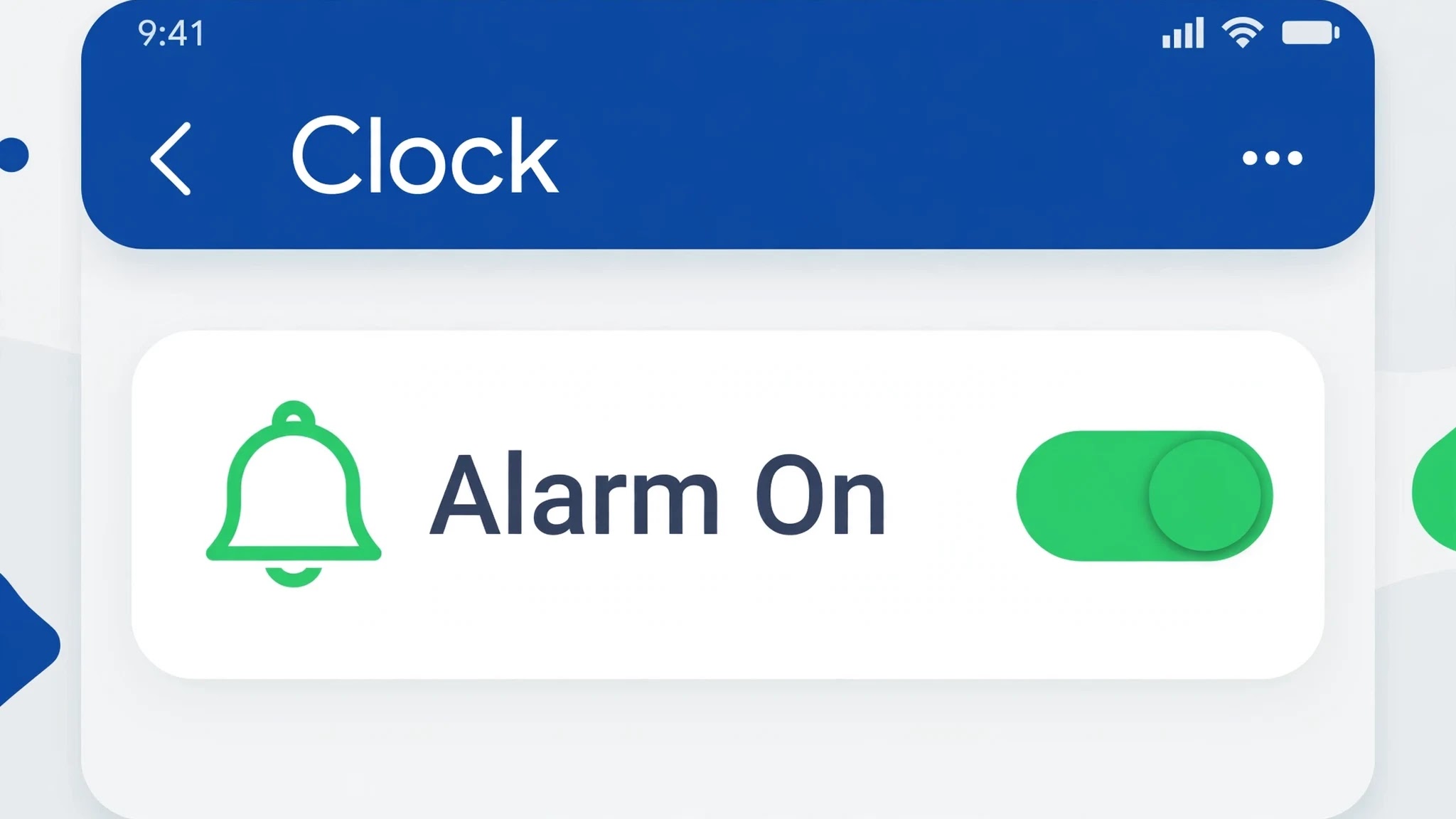
- Open the Clock app and tap the Alarm tab. Check that your alarm’s toggle is switched on — not greyed out, not half-swiped.
- Tap the alarm and check the days it repeats on. An alarm set for Monday to Friday will not show its icon on a Saturday, and that is correct behaviour, not a bug.
- Check AM versus PM carefully, and check whether the time is set for a day that has already passed — a one-time alarm in the past will not arm again.
- Check the Bedtime tab too. A Bedtime schedule is not the same as an alarm, and on some phones it shows its own icon rules — if you meant to set an alarm, set one in the Alarm tab.
If the toggle is on, the days are right, and the time is in the future, the alarm should be armed — and the icon should be showing. If it is not, the icon itself is being hidden or the Clock app is stuck, which is what the next fixes address.
2. Check the notification shade — One UI 7 moved the icon
If you use a Samsung phone, this fix alone explains the problem for many people. Since One UI 7, Samsung no longer shows the alarm icon in the status bar at the top of the screen. The alarm still works, and the icon still exists — it now appears only when you pull down the notification shade. Owners who updated and then looked for the icon in its old spot concluded it was gone, when it had simply moved.
- Pull down from the top of the screen once to open the notification shade, then again to fully expand it.
- Look for the small alarm clock symbol near the top of the shade, alongside the other status indicators.
- If the icon appears in the shade, your alarm is armed and working — nothing is broken, and no fix is needed beyond knowing where to look.
- If you also use a Pixel or Xiaomi phone, the same check still helps: on some builds the icon only appears in the shade when the status bar is crowded with other icons.
This is worth checking before any reset, because it turns a “fault” into a design change. If the icon is missing from the shade as well, move on — the problem is a setting or a stuck app, not a moved icon.
3. Turn Clock notifications and status bar icons back on
The status bar icon is tied to the Clock app’s notification permission and to your phone’s status bar icon settings. If notifications for the Clock app were switched off — during a cleanup, a battery-saving sweep, or an update that reset permissions — the icon can vanish even though the alarm itself still rings. Similarly, some phones let you hide individual status bar icons, and the alarm icon can be caught in that toggle.
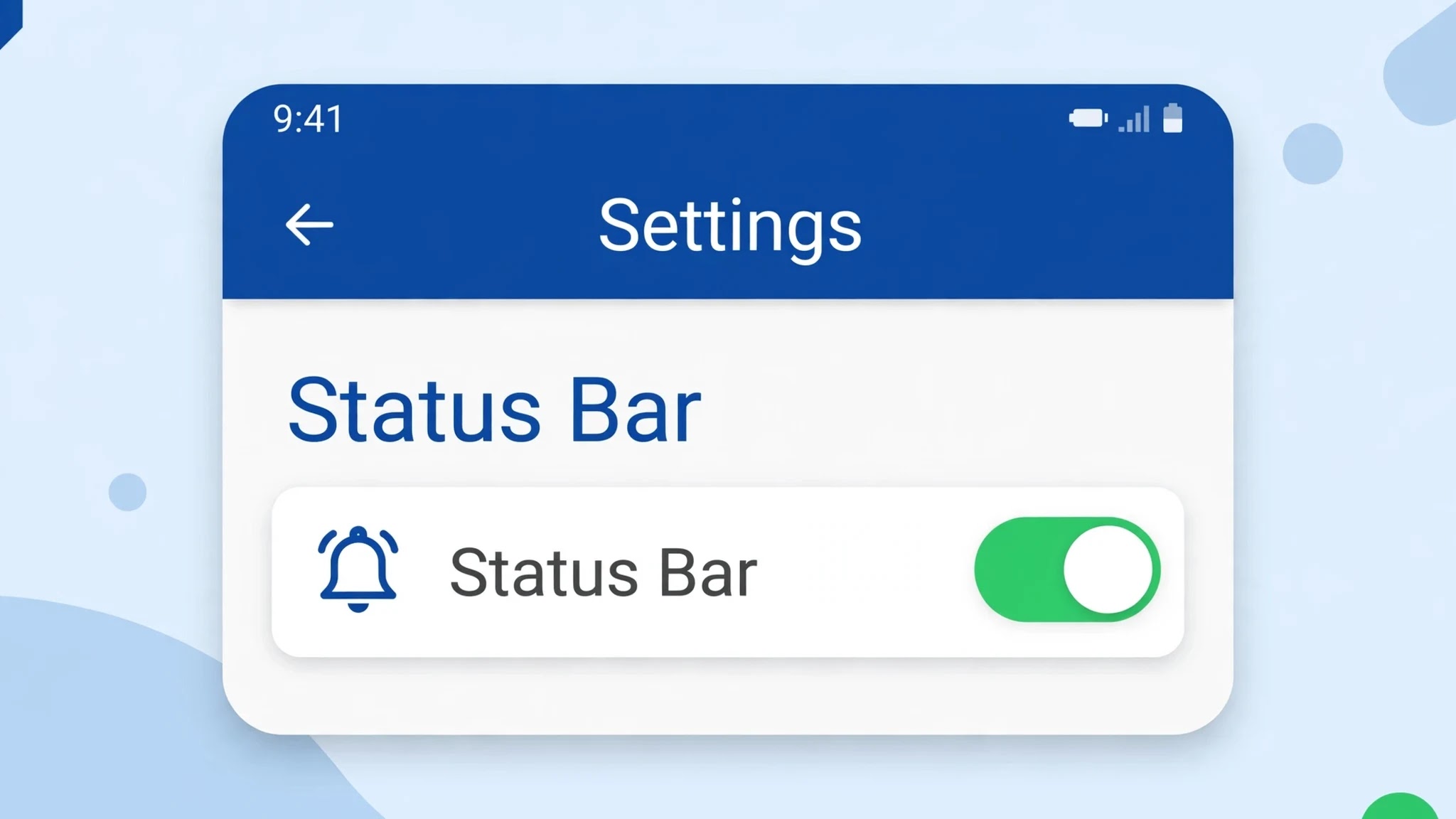
- Go to Settings > Apps > Clock (on Samsung phones it may be listed as “Clock”; on Pixel phones, “Clock” by Google) and tap Notifications. Make sure notifications are switched on, including the alarm notification category.
- Go to Settings > Notifications > Status bar (on Samsung: Settings > Notifications > Advanced settings > Show notification icons) and make sure notification icons are set to show — “All notifications” rather than a bare count or none.
- On Pixel phones, check Settings > Display and any status bar icon options your build offers, and confirm nothing is hiding system icons.
- Return to the home screen and check whether the icon has returned. If it appears only after you toggle these settings, a permission reset was the cause.
Do not use a third-party “status bar hider” app to force the icon back — these apps need broad permissions and often cause more icon problems than they solve. The built-in settings above are the safe route.
4. Force-stop the Clock app and clear its cache
When the alarm is armed, the shade shows nothing, and the settings are correct, the Clock app itself is usually stuck. A Clock app that crashed in the background, or whose cached state survived an update badly, can keep running alarms while failing to draw the icon — or keep showing a stale state after you changed the alarm. A force-stop and cache clear gives it a clean start without touching your saved alarms.
- Go to Settings > Apps > Clock and tap Force stop, then confirm.
- On the same screen, tap Storage & cache > Clear cache. Do not tap “Clear storage” or “Clear data” here unless you are prepared to recreate your alarms — clearing data wipes them.
- Restart the phone, then open the Clock app and confirm your alarms are still listed and toggled on.
- Check the status bar. If the icon returns, the app’s stuck state was the cause, and your alarms were never in danger.
If clearing the cache does not help, check for a Clock app update in the Play Store before going further — a known icon bug is sometimes fixed in a newer version, and updating is quicker than resetting anything else.
5. Reset app preferences and check other alarm apps
The last two suspects are a system-wide permission tangle and another app stealing the alarm signal. Resetting app preferences restores every app’s permissions and notification settings to their defaults without deleting any personal data — it is the gentlest system-level reset available. Separately, reminder, calendar, and sleep apps that hold the “Alarms & reminders” permission can interfere with how the icon behaves.
- Go to Settings > Apps, tap the three-dot menu, and choose Reset app preferences, then confirm. Your apps and data stay untouched; only permissions, defaults, and notification settings return to default.
- Go to Settings > Apps > Special app access > Alarms & reminders and review which apps hold this permission. Revoke it from reminder or task apps you no longer use.
- Restart the phone, open the Clock app, and confirm your alarm is still armed.
- If the icon is still missing after all five fixes, test with a fresh alarm set for two minutes from now: if that alarm rings but shows no icon, the issue is likely a system bug worth reporting through your phone maker’s feedback channel rather than a setting you can change.
As a final safety net, never rely on the icon alone for a critical wake-up. Until you have seen the icon return, set a second alarm in a different app or ask someone to call you — the icon is a convenience, but the alarm itself is what matters. Covers Android 10 through 14.
Related Guides
Frequently Asked Questions
Does a missing alarm icon mean my alarm will not ring?
Not necessarily. On Samsung phones running One UI 7 the icon moved to the notification shade while the alarm itself works normally. Check the shade first, and test with an alarm set two minutes ahead — if it rings, the alarm is fine and only the indicator is hidden.
Why did the alarm icon disappear after a system update?
Updates can move icons, reset notification permissions, or leave the Clock app in a stuck state. One UI 7 moved the icon into the shade, while other updates reset Clock notifications. Work through the shade check, the notification settings, and the cache clear in order.
Will clearing the Clock app’s cache delete my alarms?
No — clearing cache only removes temporary files and leaves your alarms untouched. The button to avoid is “Clear storage” or “Clear data” on the same screen, which wipes the app’s saved data including alarms.
By Sameer Zehri | App Fix Guru Editor | Last updated: November 2026
[…] Clock App Alarm Icon Missing? 5 Fixes (2026) […]