

Your meeting was definitely in the calendar — you saw it on your computer yesterday — but your phone shows an empty day. Or the birthday reminders, the flight, the doctor’s appointment: all gone from the Android calendar while everything else on the phone works fine. It is almost always a sync or visibility problem, not lost data: the event is usually still sitting in your Google account, and the phone just is not displaying it. This guide finds which layer is broken — the account, the sync switch, or the calendar’s own visibility — and fixes it in that order.
Quick Answer
First check calendar.google.com on a computer: if the event is there, the problem is your phone. On the phone, open the Google Calendar app, tap the menu, and make sure the right calendar is ticked and visible. Then go to Settings > Accounts > Google > Account sync and turn the Calendar toggle on, then tap Sync now. Pull down inside the Calendar app to refresh, and the missing events should appear within a minute or two.
In This Guide
Do not recreate the missing events while you troubleshoot — a duplicate created on the phone can sync up to Google and appear twice everywhere once the real sync starts working again. Find the real cause first; the events are almost certainly still there.
1. Confirm the event exists on the web first
Every calendar fix depends on one question: is the event in your Google account at all, or did it never get there? Answering it takes thirty seconds and saves you from fixing the wrong thing. If the event is on the web, the phone is the problem. If it is missing from the web too, the problem is the account or the calendar the event was saved to — a completely different fix.
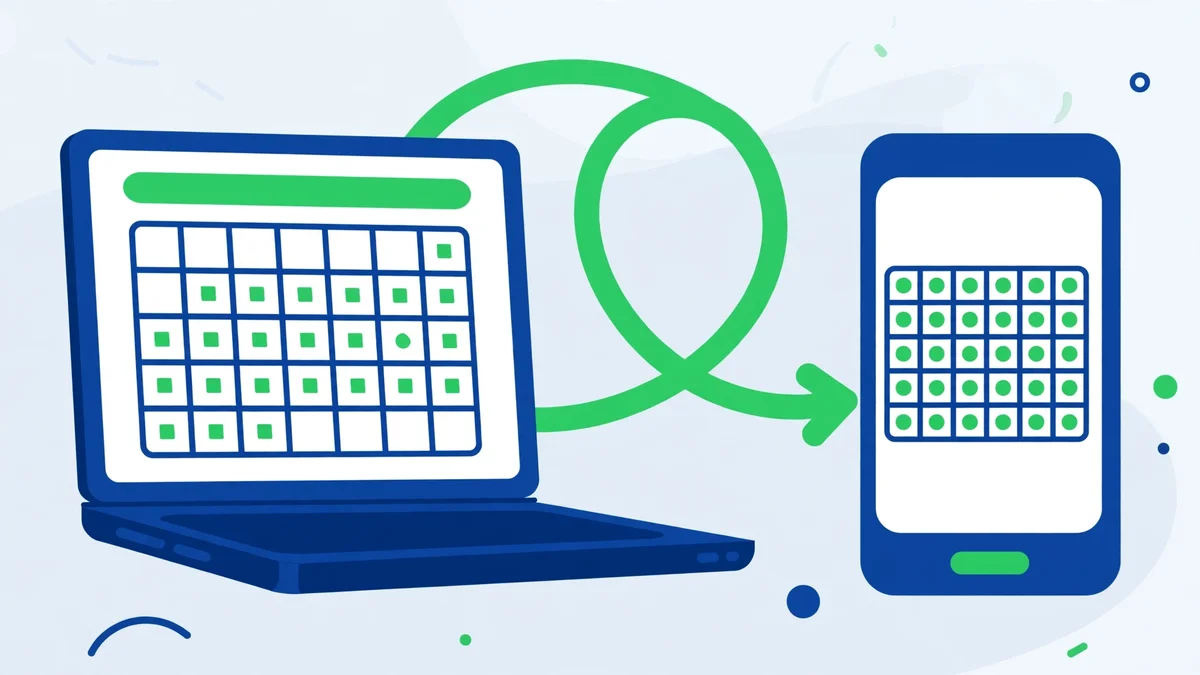
- On a computer or in your phone’s browser, open calendar.google.com and sign in with the same Google account as your phone.
- Search for the event by name, or navigate to its date and look for it.
- If the event is there, the problem is on the phone — continue with fix 2.
- If the event is missing from the web too, check the account at the top of the page. If you use more than one Google account, switch to the other one — the event may have been saved under it.
- Still missing? Open Trash in the left sidebar of Google Calendar on the web. Deleted events sit there for 30 days; tick one and click Restore to bring it back.
Also check the date and time zone while you are on the web: an event that looks missing is sometimes just on the wrong day after a time-zone change. And if the event came from a Gmail booking — a flight or hotel — make sure Settings > Events from Gmail is turned on in Google Calendar, or those bookings will never appear.
2. Make the calendar visible inside the app
Google Calendar can hold several calendars at once — your main one, a work calendar, a shared family calendar, birthdays, holidays — and each one has its own tick box. If a calendar is unticked, its events simply do not show, which looks exactly like a sync failure. This is the most common cause of all, and the easiest to miss, because nothing about the app looks broken: it opens fine, it just shows an empty schedule.
- Open the Google Calendar app and tap the menu (three lines at the top left).
- Look at the list of calendars under your Google account. Every calendar you want to see must be ticked — including the one your events are on, which may be listed as “Events” if you never renamed it.
- Tap Settings in the same menu, tap your account name, and check that Sync is turned on for each calendar you created yourself. Google only syncs calendars whose Sync setting is on.
- Go back to the main view and pull down to refresh. Events from the newly ticked calendars should appear.
One more trap: shared calendars. If someone shared a calendar with you, it only appears on your phone after you accept it — open calendar.google.com, find it under “Other calendars”, and click it to subscribe. Until then, its events will never show on Android.
3. Turn Calendar sync on and force a sync
If the right calendar is ticked and the event is on the web but still not on the phone, the sync itself is broken. Android keeps a separate sync switch for each kind of data on each account, and the Calendar switch can get turned off by an update, by battery optimization, or by an accidental tap. The phone stays signed in, Gmail keeps working, and only the calendar goes quiet — which is why this one confuses people.
- Open Settings > Accounts (on some phones: Passwords & accounts) and tap your Google account.
- Tap Account sync and make sure the Calendar toggle is switched on. If you have more than one Google account on the phone, check the toggle on the account that owns the missing events — each account syncs on its own.
- Tap the three-dot menu and choose Sync now to force an immediate sync. Wait a minute, then open the Calendar app and pull down to refresh.
- If events still do not appear, turn the Calendar toggle off, wait five seconds, and turn it back on. That restarts the sync from scratch.
- Check the connection: sync needs Wi-Fi or mobile data, and airplane mode must be off. Also check that the date and time are set to automatic under Settings > System > Date & time — a wrong clock can make events land on the wrong day or fail to sync.
4. Clear the Calendar app’s cache and check battery settings
When the switches are all on and events still refuse to appear, the Calendar app itself is usually the problem: its cached data is corrupted, or the phone’s battery system is stopping it from syncing in the background. Clearing the cache is safe — your events live in your Google account, not in the app.
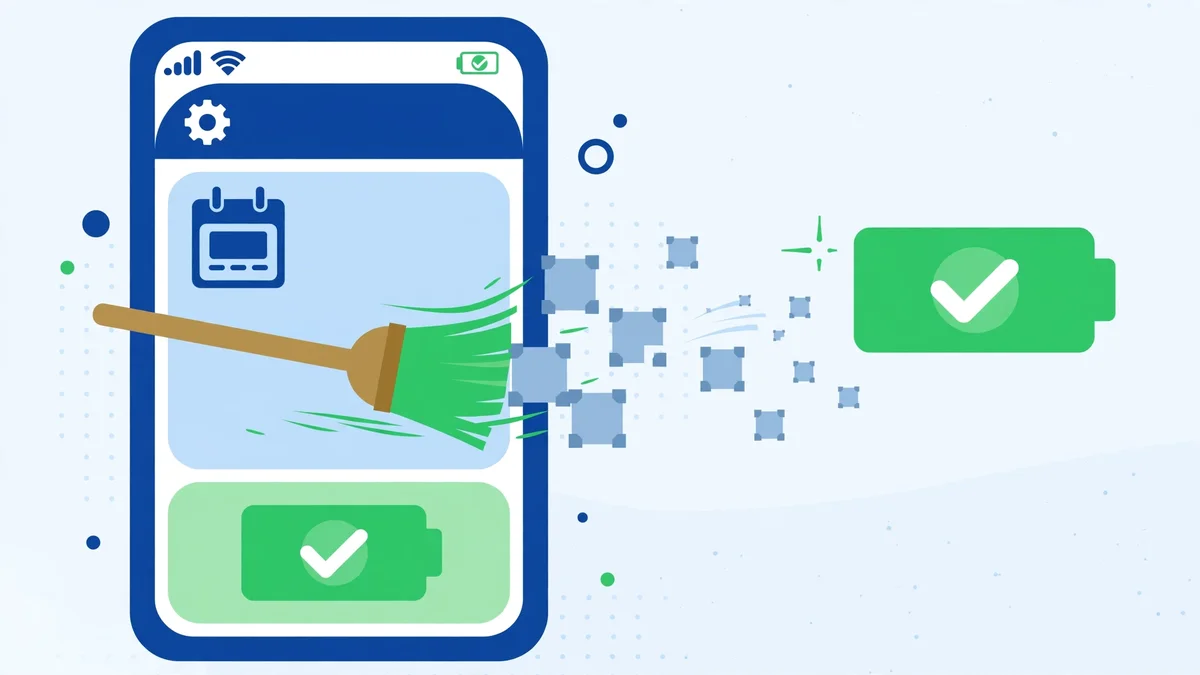
- Open Settings > Apps > See all apps > Calendar (or Google Calendar), tap Storage & cache, and tap Clear cache. Do not tap Clear storage yet — that wipes the app’s settings and any events that have not synced.
- On the same app screen, tap Battery (or App battery usage) and set it to Unrestricted — or, on Samsung phones, turn off Allow background activity restrictions and make sure the app is not in a deep-sleeping list. Battery optimization is a frequent silent cause of calendar sync stopping.
- Also check Settings > Apps > Calendar > Permissions and make sure Calendar permission is set to Allow.
- Update the app: open the Play Store, search for Google Calendar, and install any available update. Then restart the phone.
- After the restart, open the Calendar app, pull down to refresh, and give it a minute. If the events are still missing, repeat fix 3’s forced sync once more — the cache clear often needs one fresh sync to pull everything down.
5. Remove and re-add the Google account
When everything else has been checked and the events still will not appear, the account link itself is the problem. Removing the Google account from the phone and adding it back forces Android to rebuild the whole sync relationship — new tokens, fresh calendar list, full re-download. It is the strongest fix, and it works when nothing else does, but it touches every Google service on the phone, so it goes last.
- Confirm one more time on calendar.google.com that your events are in the cloud. Anything not in the cloud will not come back after this step.
- Open Settings > Accounts, tap your Google account, and tap Remove account. Confirm.
- Restart the phone.
- Go back to Settings > Accounts > Add account > Google and sign in with the same account.
- Open the Google Calendar app, wait a few minutes for the first full sync, and check the dates where events were missing. They should now be there.
If the events are still missing after a full re-add, check the Google Workspace Status Dashboard for a Calendar outage — very occasionally the problem is on Google’s side. Otherwise, suspect a third-party calendar app: open the stock Google Calendar app and check whether the events show there. If they do, the third-party app is the one failing to display them. Covers Android 10 through 16.
Related Guides
Frequently Asked Questions
Why do my calendar events show on my computer but not on my phone?
Because the phone is not syncing that calendar. The events are safe in your Google account. Check the calendar’s tick box inside the Calendar app first, then the Calendar toggle under Settings > Accounts > Google > Account sync, and force a Sync now.
Will clearing the Calendar app’s data delete my events?
Clearing cache is safe — it only removes temporary files. Clearing storage removes the app’s local copy, including events that have not synced yet, so always confirm your events show on calendar.google.com before clearing storage.
Why are only some of my calendars missing events?
Each calendar has its own visibility tick box and its own Sync setting. A secondary or shared calendar can be unticked or have Sync off while the main calendar works fine. Open the Calendar app menu, tick every calendar you want to see, and check Sync under Settings for each one.
Watch: Find Your Missing Calendar Events Step by Step
Prefer to watch the steps instead of reading them? This short video walks through the Google Calendar app on Android — opening it, finding your events, and using the search tool to track down appointments that seem to have vanished.
Video — full credit to the creator.
By Ghulam Rasool | App Fix Guru Editor | Last updated: November 2026