

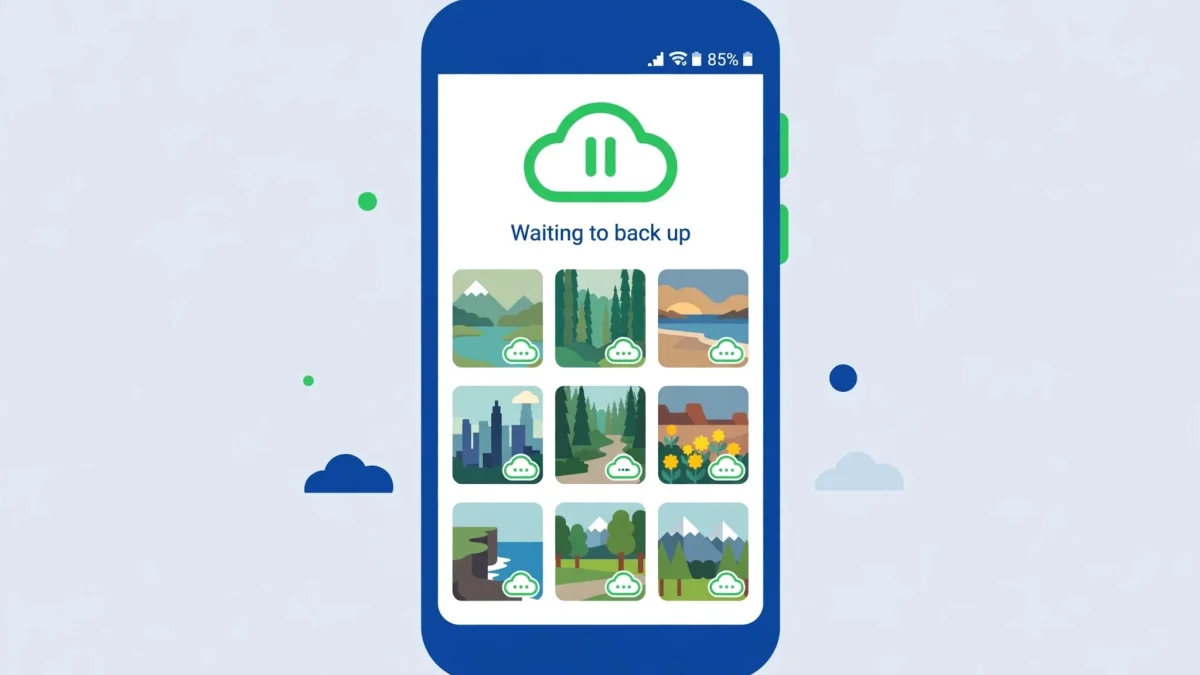
You took a dozen photos this morning, opened Google Photos, and every one of them sits there with a little cloud-and-arrow icon and the words “Waiting to back up”. Hours later, nothing has moved. The photos are safe on your phone — nothing is lost yet — but the google photos waiting to back up problem means your backup has stalled somewhere between your phone and Google’s servers. The usual culprits are not mysterious: the wrong backup switch, a full Google account, or the phone’s battery saver quietly strangling the upload in the background. These 6 fixes follow the order those causes actually occur, and they cover Android 10 through 14.
Quick Answer
Google Photos stuck on “Waiting to back up” is most often a settings or quota problem, not a broken app. First check that Backup is on for the right Google account and that your 15 GB Google storage is not full. Then turn off battery optimization for Google Photos and make sure it can use background data — those two restrictions silently pause uploads on most Android phones.
In This Guide
- Fix 1: Check the Backup Switches — Account, Folders and Connection
- Fix 2: Check Your Google Storage Quota
- Fix 3: Clear the Queue — Cache, Stuck Files and a Backup Toggle
- Fix 4: Free Google Photos From Battery and Background Restrictions
- Fix 5: Update, Force-Stop and Restart
- Fix 6: Re-Add the Account or Reinstall as a Last Resort
Fix 1: Check the Backup Switches — Account, Folders and Connection
A backup that was never actually switched on looks exactly like a stuck one. Before touching anything else, confirm that Photos is backing up the right things, to the right account, over the connection you are actually using.
- Open Google Photos, tap your profile picture at the top-right, and check the account shown. If you have two Google accounts on the phone, backup may be running on the other one — tap the account name to switch, and check the backup status under each.
- In the same menu, tap Photos settings → Backup and confirm the Backup toggle is on. If it is off, turn it on and give it a few minutes on Wi-Fi before judging.
- Check Back up device folders on that same screen. Photos takes the Camera folder by default, but screenshots, WhatsApp images and downloads live in other folders that are off unless you enable them. If your “waiting” photos came from WhatsApp or a screenshot, this is your fix.
- Look at Mobile data usage. If it is set to Wi-Fi only and you are on mobile data, nothing uploads — that is by design. Either connect to Wi-Fi or allow backup over mobile data (watch your data plan if you choose this).
Fix 2: Check Your Google Storage Quota
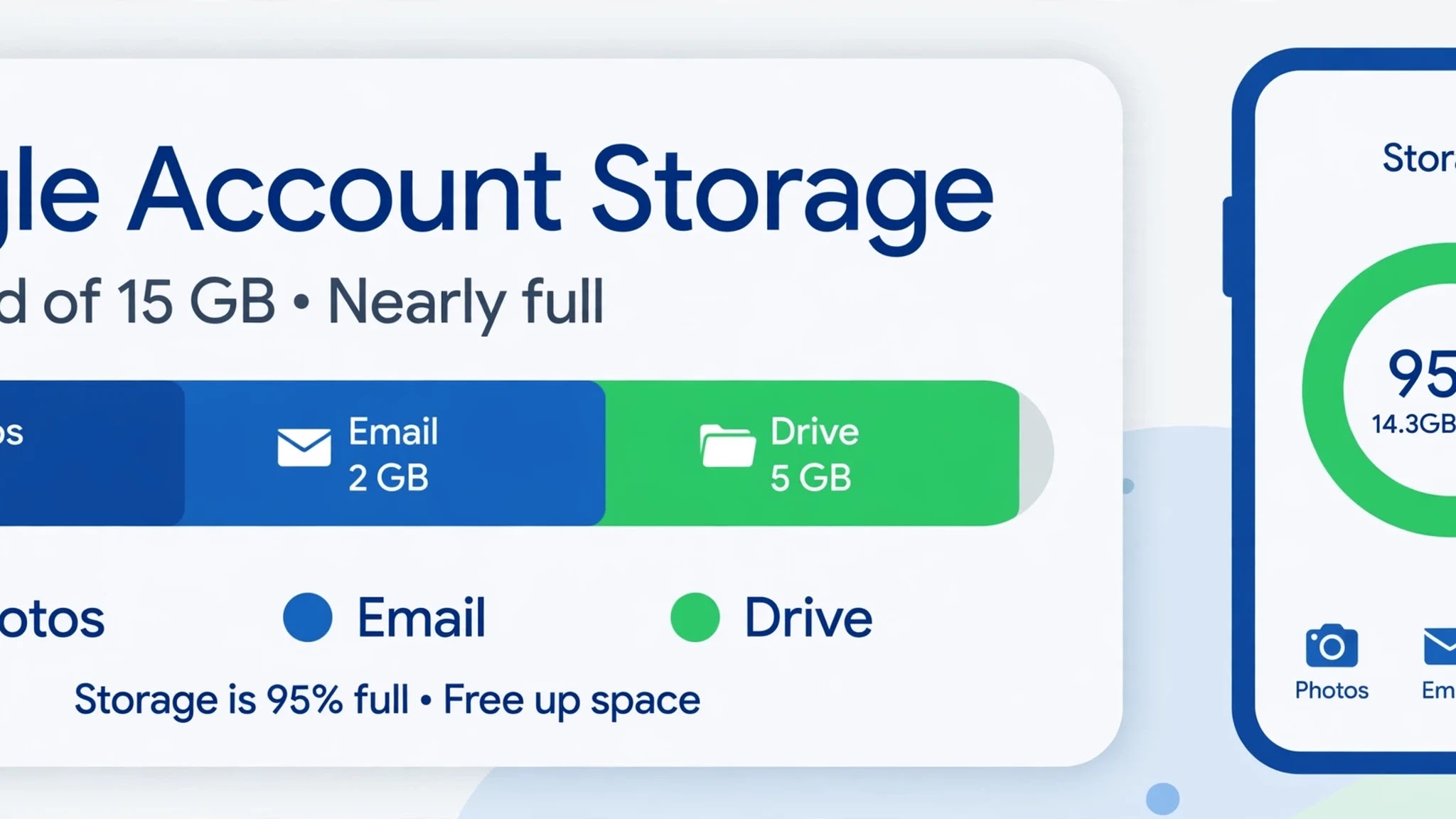
Every free Google account gets 15 GB shared across Photos, Gmail and Google Drive — and Gmail attachments count against the same pool. When that pool fills up, Photos does not show a loud error; it just quietly waits, which is why this cause gets missed so often.
- In Google Photos, tap your profile picture → Photos settings → Backup and look at the storage meter, or open one.google.com/storage in a browser to see the exact breakdown.
- If Gmail is the hog, search Gmail for has:attachment larger:10M and delete the big old emails you no longer need, then empty the Trash. Drive files you no longer need can go the same way.
- In Photos settings, switch Backup quality to Storage saver if it is on Original quality. Storage saver compresses photos to 16 MP and video to 1080p, which is plenty for phone photos and shrinks future uploads noticeably.
- Do not delete local photos to “make room” — local phone storage and Google cloud storage are different things, and deleting the only copy of a not-yet-backed-up photo is exactly how photos get lost. Free up the cloud quota, then let backup finish, and only then use Photos’ “Free up space” option to remove device copies.
- If the quota is genuinely full and you need the space, Google One’s 100 GB plan is the official route. But try the cleanup first — most accounts recover several gigabytes from old Drive files and Gmail attachments alone.
Fix 3: Clear the Queue — Cache, Stuck Files and a Backup Toggle
A single corrupted or enormous file can jam the whole upload queue: Photos waits on that one file and everything behind it waits too. Clearing the cache and nudging the queue usually gets it moving again.
- Go to Settings → Apps → See all apps → Photos → Storage & cache and tap Clear cache. This deletes only temporary files — your photos are untouched. Do not tap Clear storage here yet; that resets the app and signs you out of its settings.
- Back in Photos, tap your profile picture → Photos settings → Backup and toggle Backup off, wait about 30 seconds, and toggle it back on. This restarts the upload queue from the top.
- Look for the jammed file. Scroll through your recent photos for one with a stuck circular arrow, an unusually large video (a long 4K clip), or a file from an app that saves in an odd format. Move that file to a folder that is not set to back up — or to the Locked Folder — and watch whether the rest of the queue suddenly resumes.
- If one video is the blocker and you want it backed up, upload it manually through photos.google.com in a browser, or transfer it to a computer first.
- Leave the phone on Wi-Fi and charging for a while after this fix. A queue stuck for days can take a long time to drain.
Fix 4: Free Google Photos From Battery and Background Restrictions
This is the most common cause on Samsung, Xiaomi and other phones with aggressive power management — and the hardest to spot, because nothing looks wrong. The phone is simply not letting Photos run in the background, so uploads only happen while the app is open on screen.
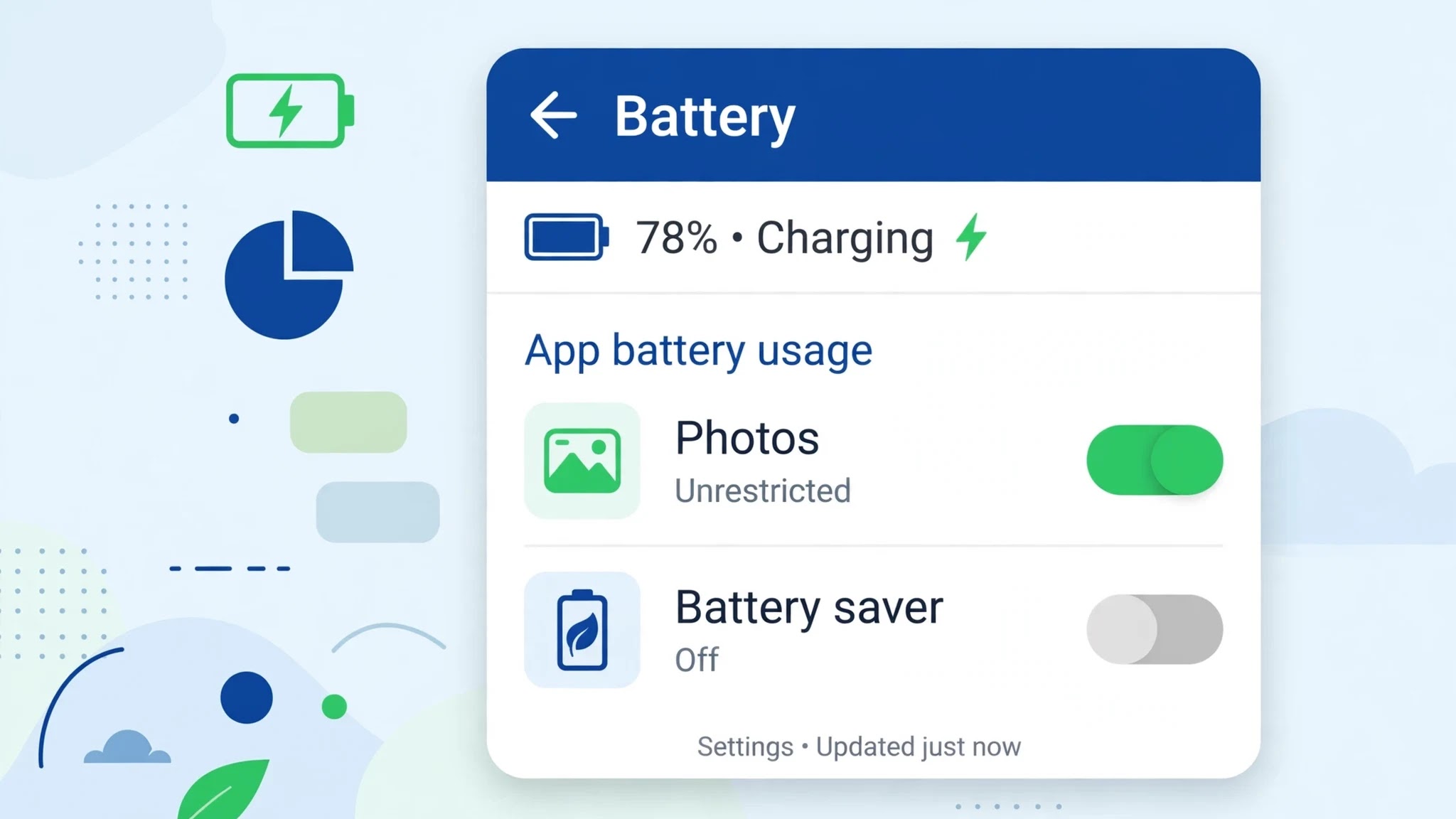
- Go to Settings → Apps → Photos → Battery and set it to Unrestricted (on Samsung: Settings → Apps → Photos → Battery → Unrestricted; on Xiaomi HyperOS: Settings → Apps → Manage apps → Photos → Battery saver → No restrictions). Also turn off Battery Saver mode while backup catches up.
- On the same App info page, tap Mobile data & Wi-Fi and make sure Background data is on and Unrestricted data usage is allowed. If background data is off, Photos can only upload while you are staring at it.
- Check any device-care or cleaner app: Samsung’s Device care, Xiaomi’s Security app and third-party cleaners can auto-kill Photos in the background. Add Photos to their exception or “never sleep” list.
- On Xiaomi phones, lock Photos in the recent-apps screen (swipe up, long-press the Photos card, tap the lock icon) so the system does not swipe it away.
- After changing these, plug the phone in, connect to Wi-Fi, open Photos and leave it in the foreground for ten minutes. If uploads start moving, you have found the cause — and the settings above are what keep it fixed.
Fix 5: Update, Force-Stop and Restart
When the settings are right and the queue is clear but uploads still refuse to start, the app itself may be in a bad state. A clean restart of the app and the phone clears it.
- Open the Play Store, search Google Photos, and install any available update. Backup bugs are regularly fixed in app updates, and an old version can stall against current servers.
- Go to Settings → Apps → Photos and tap Force stop, then reopen Photos. A force-stop ends any stuck background process that a normal close leaves running.
- Restart the phone outright. This clears temporary system state that a force-stop cannot reach, and it is worth doing once even if it feels too simple.
- After the restart, open Photos on Wi-Fi, confirm the backup status at the top of the screen, and give it time. If the status changes from “Waiting to back up” to “Backing up 1 of…” and the number counts down, the stall is over — even if it takes a while to finish.
Fix 6: Re-Add the Account or Reinstall as a Last Resort
If nothing above has moved the queue, the link between the app and your account may be damaged. Rebuilding it is the last step, and it is safe as long as you do it in the right order.
- First, make sure your photos are still on the phone: open your gallery or file manager and confirm the originals are present. Never remove an account or reinstall while the phone copy is your only copy and you are unsure it is there.
- Remove the Google account from Photos only, not from the whole phone, if you can: Photos → profile picture → tap the down arrow next to your account → Manage accounts on this device → remove the account, then add it back and re-enable Backup.
- If that does not work, uninstall Google Photos (or disable it if it is a system app, then re-enable), reinstall from the Play Store, sign in, and turn Backup on again. Your backed-up photos are tied to the account, not the app, so they reappear once you sign in.
- As a safety net for a large library, upload the most important photos manually through photos.google.com on a computer while the phone backup recovers.
Most stalls clear at Fix 1, Fix 2 or Fix 4; if you reach Fix 6, the account link itself was the problem, and a fresh sign-in is the clean way back.
Related Guides
Watch:
Frequently Asked Questions
Are my photos lost if Google Photos says “Waiting to back up”?
No — not yet. “Waiting to back up” means the photos are on your phone but have not been copied to the cloud. They are only at risk if the phone is lost, reset or damaged before backup finishes.
Will clearing the Google Photos cache delete my photos?
No. Clearing cache removes temporary files only. Your photos stay on the device and in the cloud exactly as they were. Avoid tapping Clear storage unless you are prepared to sign in and set up backup again.
Why does Google Photos only back up on Wi-Fi?
Because the default mobile-data setting is Wi-Fi only, to protect your data plan. You can change it under Photos settings → Backup → Mobile data usage, but large video libraries can use gigabytes quickly.
By Sameer Zehri | App Fix Guru Editor | Last updated: October 2026
[…] Google Photos “Waiting to Back Up”? 6 Fixes (2026) […]
[…] Google Photos “Waiting to Back Up”? 6 Fixes (2026) […]