

You open the Contacts app to call someone and the list is empty — or half the names you saved are simply gone. No warning, no error message, just a blank address book where your friends, family, and work numbers used to be. In most cases they are not actually deleted — they are still in your Google account, in a Trash folder, or hidden behind a display filter that changed itself after an update. This guide works through the fixes in the order that brings contacts back, starting with the fastest recovery.
Quick Answer
Open the Google Contacts app, tap Organize (or Fix & manage) > Trash, and restore any contacts deleted in the last 30 days — that brings most missing numbers back instantly. If Trash is empty, the contacts are probably hidden, not deleted: check the display filter in the Contacts app and make sure Contacts sync is turned on under Settings > Accounts > Google > Account sync. If they were saved to the phone only and never synced, check Settings > Google > Set up & restore > Restore contacts for a device backup.
In This Guide
- 1. Recover deleted contacts from the Trash (30-day window)
- 2. Check the display filter — your contacts may just be hidden
- 3. Turn Contacts sync back on and force a sync
- 4. Restore contacts from a Google device backup
- 5. Roll the contact list back with “Undo changes”
- 6. Fix the wrong-account and SIM problems
- Frequently Asked Questions
1. Recover deleted contacts from the Trash (30-day window)
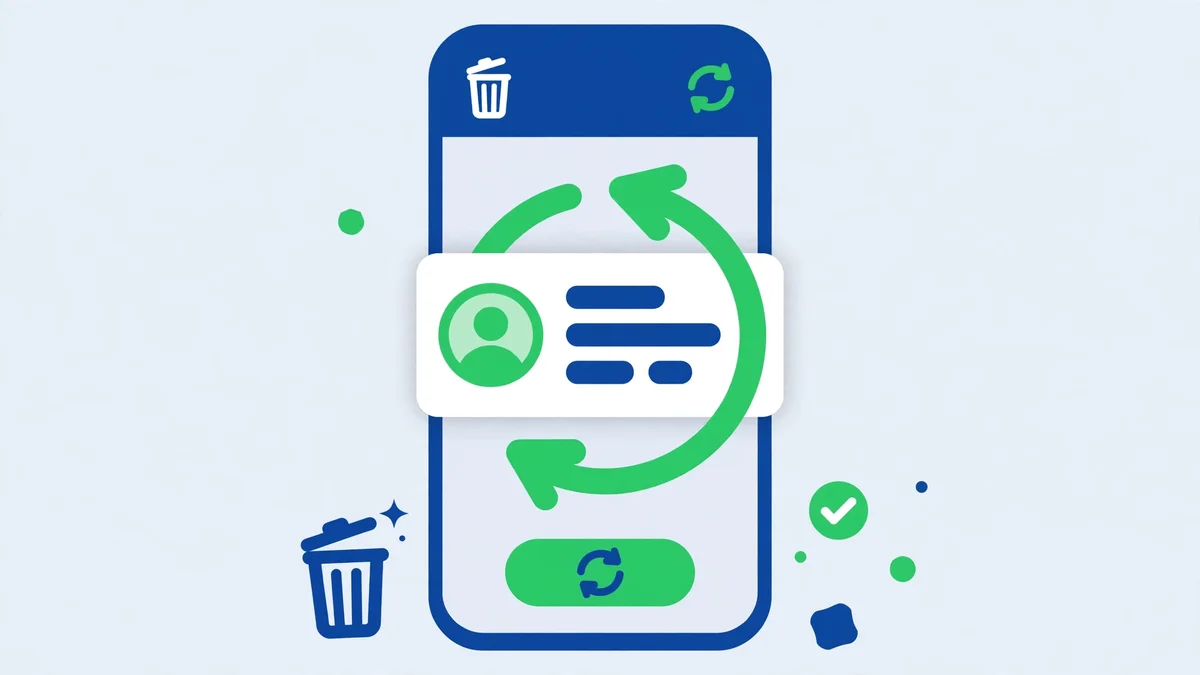
When a contact disappears, accidental deletion is the first suspect — a wrong tap while merging duplicates, a cleanup app that was too eager, or a child playing with the phone. Google Contacts keeps deleted contacts in a Trash folder for 30 days, and restoring them takes seconds.
- Open the Google Contacts app. If your phone uses Samsung Contacts instead, open it and tap the menu, then Trash.
- In Google Contacts, tap Organize at the bottom (older versions: Fix & manage), then tap Trash.
- Look through the list. Tap a contact to select it — or long-press to select several — then tap Recover.
- Go back to the main list and check that the names are back. If they are, your problem is solved; skip to the prevention note at the end of this fix.
If the Trash is empty, your contacts were not deleted recently — or they were never saved to this Google account. Move on to fix 2. Once your contacts are back, check the list at contacts.google.com on a computer: if the names show up there, they are safe in your Google account.
2. Check the display filter — your contacts may just be hidden
This is the fix people miss most. Contacts on Android can be stored in several places at once — your Google account, your Samsung account, the SIM card, and the phone’s own storage — and the Contacts app has a filter that chooses which of those it shows. After a system update, an account change, or a new app install, that filter can silently switch to showing only one source. The contacts are still on the phone; the app is simply not displaying them.
- Open the Contacts app and tap the menu (three lines or three dots, depending on your phone).
- Look for Contacts to display, View by storage location, or Manage contacts > Default storage location. Tap it.
- Select All contacts (or tick every account and source listed — Google, Samsung, SIM, and Phone).
- Go back to the main list. If the missing names reappear, the filter was the whole problem.
- On Samsung phones, also check Contacts > Settings > Sync contact accounts and make sure sync is enabled for each account you use.
While you are here, check the “Default storage location” for new contacts. If it says “Phone” or “Device”, new contacts are saved only on this handset and will vanish if the phone is reset. Change it to your Google account so every new contact is backed up automatically.
3. Turn Contacts sync back on and force a sync
If the contacts show up on the web at contacts.google.com but not on your phone, the phone has stopped syncing. This is common after a One UI or Android update, which can briefly sign you out of an account or reset sync toggles, and it is also what battery-saving modes do quietly in the background. The contacts are safe in the cloud; the phone just needs to be told to fetch them again.
- Open Settings > Accounts (on some phones: Passwords & accounts), tap your Google account, then tap Account sync.
- Make sure the Contacts toggle is switched on. If it was off, turn it on and wait a few minutes — the contacts should start appearing.
- Still nothing? Tap the three-dot menu on the same screen and choose Sync now to force an immediate sync.
- Check that the phone is connected to Wi-Fi or mobile data, and turn off Battery Saver while the sync runs — aggressive battery saving can pause background syncing.
4. Restore contacts from a Google device backup
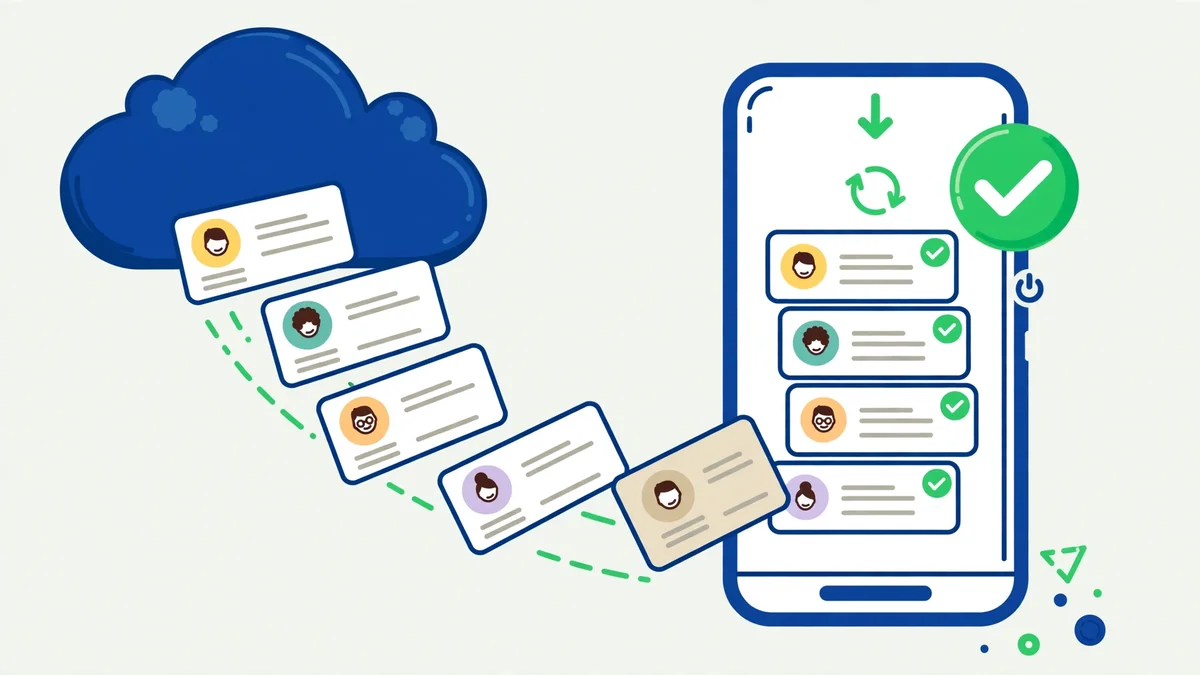
Google backs up your contacts as part of the device backup, separately from the live sync. If the contacts are gone from both the phone and the web, a device backup is often the only copy left. This only works if a backup existed before the contacts disappeared.
- Open Settings > Google > Set up & restore (on older Android versions: Settings > Google > Backup).
- Tap Restore contacts. You will see the device backup and the date it was made.
- Choose the backup from before the contacts disappeared, then tap Restore and wait for the process to finish.
- Open the Contacts app and check whether the missing names are back. Give it a few minutes if the list is long.
If there is no backup, or the only backup is from after the contacts vanished, this route cannot help — move on to fix 5. Either way, turn on backup now while you are here: Settings > Google > Backup > Back up now. It is the setting that turns the next disappearance from a disaster into a two-minute restore.
5. Roll the contact list back with “Undo changes”
Google Contacts on the web has a quiet feature most people never find: it can undo every change made to your contact list in the last 30 days. This is the right fix when a large number of contacts vanished at once — after a bad merge, a faulty sync from another device, or a cleanup that went wrong. It restores the whole list to how it looked at a moment you choose.
- On a computer or in your phone’s browser, open contacts.google.com and sign in with the same Google account as your phone.
- Click the gear icon (Settings) at the top, then choose Undo changes.
- Pick a time from just before the contacts disappeared — 10 minutes ago, 1 hour ago, yesterday, 1 week ago, or a custom time within the last 30 days.
- Confirm. The contact list rolls back to that moment. Wait a few minutes, then check the Contacts app on your phone — it will sync the restored list down.
One warning: undoing changes also cancels every change made after the time you pick, including contacts added since then. Choose the moment just before the disappearance, and note down any numbers added after that moment so you can re-add them.
6. Fix the wrong-account and SIM problems
Sometimes the contacts never disappeared at all — they belong to a different account, or they live on the SIM card and the phone stopped reading it.
- Open the Contacts app, tap your profile picture or account name at the top, and check which Google account is selected. If you use more than one Google account, switch to the other one — the missing contacts may be saved under it.
- If your contacts were stored on the SIM card, go to Contacts > Settings > Import > SIM card and import them into your Google account so they are backed up from now on.
- Remove the SIM card, wipe it gently, reinsert it, and restart the phone. A loose or dirty SIM can make SIM-stored contacts vanish until it is reseated.
- As a last step, remove and re-add the Google account: Settings > Accounts > Google > Remove account, restart the phone, then add the same account back and let it sync. It also removes the account’s Gmail, Drive, and Photos data from the phone until it syncs again, so only do it on a stable Wi-Fi connection.
If none of the six fixes brought the contacts back, they were most likely stored only on the phone and wiped by a factory reset, or deleted more than 30 days ago with no backup. Recovery software that scans the phone’s storage is sometimes suggested online — treat those tools with care, and never pay for one before checking what it can actually find. Covers Android 10 through 16.
Related Guides
Frequently Asked Questions
Why did all my contacts disappear after an update?
An update rarely deletes contacts. It usually signs you out of an account, resets a sync toggle, or changes the display filter so the Contacts app shows only one storage location. Check the display filter first, then the Contacts sync toggle under Settings > Accounts > Google.
Can I recover contacts deleted more than 30 days ago?
Not from the Trash — Google Contacts keeps deleted contacts for 30 days only. After that, the remaining option is a device backup made before the deletion, under Settings > Google > Set up & restore > Restore contacts.
Why do my contacts show on the web but not on my phone?
Because the phone is not syncing. The contacts are safe in your Google account; the phone’s Contacts sync toggle is off, battery saver is blocking background sync, or the account needs a forced Sync now. Fix 3 walks through exactly that.
Watch: Contacts Disappeared on Android Fixed Step by Step
Prefer to watch the steps instead of reading them? This short video shows the recovery on a real phone — opening Google Contacts, finding the Trash, and restoring a deleted contact in one tap, plus the “Undo changes” option for restoring many contacts at once.
Video — full credit to the creator.
By Ghulam Rasool | App Fix Guru Editor | Last updated: November 2026