

Your gallery looks empty, you have already deleted the apps you never open, and yet the phone insists it is full — new photos refuse to save and app updates fail with a storage warning. The contradiction is real, but it is not a mystery: Android counts a lot of files you never see in your gallery. App caches, deleted photos still sitting in Trash, WhatsApp media buried three folders deep, offline downloads you forgot about, and duplicate files all occupy the same internal storage. Nothing here requires deleting your memories. The job is finding which hidden pile is actually eating the space, and this guide works through them in the order they most often turn out to be the culprit.
Quick Answer
Open Settings > Storage and look at the breakdown before deleting anything — the biggest category tells you where to clean. In most cases the space is hiding in three places: the Trash folder (deleted photos still count for 30 days), large app caches from video and social apps, and WhatsApp media. Empty the Trash, clear the caches of your biggest apps, and run WhatsApp > Settings > Storage and data > Manage storage. Then restart the phone and recheck Storage, because Android sometimes needs a restart before the freed space shows up.
In This Guide
- 1. Read the storage breakdown before deleting anything
- 2. Empty the Trash — deleted files still count
- 3. Clear the biggest app caches, one app at a time
- 4. Clean out WhatsApp and messaging media
- 5. Remove forgotten downloads and offline content
- 6. Run a Files cleanup, restart, and recheck
- Frequently Asked Questions
A word of caution before you start: do not tap “Clear data” or “Clear storage” on any app in this guide. Clearing cache removes temporary files that apps rebuild on their own. Clearing data wipes logins, chats, and saved settings. Every step below uses the safe option only, and says so where the two buttons sit side by side.
1. Read the storage breakdown before deleting anything
Guessing is how people delete a year’s worth of photos and stay full. Android already shows where the space went — it just buries the answer one menu deep. Spend two minutes here and the rest of the cleanup writes itself.
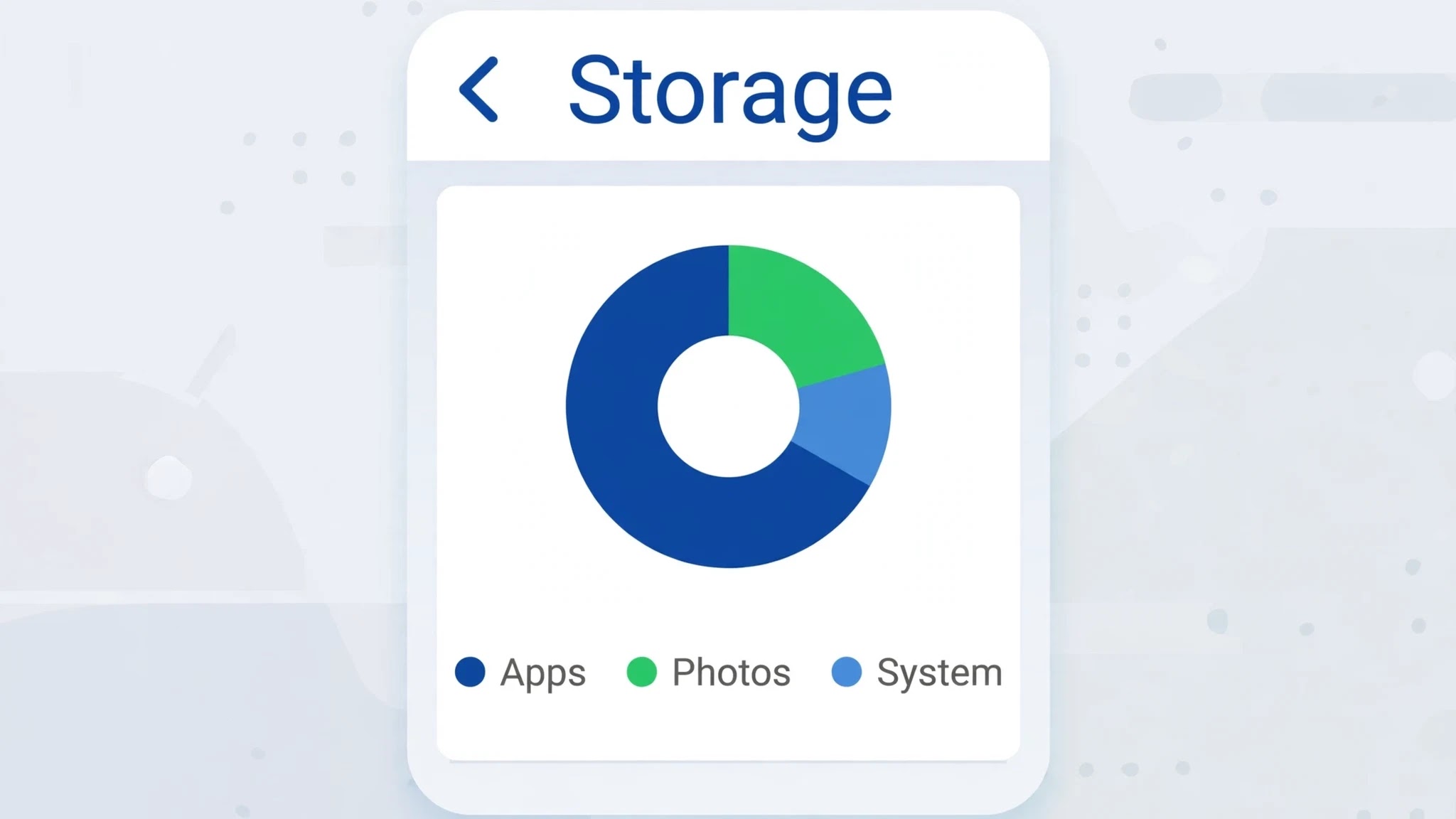
- Open Settings > Storage. On Samsung phones go to Settings > Battery and device care > Storage (older One UI versions say “Device care”). On Xiaomi phones it sits under Settings > About phone > Storage.
- Read the breakdown: Apps, Photos and videos, Audio, Documents, System, and cached data. Note the single largest category — that is your target, not your gallery.
- If “System” is the biggest chunk, that is normal on modern Android; system files take several gigabytes and you cannot shrink them. Focus on the categories you can control instead.
- If the numbers look wrong — say, free space barely changes after you delete files — note that too, and come back to fix 6, where a restart forces Android to recount.
2. Empty the Trash — deleted files still count
This is the most common “but I deleted everything” trap. When you delete a photo on Android, it usually moves to a Trash or Recently Deleted folder and stays there for 30 days before it is truly gone. Until then it still occupies storage, and the phone still reports itself as full. People delete hundreds of photos, check Storage, see no change, and conclude the phone is broken. It is not — the files are still there, just one folder away.
- Open Google Photos, tap Library > Trash (on some versions: Collections > Trash), then tap Empty trash and confirm. Only empty it if you are sure you do not want those photos back.
- Open your Files app and check its Trash as well — files deleted from Files have their own separate trash, and it is easy to miss.
- On Samsung phones, also check Gallery > Menu > Trash and My Files > Trash, since Samsung keeps its own copies.
- Recheck Settings > Storage. If the free space jumped, you have found your culprit.
One caution: emptying Trash is permanent. If a photo matters to you, back it up to Google Photos or another cloud service first, confirm the backup is complete, and only then empty the bin.
3. Clear the biggest app caches, one app at a time
Cache is temporary data apps store so they open faster — thumbnails, preview images, offline snippets. Harmless in small amounts, but video and social apps can quietly grow theirs into several gigabytes each. A single streaming or social app’s cache can be larger than your entire photo collection, and because cache never appears in the gallery, it is invisible until you look at it app by app.
- Go to Settings > Apps > See all apps, then tap the three-dot menu and sort by size if your phone offers it, or check the usual suspects first: YouTube, Instagram, Facebook, Chrome, TikTok, and Google Maps.
- Tap an app, then Storage & cache, and read the Cache figure. If it is in the hundreds of megabytes or more, tap Clear cache.
- Do not tap Clear storage or Clear data on this screen — that wipes the app’s logins and saved content. Cache only.
- Repeat for the next few largest apps, then recheck Storage. Clearing cache never logs you out and never deletes your chats, photos, or accounts.
Cache grows back with normal use, so this is maintenance, not a one-time cure. If the same app’s cache balloons again within days, that app is storing offline content — check its own settings for downloads, which fix 5 covers.
4. Clean out WhatsApp and messaging media
WhatsApp is the quiet storage hog on many phones. Every photo, video, voice note, and document anyone sends you lands in WhatsApp’s media folders, including all the forwarded videos and group-chat memes you never asked for. Because these files live inside WhatsApp’s own folders rather than your gallery’s main view, the gallery can look tidy while WhatsApp alone holds gigabytes.
- Open WhatsApp > Settings > Storage and data > Manage storage. At the top you will see how much space WhatsApp uses, and below it, the chats using the most space.
- Start with “Larger than 5 MB” — this surfaces the big videos first, which is where the real space is. Review them, keep what matters, and delete the rest.
- Tap into your biggest group chats, sort by largest files, and delete forwarded videos and duplicates you no longer need.
- Repeat the same idea in Telegram if you use it: Telegram > Settings > Data and Storage > Storage Usage > Clear Cache, which removes cached media without deleting your chats.
While you are here, stop the problem from returning: in WhatsApp’s Storage and data settings, set media auto-download to “No media” on mobile data, so group chats stop silently filling the phone again.
5. Remove forgotten downloads and offline content
The Downloads folder is where files go to be forgotten: PDFs opened once, old APK installers, documents from chats, and images saved from the web. Offline content is the same story inside apps — downloaded playlists, saved videos, and offline maps all sit in internal storage long after you stopped using them.
- Open Files, go to Downloads, sort by size, and delete installers, old documents, and anything you no longer recognise. Keep anything you still need — sort by size so the big wins come first.
- Open YouTube > Library > Downloads and remove videos you have already watched. Do the same in Spotify for downloaded playlists and in Netflix for downloaded shows.
- In Google Maps, check Offline maps and delete maps for places you no longer visit.
- Delete duplicate photos and old screenshots with Files by Google > Clean, which flags duplicates, memes, and blurry shots for you to review before anything is removed.
Offline downloads are the files people most often forget because they live inside apps, not in the file manager. If your breakdown from fix 1 showed “Apps” as the giant category, this is usually where that space actually sits.
6. Run a Files cleanup, restart, and recheck
After the manual cleanup, let the phone’s own tools sweep up what is left, then force Android to recount. Storage figures can lag behind reality: files you deleted may still show as used until the system refreshes, which is why a phone can stay “full” on screen after you have genuinely freed gigabytes.
- Open Files by Google, tap Clean, and work through its suggestions — junk files, large files, and unused apps — reviewing each group before confirming.
- On Samsung phones, use Settings > Battery and device care > Storage > Clean now for the same kind of sweep.
- Restart the phone. A restart clears temporary system files and forces the storage calculation to refresh.
- Open Settings > Storage again and compare with the figure you noted in fix 1. Aim to keep several gigabytes free — below that, Android starts refusing updates and new photos again.
If space is still tight after all six fixes, the honest answer is that the phone’s storage is simply small for how you use it. The practical next steps are a microSD card if your phone supports one, or backing photos up to the cloud and removing local copies. Covers Android 10 through 14.
Related Guides
Frequently Asked Questions
Why does my phone say storage is full when my gallery is empty?
Because the gallery only shows photos and videos. Caches, Trash contents, WhatsApp media, offline downloads, and app data all use the same internal storage but never appear in the gallery. Open Settings > Storage to see the real breakdown by category.
Is clearing cache safe? Will I lose my photos or chats?
Clearing cache is safe — it removes temporary files that apps rebuild as you use them, and it never logs you out or deletes chats, photos, or accounts. The dangerous button is “Clear storage” or “Clear data” on the same screen, which wipes the app’s saved content. Use cache only.
Why does the storage figure not change right after I delete files?
Two reasons: deleted photos often sit in Trash for 30 days and still count, and Android’s storage calculation can lag. Empty every Trash folder, then restart the phone and recheck Settings > Storage.
Watch: The Storage Fix Step by Step
Prefer to see it done? This tutorial walks through finding what is really using your storage and freeing the space up safely:
Video by Create WP Site — full credit to the creator.
By Sameer Zehri | App Fix Guru Editor | Last updated: November 2026