

You tap an APK file to install an app, and instead of the install screen you get a short, unhelpful message: “There was a problem parsing the package.” Nothing installs, and Android gives no detail about what went wrong. That message means the package installer could not read the APK file properly — the file itself is damaged, it was built for a different kind of device, or Android is blocking the install before it even starts. The good news is that the file and the setting behind the error are both things you can check yourself. These 6 fixes for the “problem parsing the package” error on Android are ordered by the causes that actually show up most often, and they cover Android 10 through 14.
Quick Answer
If Android shows “problem parsing the package”, first delete the APK and download a fresh copy over stable Wi-Fi — an incomplete or damaged download is the most common cause. Then make sure the app you downloaded from has Install unknown apps permission under Settings → Apps → Special app access, and check that the APK matches your phone’s Android version.
In This Guide
- Why Android Shows “Problem Parsing the Package”
- Fix 1: Delete the APK and Download a Fresh Copy
- Fix 2: Allow “Install Unknown Apps” for the Right Source
- Fix 3: Check That the APK Fits Your Phone
- Fix 4: Clear the Package Installer’s Cache
- Fix 5: Free Up Storage Before You Install
- Fix 6: Update Android and Try the Official Source
Why Android Shows “Problem Parsing the Package”
Parsing is Android’s way of reading an APK file: opening it, checking its signature and manifest, and confirming it can run on your phone. If any part of that read fails, the installer stops and shows the parse error instead of an install button. The usual culprits are a download that finished early or got cut off, an APK built for a newer Android version than your phone runs, a file renamed or altered after download, or the install permission for the browser or file manager being switched off. Less often, a nearly full storage or a corrupted package installer cache gets in the way. Work through the fixes below in order — most people find the fault in the first three.
Fix 1: Delete the APK and Download a Fresh Copy
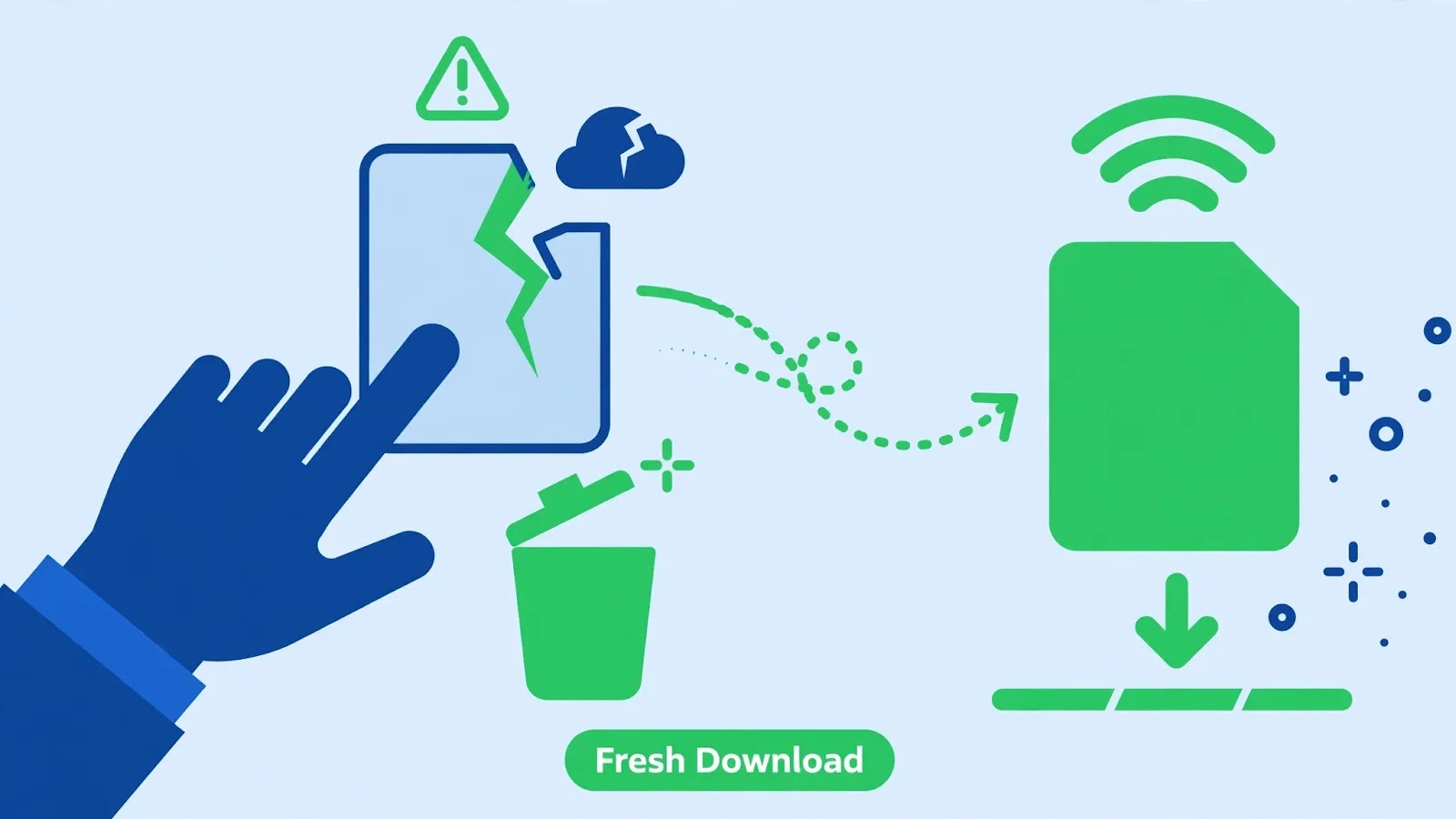
A download that looks complete can still be missing pieces. If your connection dropped, switched networks, or stalled halfway, the APK lands on your phone with a broken structure, and the installer fails at the first unreadable section. That is why a fresh download fixes this error more often than any setting change.
- Open your file manager, find the APK in the Downloads folder, and delete it. Do not just download over it — a second copy with a (1) in the name can leave you tapping the broken original by mistake.
- Reconnect to stable Wi-Fi, then download the APK again from the same trusted source. Watch the download finish fully before you tap it.
- Compare the file size with the size the source lists, if one is shown. A file that is much smaller than advertised is still incomplete — download it once more.
- Tap the fresh file to install. If the same error appears immediately, move on to Fix 2 — the file itself is probably fine, and something is blocking it.
One habit that prevents repeat trouble: download APKs only from the developer’s own site or a well-known mirror, and avoid files that arrive through forwarded links or chat attachments, where the file may have been re-compressed or renamed in transit.
Fix 2: Allow “Install Unknown Apps” for the Right Source
Since Android 8, sideloading permission is granted per app, not with one global switch. If the browser or file manager you are installing from does not have the permission, Android can refuse the install — and on some phones that refusal surfaces as a parsing problem rather than a clear permission message.
- Go to Settings → Apps → Special app access → Install unknown apps. On Samsung phones the path is Settings → Apps → three-dot menu → Special access → Install unknown apps; on Xiaomi (HyperOS) it is Settings → Privacy protection → Special permissions → Install unknown apps.
- Find the app you are installing from — usually Chrome or Files by Google — and tap it.
- Turn on Allow from this source, then go back and tap the APK again.
- If you install from several sources, repeat this for each one. Granting it to Chrome does not cover your file manager, and the other way round.
For safety, switch the permission back off after the install finishes. Leaving it on does not cause parse errors, but it does leave the door open for accidental installs later.
Fix 3: Check That the APK Fits Your Phone
An APK built for a newer Android version than your phone runs cannot be parsed by your phone’s installer, full stop. The same applies to architecture mismatches: a 64-bit-only APK will not install on an older 32-bit device, and some apps ship separate builds for each.
- Check your Android version under Settings → About phone → Android version.
- On the download page, look for the app’s minimum Android version or the “Requires Android” line. If it needs Android 12 and your phone runs Android 10, that APK will never parse on this phone.
- In that case, look for an older release of the same app that lists your Android version as supported, or check whether a system update is available under Settings → System → System update.
- If the source offers multiple APK variants (arm64-v8a, armeabi-v7a, x86), pick the one that matches your phone. Most modern phones use arm64-v8a; an APK info app can confirm it if you are unsure.
If the app is available on Google Play, that route sidesteps the whole question — Play only offers builds your phone can actually run.
Fix 4: Clear the Package Installer’s Cache
Android’s own installer app keeps temporary data from previous installs. When that cache goes stale — especially after several failed attempts on the same file — it can keep failing new attempts even with a good APK in hand.
- Go to Settings → Apps → See all apps, tap the three-dot menu, and choose Show system apps.
- Find Package installer (on some phones it is called “Package Installer” or appears as part of “Google Play services” tooling) and tap it.
- Tap Storage & cache → Clear cache. If the error persists, repeat and use Clear storage as well — this resets the installer without touching your photos, apps, or accounts.
- Restart the phone, then tap the APK again.
While you are in the system apps list, it is worth checking that the installer app itself is not disabled. A disabled package installer produces the same dead-end message.
Fix 5: Free Up Storage Before You Install
Installing an app takes more room than the APK file itself: Android unpacks the package, verifies it, and writes the installed app alongside it. A phone that reports a few hundred megabytes free can still fail an install partway through, and a parse-stage failure is one way that shortage shows up.
- Check your real free space under Settings → Storage. Aim for at least 1 GB free before installing a large app.
- Clear the biggest easy wins first: the Downloads folder, old videos, and the caches of heavy apps like browsers and social apps (Settings → Apps → [app] → Storage & cache → Clear cache).
- If you use an SD card, remember that APK installs still need internal storage during unpacking — freeing space on the card alone does not help.
- Retry the install after freeing space, with the phone on Wi-Fi so a fresh download is quick if needed.
Fix 6: Update Android and Try the Official Source
If every fix above has failed on a file you trust, the gap is most likely between the APK and your system software. An outdated Android version may lack the signature schemes or APIs a current APK expects.
- Go to Settings → System → System update (Samsung: Settings → Software update → Download and install; Xiaomi: Settings → About phone → HyperOS version) and install any update offered.
- After updating, restart the phone and try the APK once more.
- If the app is on Google Play, install it from there instead — Play handles signing, architecture, and compatibility checks for you, and a Play install that also fails points to a device problem rather than the file.
- As a final check, try installing a different, small APK from a trusted source. If that one parses fine, the problem is specific to the first file; if nothing parses, back up your data and consider a factory reset or a repair check.
A word of caution that applies to every fix above: a parse error on a file from an unknown sender is Android doing its job. Never work around it by disabling Play Protect or security settings permanently — a file that will not parse may be exactly the file you should not install.
Related Guides
Watch: Problem Parsing the Package Fixed Step by Step
This video walks through fixing the problem-parsing-the-package error on Android:
Video by Android Data Recovery — full credit to the creator.
Frequently Asked Questions
Why does the parse error appear only for one APK, while other apps install fine?
That points to the file, not your phone: the APK is incomplete, built for a different Android version, or altered after download. Redownload it from its official source and check its required Android version before trying other fixes.
Does “problem parsing the package” mean my phone is damaged?
No. It is a file-reading failure, not a hardware diagnosis. Hardware trouble would show up across many installs and apps, not on a single APK. Only if no APK at all parses, even after the fixes here, should you suspect a deeper system problem.
Can I fix a parse error by renaming the APK file?
Renaming does not help, and it can make things worse: some download tools and file managers treat a renamed file differently, and a wrong extension stops the installer from recognising it at all. Keep the original .apk name and extension, and fix the download or the permission instead.
By Sameer Zehri | App Fix Guru Editor | Last updated: October 2026