

You open the Play Store and, before any app even starts downloading, a grey box stops you cold: “Error retrieving information from server” — sometimes with a code tacked on, like [DF-DFERH-01] or [RH-01]. The store may show a blank home screen, refuse to open an app’s page, or fail the moment you tap Install. Unlike most Play Store errors, this one strikes before the download begins, which changes the diagnosis completely: the problem is the conversation between your phone and Google’s servers, not the app you wanted. This guide for the Play Store “Error retrieving information from server” fault starts by separating a genuine server problem from a phone-side one, then works through the phone-side causes in the order they actually occur.
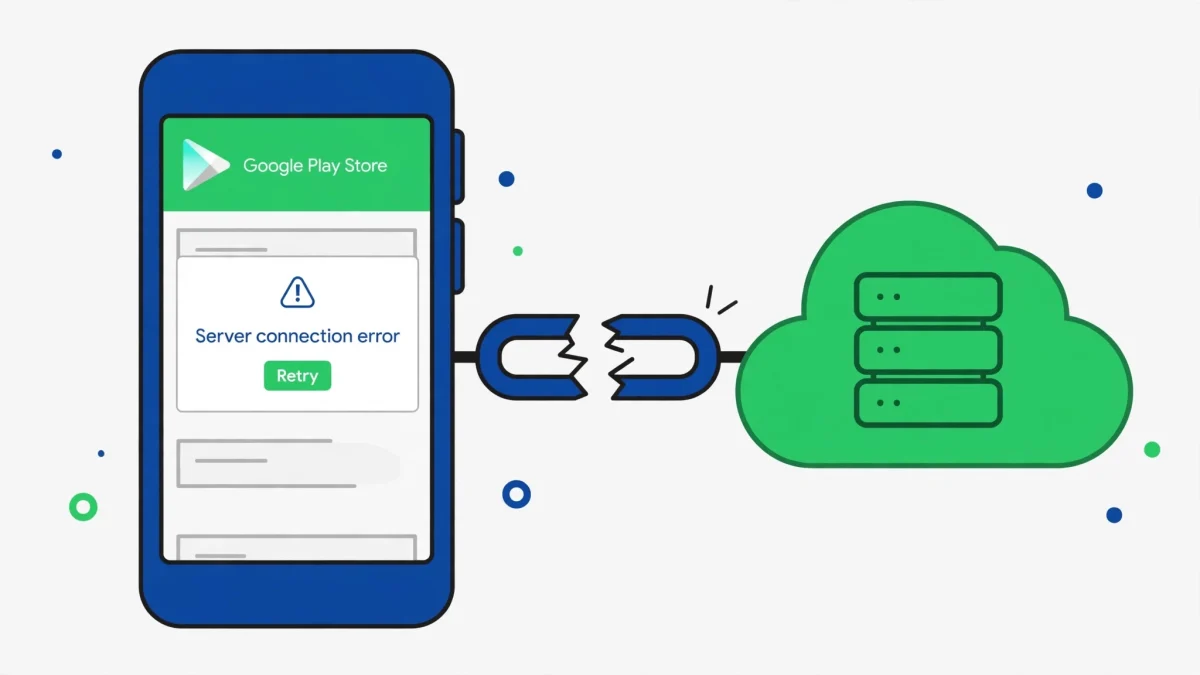
Run this split test first, because it decides everything else: open play.google.com in your phone’s browser and try to view an app page while signed into the same Google account. If the website also fails or shows the same server error, the fault is with the account or Google’s side, and Fixes 1 and 4 matter most. If the website works fine but the app does not, the fault is in the Play Store app on this phone, and Fixes 3 and 5 are your shortcut. Covers Android 10 through 14.
Quick Answer
For the Play Store “Error retrieving information from server” message, first check your connection and whether Google’s servers are having trouble, then set the date and time to automatic and clear the cache and data of Google Play Store, Google Play Services, and Google Services Framework. If it persists, remove and re-add your Google account.
In This Guide
- 1. Rule Out a Server Problem and Switch Networks
- 2. Fix the Date, Time, and Time Zone
- 3. Clear the Server-Communication Trio: Store, Services, Framework
- 4. Remove and Re-Add the Google Account, Then Re-Sync
- 5. Roll Back Play Store Updates and Refresh Play Services
- 6. Check Custom ROMs, VPNs, and the Web Play Store
- Frequently Asked Questions
1. Rule Out a Server Problem and Switch Networks
The message literally says the server could not be reached, so the first job is to find out whether the server is the problem. A surprising number of people rebuild their phone’s settings for an outage that clears itself in half an hour. Do the cheap checks before touching anything.
- Wait five minutes and reopen the Play Store. A brief server hiccup produces exactly this message and then vanishes on its own.
- Check outage reports from other users for Google Play at the same time. A sudden cluster of identical “retrieving information” reports points at Google’s side, not your phone.
- Switch networks for one test: turn off Wi-Fi and try the Play Store on mobile data, then switch back. If it works on mobile data, restart your router (unplug for 30 seconds) and try Wi-Fi again.
- Turn off any VPN completely for this test — not paused, fully disconnected — and close the VPN app. VPN addresses are regularly throttled or blocked at Google’s sign-in servers, and the failure surfaces as this exact server error.
2. Fix the Date, Time, and Time Zone
For this particular error, the clock matters more than it does for most Play Store problems. Every request your phone sends to Google’s servers carries a security token with a time window, and a phone whose clock is minutes — or months — off fails that check. Google’s server then refuses to hand over any information, and the app reports the refusal as “error retrieving information from server”. A wrong clock after a battery swap, a trip abroad, or a manual time change is a classic hidden cause.
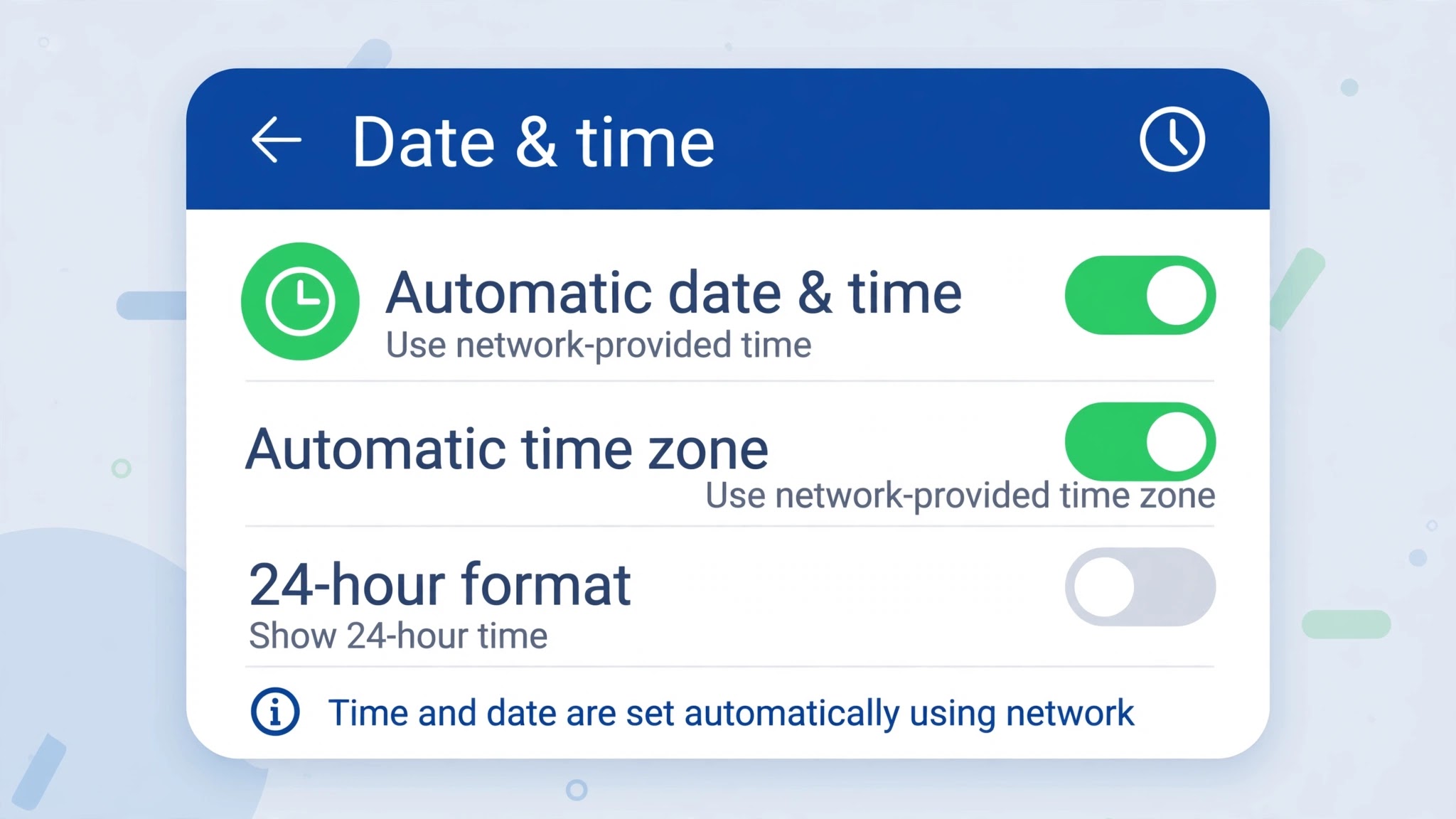
- Open Settings > System > Date & time (Samsung: General management > Date and time; Xiaomi: Additional settings > Date & time).
- Turn on Set time automatically and Set time zone automatically, then restart the phone so the new time propagates to every Google service.
- Reopen the Play Store and try loading an app page. If the server error is gone, the clock was the whole problem, and you can stop here.
3. Clear the Server-Communication Trio: Store, Services, Framework
When the clock is right and the network is fine, the fault is usually corrupted local data in the three services that talk to Google’s servers. For this error the trio is slightly different from other Play Store errors: alongside the Play Store and Play Services sits Google Services Framework, the system component that holds your device’s registration ID — the identifier Google’s servers use to recognise your phone. If that ID is corrupted, the server cannot match your request to a valid device at all.
- Open Settings > Apps > See all apps, tap the three-dot menu, and choose Show system. Without this step, Google Services Framework stays hidden.
- Find Google Play Store, tap Storage & cache, then Clear cache. Test the Play Store. If the error persists, return and tap Clear storage.
- Repeat for Google Play Services: Storage & cache > Clear cache, then Clear storage if the first attempt fails.
- Now do the same for Google Services Framework: Storage & cache > Clear cache, then Clear data. Clearing this component’s data resets the device registration, and the phone re-registers with Google on the next Play Store launch — give it a minute.
- Restart the phone, open the Play Store, and wait for it to load fully before tapping anything. The first load after this reset is slower than usual, and judging it too early produces a false failure.
4. Remove and Re-Add the Google Account, Then Re-Sync
A Google account whose sign-in expired — after a password change, a security alert, or months without a fresh sign-in — will fail the server’s authentication step, and the Play Store reports that as a retrieval error rather than a login error. That misdirection is why people keep clearing caches when the account is the real problem. Re-adding the account forces a brand-new authentication.
- Make sure you know the account password first — removing it signs you out of Gmail, Drive, and Photos on this phone until you sign back in.
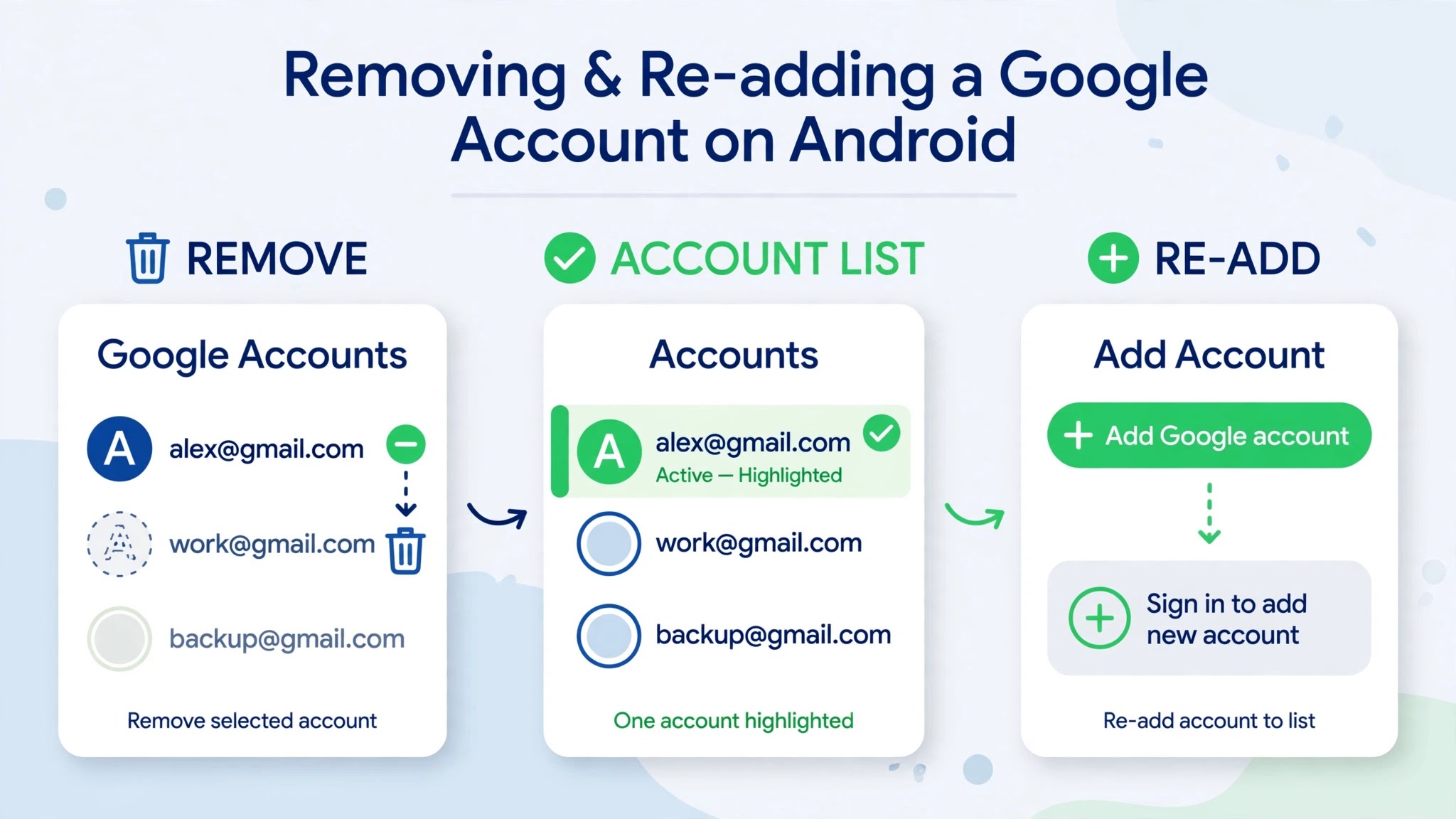
- Open Settings > Passwords & accounts (Samsung: Accounts and backup > Manage accounts; Xiaomi: Accounts & sync), tap the Google account used by the Play Store, and tap Remove account.
- Restart the phone, then add the account back: Settings > Passwords & accounts > Add account > Google, and complete the sign-in.
- After signing in, open Settings > Passwords & accounts > Google and confirm that sync is on for the account, especially for Google Play-related items. A half-synced account can reproduce the error.
- Open the Play Store and wait for the home screen to populate. If it loads, try installing a small app to confirm the server conversation is working end to end.
5. Roll Back Play Store Updates and Refresh Play Services
When the account is fresh and the caches are clean, the remaining phone-side suspect is the Play Store app version itself. A Play Store update that applied badly can break the app’s ability to talk to Google’s servers while leaving everything else on the phone working normally — which matches this error’s signature exactly.
- Open Settings > Apps > See all apps > Google Play Store, tap the three-dot menu, and choose Uninstall updates. This reverts the Play Store to its factory version without removing the app.
- Restart the phone and open the Play Store. Let it sit for a few minutes so it can update itself in the background to a clean current version.
- Search the Play Store for “Google Play Services” and install any update offered there. Play Services is the layer the Store uses to reach Google’s servers, and an outdated version can fail the same handshake.
- If the error only appears for one specific app’s page, try installing that app from the web Play Store (play.google.com in a browser, signed into the same account, then “Install” to your phone) as a workaround while the app-side fault is investigated.
6. Check Custom ROMs, VPNs, and the Web Play Store
The last group of causes is narrower, but it explains the stubborn cases that survive Fixes 1 to 5. Phones running custom ROMs, phones behind always-on VPN profiles, and phones with a work profile routing traffic can all fail Google’s server handshake in ways that look identical to a broken Play Store.
- On a custom ROM, check whether Google Services Framework matches the ROM version. Mismatched or outdated framework builds bundled with unofficial ROMs are a known trigger for RH-01 and DF-DFERH-01 server errors. Updating the ROM’s Google apps package to the matching version, from the ROM maker’s own source, is the fix — not repeated cache clearing.
- Check for a system-level VPN or proxy profile: Settings > Network & internet > VPN (Samsung: Connections > More connection settings > VPN). Remove any profile you do not need, and retry the Play Store with no VPN active.
- If the error persists on every network, with a fresh account, clean caches, and a rolled-back Play Store, contact Google Play support from the Play Store’s Help section with the exact code shown (DF-DFERH-01, RH-01, or RPC:S-7:AEC-0), the time it started, and the fact that the browser test from the introduction also failed or passed — that detail tells support whether the fault is account-side or device-side.
Prefer a walkthrough? This video covers fixing Play Store “Error retrieving information from server” (DF-DFERH-01) on Android step by step:
Video by Everyday Things — full credit to the creator.
Related Guides
Frequently Asked Questions
What do the codes DF-DFERH-01, RH-01, and RPC:S-7:AEC-0 mean?
They are all variants of the same failure: your phone could not retrieve information from Google’s Play Store servers. DF-DFERH-01 is the most common form when opening the Store or an app page, RH-01 points more specifically at Google Services Framework or account sync, and RPC:S-7:AEC-0 appears mainly during in-app purchases. The fixes in this guide cover all three, because they share the same causes.
Will clearing Google Services Framework data harm my phone?
No. It resets the device’s registration with Google, and the phone re-registers automatically the next time you open the Play Store. Your apps, photos, and files are untouched. Do it once, then restart and give the Play Store a minute to re-register before judging the result.
Why does the Play Store work on mobile data but show a server error on Wi-Fi?
That pattern points at your home network, not the phone: the router, its DNS settings, or your provider’s route to Google’s servers is failing. Restart the router first, then test again. If it still fails only on Wi-Fi, try changing the phone’s Private DNS setting to Automatic under Settings > Network & internet > Private DNS.
By Sameer Zehri | App Fix Guru Editor | Last updated: November 2026